
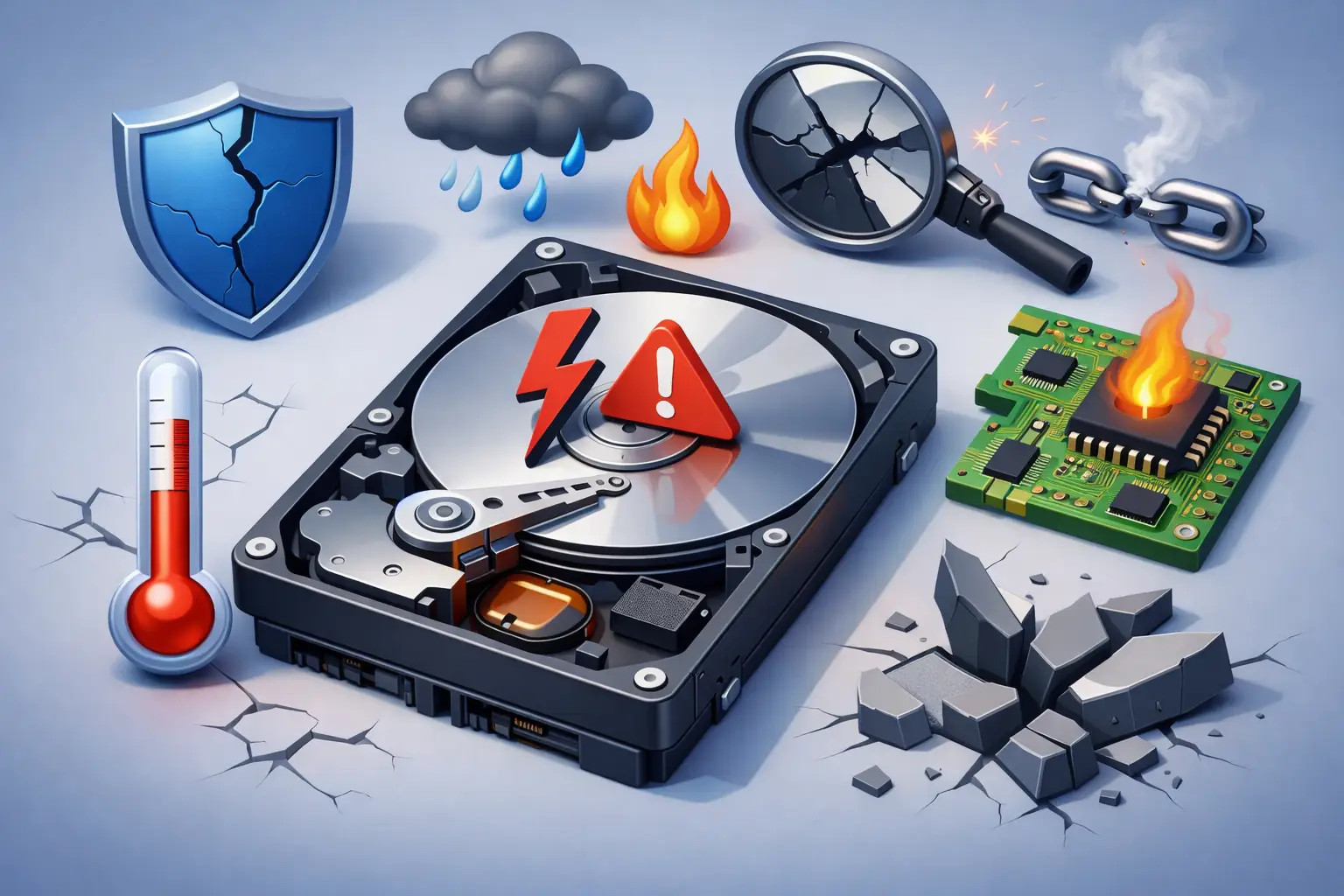
A computer can seem fine at breakfast and refuse to open family photos, schoolwork, or business files by lunch. That sudden change is why people ask what causes hard drive failure only after a device begins clicking, freezing, or showing a frightening “drive not found” message. The honest answer is that hard drives rarely fail for just one reason. Age, heat, physical damage, unstable power, and neglected warning signs can all play a role.
For Tullahoma-area homes and small businesses, the goal is not simply to get the computer running again. It is to protect the data that makes the computer valuable in the first place.
What Causes Hard Drive Failure in Most Computers?
A traditional hard disk drive, often called an HDD, has moving parts. Inside its sealed enclosure are spinning platters that store data and a tiny read/write head that moves across them. That design provides plenty of storage at a reasonable price, but it also means the drive is vulnerable to wear and physical damage.
Not every drive problem is mechanical. Files can become corrupted, the operating system can fail to start, or a loose cable can make a healthy drive appear dead. Those issues may be repairable without replacing the drive. A true mechanical failure is more serious and may require professional data recovery efforts.
Solid-state drives, or SSDs, do not have spinning platters. They are more resistant to bumps and drops, but they can still fail from worn flash memory, controller problems, overheating, firmware defects, or electrical damage. The causes overlap, but the warning signs can look different.
1. Normal Wear Over Time
Every hard drive has a service life. Bearings wear down, motors weaken, and the read/write mechanism becomes less reliable after years of daily use. A drive in a home PC that runs occasionally may last a long time, while a drive in a busy office computer, surveillance system, or server can accumulate far more operating hours.
Age does not guarantee failure, and a new drive can fail unexpectedly. Still, once a traditional hard drive reaches several years of regular use, it deserves closer attention. If it contains irreplaceable files, backups should already be in place rather than waiting for symptoms to appear.
2. Drops, Shocks, and Rough Handling
A laptop that falls off a couch, a desktop bumped during a move, or an external drive tossed into a bag can suffer immediate damage. With a traditional HDD, a sharp impact can cause the delicate read/write head to contact the platter surface. This is sometimes called a head crash, and it can damage both the hardware and the data stored on it.
The risk is highest while the drive is powered on because the platters are spinning. Even if the computer starts after a drop, unusual clicking, grinding, repeated freezing, or missing files should be treated as urgent warning signs. Continuing to restart it can make a recoverable situation worse.
3. Excessive Heat and Poor Airflow
Heat shortens the life of many computer components, including storage drives. Dust-clogged fans, blocked vents, failing cooling systems, and computers kept in hot cabinets can expose a drive to temperatures it was not designed to handle for long periods.
Overheating may cause slowdowns, random shutdowns, file errors, or intermittent drive detection before a complete failure. Small businesses should pay close attention to PCs tucked under desks, network equipment in closets, and workstations near heat-producing equipment. A simple cleaning and airflow check can prevent a costly interruption later.
4. Power Surges, Outages, and Bad Power Supplies
Electrical problems can damage a hard drive directly or corrupt data while it is being written. Lightning, utility outages, inexpensive surge protectors, failing power supplies, and abrupt shutdowns all create risk.
A surge protector helps, but it is not the same as a battery backup. For a business computer handling point-of-sale records, customer documents, or critical operations, an uninterruptible power supply can provide enough time to save work and shut down safely during an outage. It also helps smooth out brief power fluctuations that may not be obvious to the user.
5. File System Corruption and Improper Shutdowns
Sometimes the drive itself is physically healthy, but Windows cannot read its files correctly. This can happen after repeated forced shutdowns, sudden loss of power, a failed update, or software that crashes while changing important system files.
File system corruption can produce startup repair loops, missing folders, error messages when opening files, or a drive that asks to be formatted. Formatting may make the drive usable again, but it can overwrite the path to valuable data. If the files matter, stop and have the drive assessed before approving a format or reinstall.
6. Malware, Ransomware, and Software Damage
Malware does not usually cause a mechanical hard drive failure, but it can make a computer and its data feel just as unusable. Ransomware can encrypt files, malicious software can alter system settings, and poorly written programs can corrupt data or consume storage space until the system becomes unstable.
This distinction matters. Replacing the drive may not solve a malware problem if infected files or unsafe software are brought back onto the replacement system. Proper cleanup, security updates, and verified backups are part of the repair process.
7. Manufacturing Defects and Firmware Problems
Even quality drives can have defects that appear early in their lifespan. A weak component, a flawed batch, or a firmware issue can cause a drive to fail with little warning. This is one reason a warranty is helpful, but a warranty replaces hardware, not the documents, photos, accounting data, or projects stored on it.
For new drives, watch for unexplained errors, repeated disconnects, slow file transfers, or system messages about disk health. Early replacement is usually far less expensive than waiting for a total crash.
8. Loose Cables, Failed Ports, and Other Look-Alike Problems
A computer that cannot see its hard drive does not always have a failed hard drive. In desktop computers, a loose SATA cable, damaged power connector, or failing motherboard port can prevent the drive from appearing. External drives can have bad USB cables, worn connectors, or failed enclosures.
These are good reminders not to assume the worst or attempt risky fixes. The trade-off is simple: basic connection issues can be affordable to repair, while repeatedly powering up a mechanically damaged drive can reduce the chance of successful data recovery.
Warning Signs a Hard Drive May Be Failing
A hard drive can fail without warning, but many devices show symptoms first. Pay attention when a computer becomes dramatically slower, frequently freezes, restarts without explanation, or takes far longer than normal to open files. Repeated disk error messages, disappearing folders, corrupted files, and a drive that appears and disappears from the system are also concerns.
With a traditional HDD, clicking, beeping, scraping, or grinding sounds are especially serious. A quiet hum is normal. New repetitive noises are not. SSDs are silent, so their failures often show up as error messages, boot problems, or a drive that suddenly becomes unavailable.
What to Do When You Suspect a Drive Problem
If the drive still opens normally, copy the most important files first. Start with documents, photos, business records, and files that cannot be replaced. Copy them to a separate external drive or a secure backup service. Do not rely on copying files to another folder on the same failing drive.
If the drive is clicking, grinding, no longer detected, or repeatedly asking to be formatted, stop using it. Avoid installing recovery software, running repeated scans, or opening the drive enclosure. Those steps can add stress to failing hardware and complicate recovery.
For business systems, disconnecting an affected workstation from shared folders may also be wise if ransomware or file corruption is suspected. This protects other systems while the issue is diagnosed.
Preventing Data Loss Before a Drive Fails
No hard drive is permanent, which makes backup planning more practical than hoping for a perfect device. Keep at least one backup separate from the computer, and test it occasionally by restoring a file. For many households, an external backup plus a secure cloud copy offers sensible protection. For small businesses, the right setup depends on how much data changes each day, how quickly operations must resume, and any industry requirements for protecting customer information.
Regular updates, malware protection, proper ventilation, safe shutdown habits, and quality surge protection also reduce avoidable risk. Replacing an aging hard drive with an SSD can improve speed and reduce vulnerability to physical shock, although it does not eliminate the need for backups.
When a computer starts making strange noises or your files suddenly become inaccessible, time matters. TN Computer Medics can help identify whether the problem is the drive, the operating system, the power supply, or another component – and help you make the safest next move for your data.