
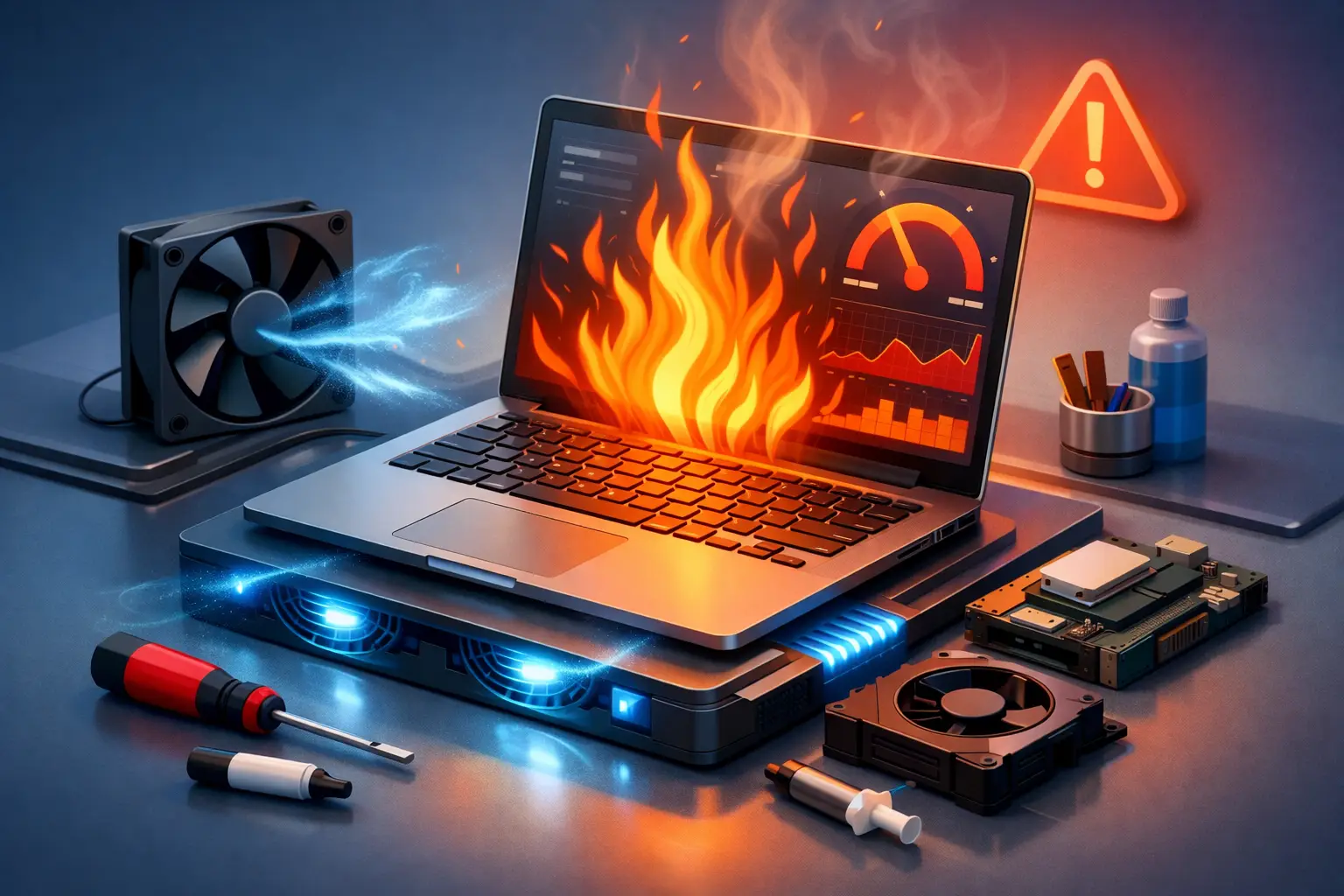
Your laptop should not sound like it is preparing for takeoff just because you opened a few browser tabs. If it is getting hot, slowing down, freezing, or shutting off during work or school, it is time to fix overheating laptop performance before the heat causes bigger hardware problems.
Heat does more than make a laptop uncomfortable to use. It forces the processor to slow itself down to avoid damage, which means apps lag, video calls stutter, games drop frames, and file transfers take longer than they should. In some cases, overheating also shortens the life of the battery, storage drive, fan, and motherboard. The good news is that many overheating issues can be improved if you catch them early and approach the problem the right way.
Why overheating hurts laptop performance
A laptop is built to manage heat in a very tight space. The processor, graphics chip, battery, and storage all produce heat, and the fan and heat sink are supposed to move that heat out. When airflow is blocked, dust builds up, software pushes the system too hard, or an internal component begins to fail, temperatures rise fast.
Once that happens, your laptop usually responds by throttling performance. That means it intentionally runs slower to protect itself. From the user side, it looks like a mysterious slowdown. Programs take longer to open, the keyboard may become warm, and the fan may stay loud all the time even when you are doing basic tasks.
This is why a laptop can feel both hot and slow at the same time. The heat is not just a side effect. It is often the direct reason performance has dropped.
Fix overheating laptop performance with the basics first
Start with where and how you use the laptop. Soft surfaces like beds, couches, blankets, and even your lap can block intake vents. If the vents are covered, heat gets trapped inside almost immediately. Put the laptop on a hard, flat surface and see whether the fan noise and temperature improve within a few minutes.
Next, check the vents for visible dust. Many people are surprised by how much lint a laptop can collect, especially if it is used in a home with pets or carried in a backpack daily. A clogged vent can reduce cooling efficiency enough to create major slowdowns.
You should also close unnecessary programs. A browser with dozens of tabs, video streaming, cloud sync, background updates, and antivirus scans all running at once can push the CPU and memory hard. Open Task Manager and look for apps using unusually high CPU, memory, or disk resources. If one process is constantly spiking, that may be the real cause of the heat.
These first steps are simple, but they matter. Sometimes performance improves right away because the system finally has enough airflow and fewer tasks competing for power.
Common causes of an overheating laptop
Dust is one of the most common problems, but it is not the only one. Aging thermal paste between the processor and heat sink can dry out over time, reducing the system’s ability to transfer heat. Cooling fans can also wear down, spin inconsistently, or stop working under load.
Software can be just as responsible. Malware, runaway background services, startup overload, and outdated drivers can keep the processor active even when the laptop seems idle. A laptop that feels hot while doing almost nothing often has a software issue, a clogged cooling system, or both.
Battery trouble can also create heat. A failing battery may run hotter than normal, swell, or cause charging-related temperature spikes. That is not something to ignore. If the case is bulging, the trackpad is lifting, or the battery drains unusually fast while getting hot, stop using it until it is inspected.
There is also a difference between normal warmth and a problem. A gaming laptop or workstation will naturally run warmer under heavy use than a basic office laptop. But if the temperature stays high during simple web browsing, or the system shuts down unexpectedly, that points to a cooling failure or deeper hardware issue.
Software steps that often help
If your laptop overheats most during regular daily use, software cleanup is worth doing before opening the machine. Start by reducing startup programs. Many laptops are slowed down by apps that launch automatically and continue running in the background all day.
Make sure the operating system, graphics drivers, and BIOS are current. Firmware and driver updates sometimes improve fan behavior, power management, and thermal control. Skipping updates can leave the laptop running hotter than it should.
Scan for malware as well. Some infections quietly consume processing power in the background, causing both sluggish performance and excess heat. If the fan suddenly became loud and performance dropped without a clear reason, malware should be on the list of possibilities.
Power settings can help too. Switching from a high-performance mode to a balanced setting may reduce unnecessary heat, especially on older laptops. You may give up a little peak speed, but in many real-world cases the system feels smoother because it is no longer overheating and throttling.
When cleaning the inside is the real fix
If the outside vents are dusty and software cleanup does not solve the issue, internal cleaning is often the next step. Dust can pack around the fan blades and heat sink fins where you cannot see it from the outside. When that happens, the fan may still run loudly but move very little air.
This is where caution matters. Some laptops are easy to open, while others use delicate clips, hidden screws, or components placed close together. Forcing the case open or using compressed air the wrong way can damage the fan or push dust deeper into the machine.
A proper internal cleaning usually includes removing built-up dust, checking fan operation, inspecting for battery swelling, and confirming that airflow paths are clear. In older systems, replacing dried thermal paste may also be necessary. That is a more advanced repair, but it can make a major difference when a laptop is running hot even after dust removal.
Signs the problem needs professional repair
Some overheating problems go beyond maintenance. If the fan makes grinding noises, temperatures spike within minutes of startup, the laptop shuts off under light use, or the case feels unusually hot in one area, there may be a failing fan, bad heat pipe, damaged motherboard component, or battery issue.
This is especially important for business users, students, and remote workers who cannot risk sudden failure. A laptop that overheats repeatedly can eventually damage storage, corrupt files, or fail to boot at all. Waiting too long can turn a simpler repair into a motherboard replacement or data recovery job.
For local users who need fast help, a qualified repair shop can test fan function, internal temperatures, battery health, and hardware stability. TN Computer Medics regularly sees systems that were assumed to be just slow, when the real issue was heat buildup or a failing internal component.
Preventing overheating from coming back
Once you fix the immediate issue, a few habits can help keep the laptop stable. Use it on a hard surface, keep vents clear, and shut it down or restart it regularly instead of leaving everything running for days. If you use demanding apps for work, design, gaming, or video editing, pay attention to fan noise and heat levels before they become severe.
It also helps to clean the exterior vents periodically and avoid using the laptop in hot cars, direct sunlight, or dusty environments. Cooling pads can help in some situations, but they are not a cure for internal dust buildup or a bad fan. They are best treated as a supplement, not a fix.
For older laptops, there is a practical trade-off. If the device still meets your needs, cleaning and repair can extend its life at a reasonable cost. But if it overheats constantly, struggles with modern software, and has multiple aging components, an upgrade may be more cost-effective than repeated fixes. The right answer depends on the laptop’s age, condition, and how heavily you rely on it.
A hot laptop is not just annoying. It is often an early warning sign that your system is working harder than it should or failing to cool itself properly. If performance has dropped and the fan never seems to rest, addressing the heat now can protect your files, improve speed, and give you a more dependable machine when you need it most.