
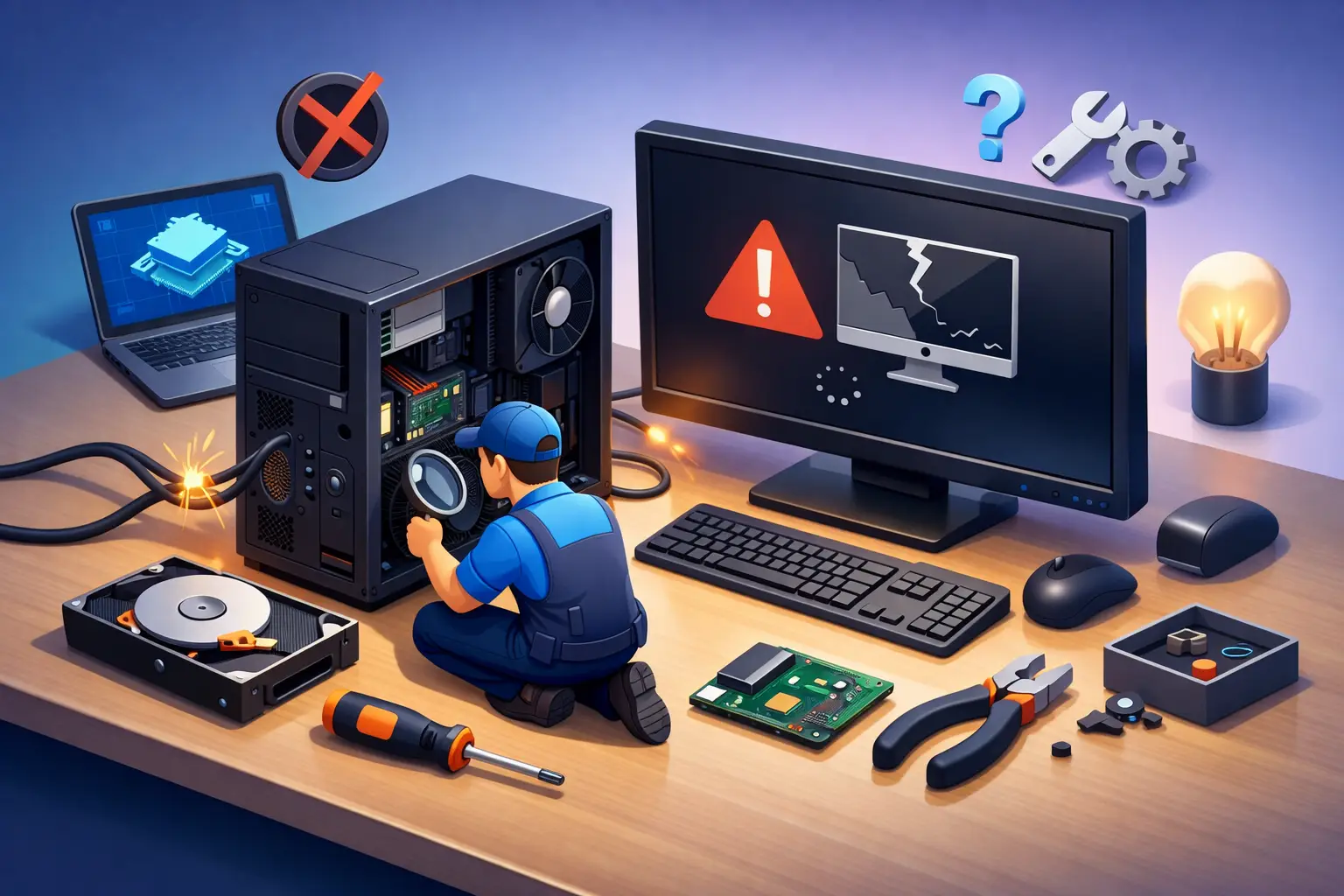
When your PC powers on but never reaches the desktop, the problem stops being annoying and starts costing you time. Desktop repair for boot failure is about figuring out whether the issue is a simple startup glitch, a failing drive, damaged system files, bad memory, or a hardware fault that needs hands-on service.
A boot failure can look different from one computer to the next. Sometimes you see a black screen with a blinking cursor. Sometimes Windows tries to load, then restarts over and over. In other cases, the machine powers up, the fans spin, but nothing appears on the monitor. Those details matter, because they point to different causes and different repair paths.
What boot failure usually means
A desktop has to move through several stages before you can sign in. The power supply has to deliver stable power. The motherboard has to initialize core hardware. The BIOS or UEFI has to detect the storage drive. Then the operating system files have to load correctly. A failure at any stage can stop startup.
That is why desktop repair for boot failure is never one-size-fits-all. A machine that shows a “No boot device found” message usually needs a different fix than a computer stuck in automatic repair. One may be a loose connection or failed SSD. The other may be tied to corrupted system files, a bad update, or file system damage.
Common causes of desktop repair for boot failure
Hard drive and SSD problems are near the top of the list. If the drive is failing, the computer may freeze during startup, disappear from the BIOS, or take an unusually long time to load anything. Clicking sounds from an older hard drive are a serious warning sign. SSDs usually fail more quietly, which can make the problem harder to spot without testing.
Corrupted Windows files are also common. Sudden power loss, forced shutdowns, malware activity, or interrupted updates can damage the files needed to start the operating system. In those cases, the hardware may be fine, but the PC still cannot boot normally.
Memory problems can create confusing symptoms. Bad RAM can cause random restart loops, blue screens during startup, or a system that powers on without completing the boot process. The same is true for motherboard issues. A bad capacitor, damaged slot, or failing onboard controller can mimic other failures.
Power supply trouble is another big factor, especially in desktops that are a few years old. If the power supply is unstable, the computer may turn on briefly, shut off, or fail to initialize components consistently. That can look like a software issue when it is really an electrical one.
Sometimes the cause is simpler. A loose SATA cable, recently added hardware, incorrect BIOS settings, or a failed peripheral can interrupt startup. That is the good news with boot issues – not every no-start situation means the whole computer is done.
Safe first steps before deeper repair
If the system recently failed after a storm, outage, or accidental unplug, start by shutting it down fully and disconnecting external devices. Printers, USB drives, docking accessories, and external storage can interfere with startup more often than people expect. Leave only the monitor, keyboard, and mouse connected.
Next, listen and look carefully. Do fans spin? Are there any beep codes? Does the monitor show a manufacturer logo, a BIOS screen, or nothing at all? If the machine reaches BIOS but not Windows, that usually narrows the problem to the drive, boot settings, or operating system rather than total motherboard failure.
If you are comfortable checking hardware, confirm that the monitor cable is seated properly and that internal cables have not worked loose. For desktops, shipping, moving, or even repeated vibration can loosen a drive cable or memory module over time. Still, if the computer contains critical business files, family photos, or accounting data, avoid repeated restart attempts. A failing drive can get worse with every cycle.
When startup repair works and when it does not
Built-in Windows recovery tools can help if the problem is limited to startup files. Automatic Repair, Safe Mode, System Restore, and command-line repair tools may rebuild boot records or roll back a bad update. These can be effective when boot failure is caused by software corruption rather than failing hardware.
The trade-off is that software repair is only useful if the storage device is healthy enough to read and write reliably. If the drive is degrading, repair attempts may fail halfway through or create more instability. That is why diagnosis comes first. Repairing Windows on top of a dying drive rarely saves time in the long run.
For home users, the temptation is often to reinstall Windows right away. Sometimes that works. Sometimes it wipes valuable data without solving the underlying issue. If the desktop contains school files, QuickBooks records, client documents, or irreplaceable photos, data protection should come before reinstalling anything.
Hardware checks that matter in desktop repair for boot failure
A proper bench diagnosis usually starts with the basics: testing power delivery, confirming POST behavior, checking BIOS detection, and isolating components one by one. Memory can be reseated and tested. The boot drive can be checked for health and read errors. Power supply output can be measured. Known-good parts may be used to rule out the motherboard, RAM, or graphics hardware.
This is where desktop repair for boot failure becomes more efficient with an experienced technician. Many startup issues overlap in symptom, but not in cause. A black screen could be a graphics problem, a BIOS issue, corrupted startup data, a failed drive, or a dead board. Swapping parts randomly wastes time and can lead to buying hardware you never needed.
Business desktops deserve extra caution. If the machine is tied to a point-of-sale system, office printer routing, local file storage, or custom software, boot failure affects more than one person. Getting the device running is only part of the job. You also need to confirm the application environment, network access, updates, and security settings afterward.
Signs you should stop troubleshooting at home
There is a point where more DIY effort can do more harm than good. If the drive is making noise, the desktop starts only intermittently, you smell overheating components, or the system has important data with no backup, professional help is the safer move. The same goes for systems that suffered liquid exposure, electrical surge damage, or repeated failed update cycles.
You should also stop if you are opening the case without being fully sure what you are handling. Static discharge, cable damage, and incorrect part installation can turn a limited repair into a larger one. Good repair is not just about getting the machine to boot once. It is about making sure it stays reliable.
What professional repair should include
A solid repair process starts with identifying whether the problem is software, hardware, or both. From there, the next step may be boot record repair, data backup, drive replacement, operating system recovery, RAM replacement, motherboard testing, or power supply replacement. In some cases, the fastest and most cost-effective option is not repairing the original install but securing the data and rebuilding the system cleanly.
For local customers in and around Tullahoma, that practical approach matters. TN Computer Medics handles desktop problems with the goal of reducing downtime, protecting data, and avoiding unnecessary replacements. That means looking at the full picture – what failed, what is at risk next, and whether the system is worth repairing versus upgrading.
It also means thinking beyond the immediate boot issue. If malware caused file corruption, the machine needs cleanup and security review. If a bad surge damaged components, power protection should be addressed. If the drive failed, backup strategy should be part of the conversation. Good repair fixes the cause, not just the symptom on the screen.
Related guide: If the boot problem is part of a wider startup or crash issue, use our Windows PC startup and crash troubleshooting hub.
Preventing the next boot failure
No desktop lasts forever, but many startup failures give warnings before they become total outages. Slow boot times, random freezing, blue screens, clicking drives, and failed updates are all signs worth taking seriously. Replacing a weak drive early or backing up data before a major failure is almost always cheaper than emergency recovery.
Regular updates, quality surge protection, malware prevention, and periodic hardware checks go a long way. So does keeping realistic expectations about aging desktops. If a system is already several years old and showing multiple issues, investing in strategic upgrades may make more sense than repeated patch repairs.
A desktop that will not boot can feel like everything stopped at once. Usually, though, there is a reason, a repair path, and a way to protect what matters most before the problem gets worse. The best next step is not guessing – it is getting the right diagnosis so you can make a smart repair decision with confidence.