
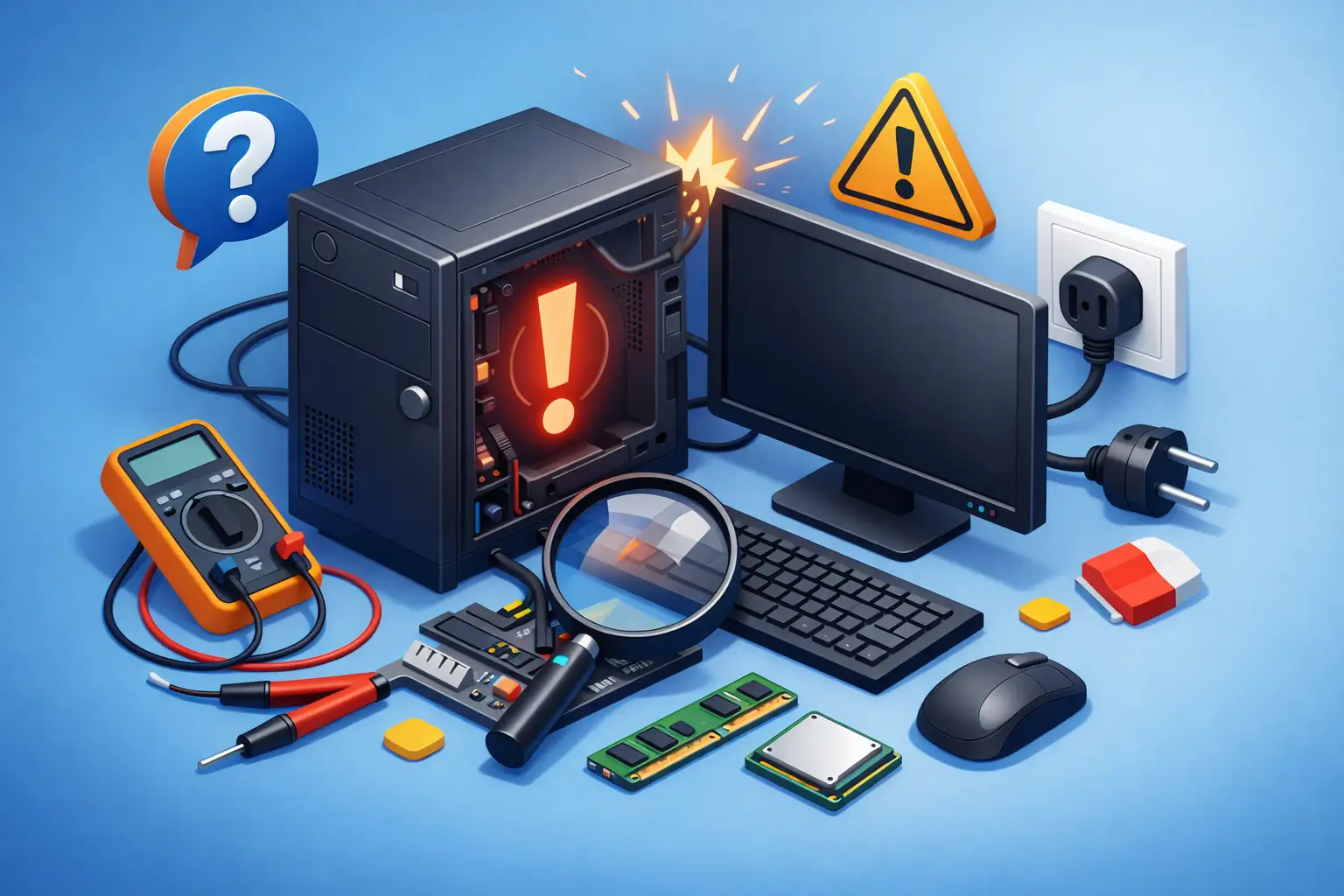
A computer not turning on can stop a student’s assignment, a remote worker’s day, or a small business’s operations without warning. Before assuming the device is beyond repair, take a breath and look for the clues that narrow the problem down: no lights, no fan noise, a blank screen, repeated beeps, or power that starts and immediately shuts off. Those details matter because a dead battery, faulty power cable, failed display, and damaged motherboard can all look like the same problem at first.
The safest approach is to start with the simple external checks, avoid repeated power attempts that could make a failing component worse, and know when the issue calls for professional diagnosis. If important family photos, work files, or business records are on the computer, protecting that data should be part of the repair decision from the beginning.
First, Confirm What “Not Turning On” Means
People often use “won’t turn on” to describe several different situations. A laptop with no lights or sound is not behaving the same way as a desktop that powers up but never shows a picture. The distinction can save time and prevent buying parts that will not solve the problem.
If there are no lights, fan movement, charging indicators, or startup sounds, the computer may not be receiving power. If lights come on and fans spin but the screen stays black, the system may be starting but failing to send a video signal. If it reaches a manufacturer logo or a spinning loading screen and then freezes, power is probably not the main issue at all. That points more toward a failing drive, corrupted operating system, malware damage, or another software-related problem.
Listen and observe before changing anything. Note whether the device has recently been dropped, exposed to liquid, struck by a power surge, overheating, or showing warning signs such as random shutdowns. For a business workstation, ask whether a network outage, electrical work, or a recent update occurred before the failure.
Computer Not Turning On: Check the Power Source
Start outside the computer. It may sound basic, but loose plugs, worn charging cables, tripped surge protectors, and failed outlets cause a surprising number of service calls.
For a desktop computer, make sure the power cord is firmly connected to the back of the tower and directly to a known-working wall outlet. If it is plugged into a surge protector or battery backup, check that the strip is switched on and has not tripped. Test the outlet with a lamp, phone charger, or another device. Also check the small power switch on the back of the desktop’s power supply, if it has one. It should be in the on position, marked with a line rather than a circle.
For a laptop, inspect the charging cable and adapter for bent connectors, exposed wiring, heat damage, or a loose fit at the charging port. Try a different wall outlet before blaming the computer. A charging light that does not come on can indicate a bad adapter, damaged port, or internal battery issue. Do not use a random replacement charger simply because it fits. The voltage and wattage must be appropriate for the model, particularly with modern USB-C laptops.
If the device was connected during a thunderstorm or a known power event, unplug it and leave it disconnected for a few minutes. Surge damage can affect the power supply, charger, motherboard, and connected peripherals. Repeatedly forcing a damaged device to start is not a useful test.
Perform a Safe Power Reset
A power reset can clear residual electrical charge and occasionally restore a laptop or desktop that appears completely unresponsive. Turn the computer off if possible, unplug the power cable, and disconnect nonessential accessories such as printers, USB drives, external hard drives, and docking stations.
On a laptop with a removable battery, remove the battery after unplugging the charger. Hold the power button down for about 20 to 30 seconds, then reconnect only the charger and try starting it. If it powers on, shut it down normally before reconnecting other equipment. On laptops with internal batteries, the same process can still help, though some models have a small battery-reset pinhole that should only be used according to the manufacturer’s instructions.
For desktops, unplug the power cord and hold the front power button for 20 seconds. Reconnect the cord directly to a wall outlet and try again. If the computer starts only after peripherals are removed, add them back one at a time. A defective USB device, dock, or external drive can sometimes interfere with startup.
When the Computer Has Power but the Screen Is Black
A black screen does not automatically mean the computer is dead. Look for power lights, keyboard backlighting, fan noise, drive activity, or the sound Windows makes when it reaches the sign-in screen. These signs suggest a display problem rather than a total startup failure.
On a desktop, confirm that the monitor is powered on and set to the correct input, such as HDMI or DisplayPort. Check both ends of the video cable. If the computer has a separate graphics card, make sure the monitor cable is connected to that card rather than the motherboard video port. Try another known-working cable or monitor if available.
On a laptop, raise the screen brightness and disconnect any external monitor, dock, or projector. Some systems may be sending video to an external display. Connecting the laptop to a known-working monitor can help confirm whether the laptop screen itself has failed.
If you see a faint image on the laptop display when shining a flashlight across it, the screen backlight may be failing. A cracked screen, loose display cable, damaged graphics hardware, or motherboard fault can produce similar symptoms, so replacing the screen without diagnosis can be an expensive guess.
Watch for Beeps, Blinking Lights, and Shutdown Loops
Many computers provide basic hardware error clues through beep patterns or blinking power lights. The meaning varies by manufacturer and model, but these alerts often point to memory, graphics, processor, or motherboard issues. Write down the pattern: how many beeps or flashes occur, their color, and whether the computer repeats the sequence.
A desktop that turns on for a few seconds and then shuts off may be overheating, experiencing a failing power supply, or detecting a shorted component. Dust buildup can restrict airflow, but a sudden shutdown loop can also be caused by failing memory, a loose internal cable, or damage from a power surge.
If you are comfortable working inside a desktop and the system is unplugged, reseating accessible memory modules can sometimes resolve a startup problem. Still, this is not the right move for everyone. Static electricity, incorrect installation, and fragile laptop components can create new problems. For a work computer, a device under warranty, or any system holding critical data, professional testing is usually the better trade-off.
Avoid These Costly Mistakes
When a computer will not start, urgency can lead to decisions that put data and hardware at greater risk. Avoid opening a power supply, which can retain dangerous electrical charge even after it is unplugged. Do not keep trying different chargers, cords, or internal parts without confirming compatibility. And do not reinstall Windows or factory-reset a computer just because it will not boot. Those steps may erase files while doing nothing to fix a failed drive or hardware fault.
Liquid exposure needs special care. Shut the computer down, unplug it, and do not charge or power it back on. Letting a wet laptop sit for a few hours is not a reliable repair method, since corrosion can continue inside the device. Fast inspection and cleaning offer a better chance of preventing permanent damage.
For business computers, resist the temptation to move a possibly failed drive into another system without a plan. Encryption, user permissions, drive failure, and data privacy all matter. A sound recovery process protects both the files and the organization responsible for them.
When to Call a Local Repair Technician
Professional diagnosis is worthwhile when basic power checks fail, the computer has signs of liquid or surge damage, the screen remains black despite known-working display equipment, or you hear unusual clicking from a hard drive. It is also the right next step when the device contains irreplaceable photos, financial files, customer information, or work in progress.
A technician can test the charger, battery, power supply, memory, drive, display system, and motherboard without replacing parts blindly. For desktops, that may mean isolating a bad power supply from a motherboard failure. For laptops, it may mean determining whether a charging-port repair, battery replacement, screen repair, or board-level issue is the actual cause.
TN Computer Medics helps Tullahoma-area homes, remote workers, and small businesses identify the real cause of startup failures and choose a repair path that makes sense for the device and budget. Mobile support can be particularly helpful when a desktop setup, office workstation, or network-connected equipment is difficult to transport.
Before handing over the computer, bring the charger and write down the symptoms, recent changes, and any error messages. That small amount of information can speed up diagnosis. More importantly, if your computer holds data you cannot replace, make that clear from the first conversation so the repair process can prioritize preserving it.