
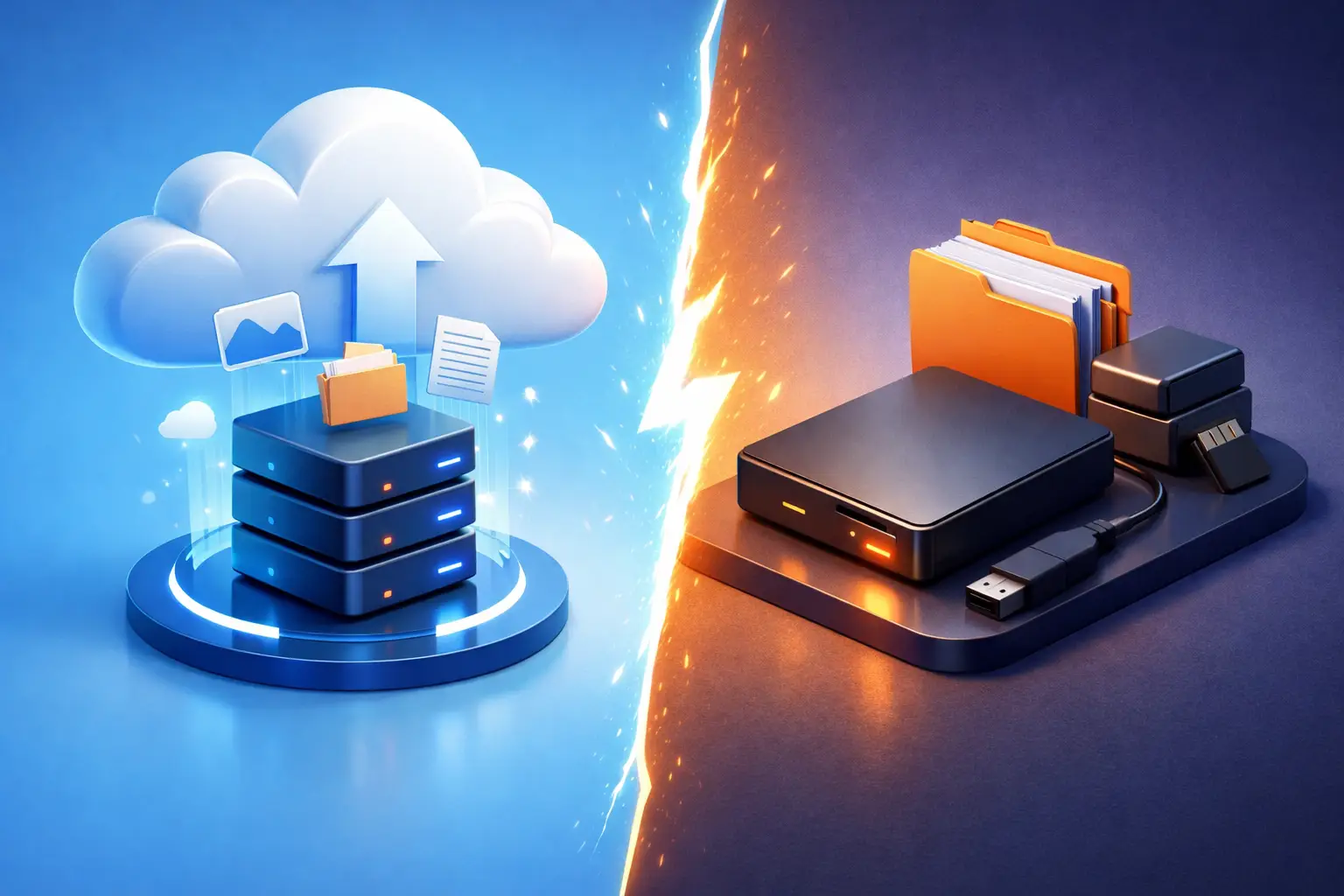
A laptop can fail without warning. A spilled drink, ransomware infection, failed hard drive, or accidental deletion can take family photos, tax records, customer files, and years of work with it. When weighing cloud backup versus external drive, the best answer is rarely choosing one and ignoring the other. Each protects against different kinds of loss.
For households, remote workers, and small businesses around Tullahoma, a reliable backup is not just a convenience. It is the difference between a frustrating repair and a damaging data-loss event. The right setup depends on how much data you have, how quickly you need it back, and what a day without access would cost you.
Cloud Backup Versus External Drive: The Core Difference
An external drive is a physical device, usually a USB hard drive or solid-state drive, connected directly to your computer. You copy files to it manually or use backup software to create scheduled backups. The files stay under your physical control, usually at your home or office.
Cloud backup sends encrypted copies of your files over the internet to secure remote servers. Depending on the service and settings, it can back up selected folders, an entire computer, or business data automatically in the background. If your computer is stolen, damaged in a fire, or fails completely, the backup is stored somewhere else.
That location difference matters. An external drive can be fast and affordable, but it is vulnerable to many of the same risks as the computer it protects. Cloud backup adds off-site protection, though restoring large amounts of data can take time and depends on your internet connection.
When an External Drive Makes Sense
An external drive is often the most practical first backup purchase for a home user. It has a one-time cost, works without an internet connection, and can restore a large photo library or full computer backup much faster than downloading it from the cloud.
This is especially useful after a hard drive failure or operating system reinstall. If you have a current local backup, you may be able to recover your files in hours rather than waiting days for a large cloud restore. A portable solid-state drive is also less prone to damage from drops than a traditional spinning hard drive, although it can still fail.
External drives are a good fit when you have large files such as videos, design projects, music production files, or local database backups. They are also helpful for people with slow internet service or data caps.
The weakness is simple: the drive must be connected and used consistently. Many people buy one, copy files once, and assume they are protected for years. That is not a backup plan. It is an old snapshot. A drive left beside the computer can also be lost in a burglary, ruined by water damage, or encrypted along with the computer during a ransomware attack if it remains plugged in.
For better protection, keep the external drive disconnected when it is not actively backing up. Store it away from the computer, ideally in a different part of the building or another secure location. Check it periodically to make sure the backup is actually completing and your files can be opened.
Where Cloud Backup Has the Advantage
Cloud backup is built for consistency and distance. Once configured properly, it can run automatically without requiring someone to remember a weekly task. That reduces one of the biggest backup risks: human habits.
It also protects against a wider range of disasters. If a laptop is stolen from a vehicle, an office has fire or storm damage, or a power event damages multiple devices, an off-site copy remains available. For small businesses, that separation can be critical. Losing one workstation is disruptive. Losing every computer and the only copy of invoices, customer records, and accounting files can stop operations.
Many cloud backup services also keep previous versions of files. If a spreadsheet is overwritten or ransomware encrypts a folder, version history may allow you to restore a clean copy from before the problem occurred. The specific retention period varies by service, so it should be reviewed before you depend on it.
Cloud backup does have trade-offs. It is usually a monthly or annual expense, and uploading the first full backup can take a long time. Restoring several terabytes of data over a standard home internet connection is not instant. Some cloud storage services also sync files rather than providing a true backup. Syncing can be useful, but if you delete or corrupt a synced file, that change may spread to every connected device.
For business data, security settings matter as much as storage space. Use a unique password, multi-factor authentication, and a service that supports encryption and clear recovery options. Avoid sharing one generic login among several employees. If a team member leaves or a password is compromised, shared credentials create unnecessary risk.
Cost, Speed, and Security Compared
The price comparison is not as straightforward as it first appears. An external drive costs more up front but has no required subscription. However, drives wear out, may need replacement, and can fail without obvious warning. A cloud service spreads the cost over time and may become more expensive over several years, but it includes off-site storage and automated protection.
Recovery speed favors local backups. Connecting an external drive can restore a few files quickly or transfer a full backup at USB speeds. Cloud recovery favors accessibility. You can retrieve a needed document from another device, even when the original computer is unavailable. For a full system recovery, cloud speed depends heavily on upload and download bandwidth.
Security is not automatic with either option. An unencrypted external drive can expose private documents if it is lost. A cloud account protected by a weak or reused password can be compromised. Encryption, strong account security, and sensible storage practices matter more than the label on the backup method.
The Best Choice for Most People: Use Both
The strongest practical approach follows the 3-2-1 backup rule. Keep three copies of important data, stored on two different types of media, with one copy kept off-site. Your working files count as one copy. A local external drive provides another. Cloud backup supplies the off-site copy.
That may sound like more than a typical household needs, but it solves real problems. If cloud access is slow, the external drive helps you recover quickly. If the drive fails, disappears, or is damaged alongside the computer, the cloud copy remains available. If a cloud account has a configuration issue, a separate local copy can prevent a painful loss.
For a home computer, this might mean automatic cloud backup for documents, photos, and desktop files, plus a monthly full backup to an external drive. For a small business, it may mean scheduled workstation and server backups, encrypted off-site copies, role-based account access, and regular recovery testing. The more your income depends on your data, the less you should rely on one backup method.
Common Backup Mistakes to Avoid
The most common mistake is assuming files are protected because they exist in a cloud-synced folder. Sync is not always backup, particularly when deletions, file corruption, or ransomware are involved. Review whether your service keeps versions and how long they are retained.
Another mistake is backing up everything except the files that matter most. Desktop folders, Downloads, local email archives, accounting databases, browser-exported passwords, and folders saved outside standard document locations can be missed. Before setting up any system, identify where your important information actually lives.
Finally, do not confuse a completed backup notification with a usable recovery. Open a few files from the external drive. Confirm that you can sign into the cloud account from another device. Test the process before an emergency, not during one.
How to Choose Your Setup
Choose an external drive first if you need an affordable local copy, have a large amount of data, or have limited internet speed. Choose cloud backup first if you need automatic off-site protection, work from multiple devices, or would be seriously affected by theft, fire, or a major hardware failure.
If you run a small office, handle customer information, or cannot afford extended downtime, use both. A technician can help identify critical files, separate backup from simple syncing, configure encryption, and make sure recovery is realistic for your internet connection and daily workflow.
TN Computer Medics helps local residents and businesses set up backup plans that fit the way they actually use their computers, rather than selling a one-size-fits-all answer. A backup is only valuable when it is current, secure, and ready to restore when you need it most.