
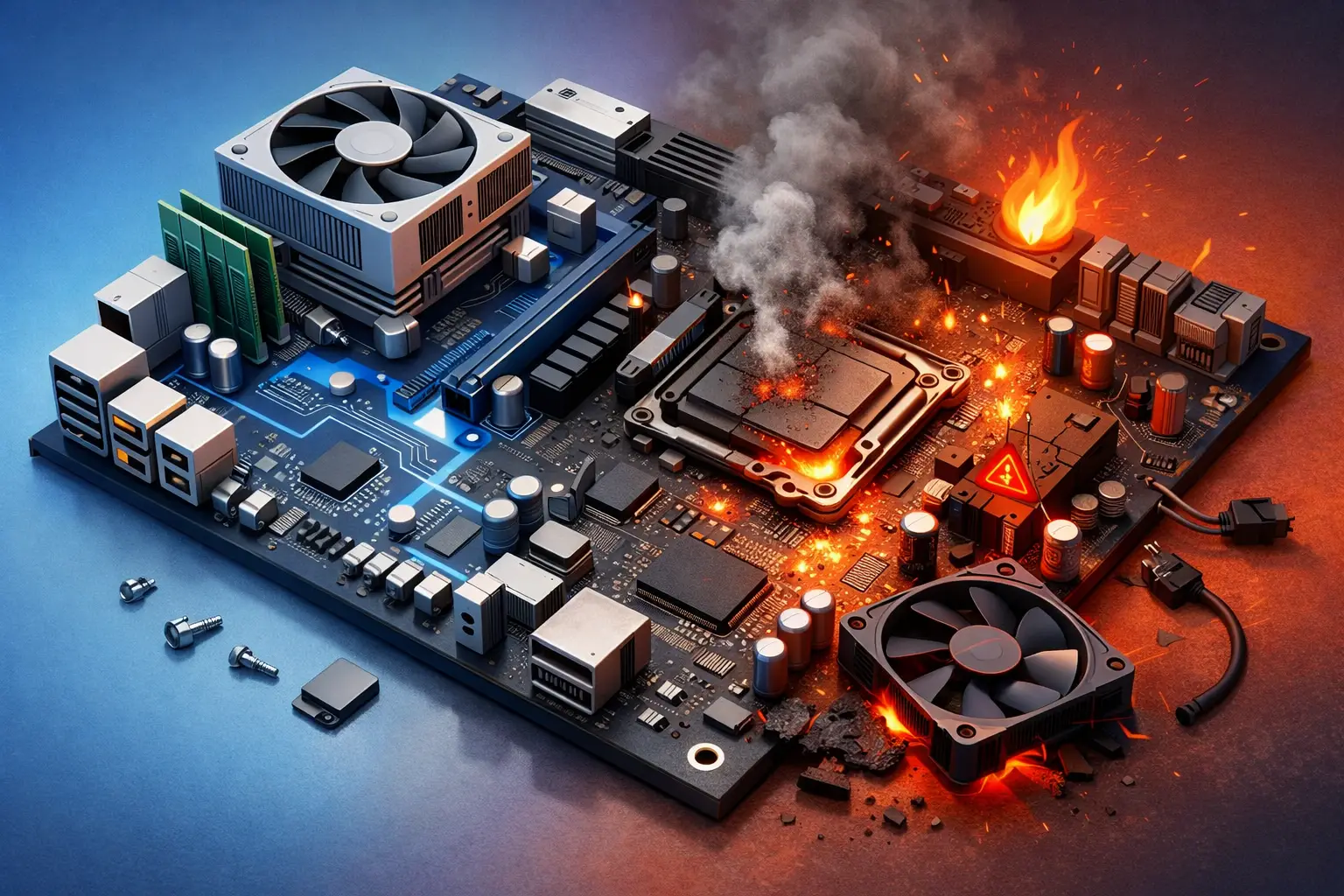
A computer that suddenly will not start can bring a household, home office, or small business to a stop. The top signs a motherboard is failing are often confusing because they can look like a bad battery, failing power supply, damaged RAM, overheating processor, or even a software problem. A proper diagnosis matters before anyone spends money on the wrong repair.
The motherboard is the main circuit board that lets your processor, memory, storage, graphics, USB ports, network connection, and other components communicate. When it begins to fail, the symptoms may be intermittent at first. Your computer might work normally one morning, then refuse to boot after lunch. That inconsistency is one reason motherboard issues should be checked by an experienced technician.
Top Signs a Motherboard Is Failing
1. The computer will not power on at all
A completely unresponsive computer is one of the most recognizable warning signs. You press the power button and nothing happens: no fan movement, no indicator lights, no screen activity, and no startup sound. On a laptop, the charging light may be present but the device still will not start.
That said, a dead computer does not automatically mean the motherboard has failed. A defective charger, drained battery, damaged power button, failed power supply, or loose internal cable can produce the same result. Desktop power supplies are especially common culprits. Testing the power source before condemning the board can prevent an unnecessary replacement.
2. It powers on but never reaches the startup screen
Sometimes the fans spin and lights come on, but the computer never displays the manufacturer logo, BIOS screen, or Windows loading screen. This is commonly called a failure to POST, meaning the computer cannot complete its initial hardware check.
A motherboard problem can prevent the processor, RAM, graphics hardware, or storage devices from communicating correctly. You may see a black screen even though the computer appears to be running. If a known-good monitor and cable still show no image, and reseating or testing memory does not help, the board becomes a stronger suspect.
3. Random shutdowns, restarts, or freezing
A computer that abruptly shuts down during ordinary work can be frustrating and risky, especially when unsaved files or point-of-sale transactions are involved. Motherboard faults can cause unstable power delivery or interrupted communication between components. The result may be random restarts, freezing, or sudden power loss without a clear error message.
However, this symptom requires careful testing. Overheating, a weak power supply, failing RAM, malware, and corrupted operating system files can all cause crashes. A technician should check temperatures, hardware logs, power output, and memory stability before recommending a motherboard repair.
4. USB ports and built-in devices stop working
When several ports or integrated features fail together, the motherboard may be involved. For example, your USB mouse and keyboard may disconnect repeatedly, the Ethernet port may stop detecting a network cable, or the built-in audio may disappear even after driver updates.
One damaged USB port may simply be a physical port issue. Multiple failures across unrelated functions are more concerning because those components are controlled through circuits on the board. This can be particularly disruptive for small businesses that rely on printers, scanners, payment devices, label printers, or wired network connections.
5. Strange beep codes or diagnostic lights appear
Many desktop computers use beep patterns, LED codes, or motherboard debug lights to report a hardware fault during startup. The exact meaning depends on the manufacturer, but codes often point toward memory, processor, graphics, or motherboard communication problems.
A single beep is normal on many systems. Repeating beeps, an unusual pattern, or a persistent red or amber diagnostic light is not. Take note of what happens before the computer shuts down or fails to display an image. Those details can make diagnosis faster and more accurate.
6. The BIOS settings or system clock keep resetting
If your computer continually forgets the date, time, boot order, or other BIOS settings, start with the simple possibility: the small CMOS battery may need replacement. This inexpensive battery keeps certain settings stored when the computer is unplugged.
If replacing the battery does not solve the issue, the motherboard’s firmware storage or related circuitry may be failing. Repeated BIOS resets can also interfere with startup, prevent access to drives, and create network or security certificate errors because the system time is incorrect.
7. You see visible damage or smell burning electronics
A burning smell, scorched area, swollen capacitor, liquid corrosion, or bent connector is a serious warning sign. Shut the computer down and unplug it rather than continuing to test it. Repeatedly powering a damaged board can worsen the failure and may put attached components at risk.
Liquid spills are especially unpredictable. A laptop may appear to recover after drying, then develop corrosion-related failures days or weeks later. If a device has been exposed to liquid, quick professional inspection offers the best chance of protecting data and limiting damage.
8. Hardware works inconsistently or disappears from the system
A drive that appears one day and vanishes the next, memory that is detected inconsistently, or a graphics card that only works in certain conditions can point to a motherboard issue. Loose connections are possible, but failing slots, damaged traces, or unstable power regulation can create the same behavior.
This symptom is easy to misread. A failing solid-state drive or hard drive can disappear from a computer, and defective RAM can produce random blue screens. Testing components individually is the reliable way to separate a board-level issue from a replaceable part.
9. Blue screens and error messages happen with no consistent pattern
Frequent blue screens can be caused by the motherboard, particularly when the errors vary and appear after other hardware has tested good. You may experience freezes while browsing, crashes during video calls, errors when connecting a USB device, or failures during startup.
Still, software corruption and driver conflicts are often more likely than a failed motherboard. An operating system reinstall, driver review, malware scan, and memory test may be appropriate steps before replacing major hardware. The goal is not just to get the computer running, but to identify why it became unreliable.
10. The system is old, but the failure is sudden and widespread
Age alone does not prove a motherboard is failing. Plenty of older computers run dependably with a storage or memory upgrade. But when an aging system develops several unrelated issues at once – unstable startup, missing ports, network problems, and random shutdowns – the motherboard may be reaching the end of its service life.
At that point, repair versus replacement depends on the device. A desktop motherboard may be replaceable if compatible parts are available and the computer still meets your needs. On many laptops, the board is proprietary and costly, so replacing the laptop can be more practical. A business workstation may justify repair if specialized software, connected equipment, or configuration would make replacement more disruptive.
What to Do Before the Problem Gets Worse
If the computer still starts, back up essential files immediately. Copy business records, school projects, photos, financial documents, and any irreplaceable data to a secure external drive or approved cloud backup. A motherboard failure does not always damage storage, but a device that cannot power on makes access more complicated.
Avoid repeatedly forcing the system to restart, especially if you smell burning, hear unusual electrical noises, or see visible damage. For desktops, do not assume a new motherboard will be a drop-in fix. Compatibility with the processor, RAM, case connections, Windows licensing, and power supply all need to be checked. For laptops, opening the device without the right tools can damage fragile cables or create additional problems.
A thorough diagnosis should test the power source, memory, storage, cooling, display path, and connected peripherals before a motherboard is declared bad. TN Computer Medics can help local residents and businesses identify the actual cause, protect important data, and recommend the most cost-effective next step.
When a computer starts behaving unpredictably, treat it as an early warning rather than an inconvenience to work around. A timely inspection can turn a stressful no-boot emergency into a planned repair, a safer backup, or a replacement decision made on your schedule.