
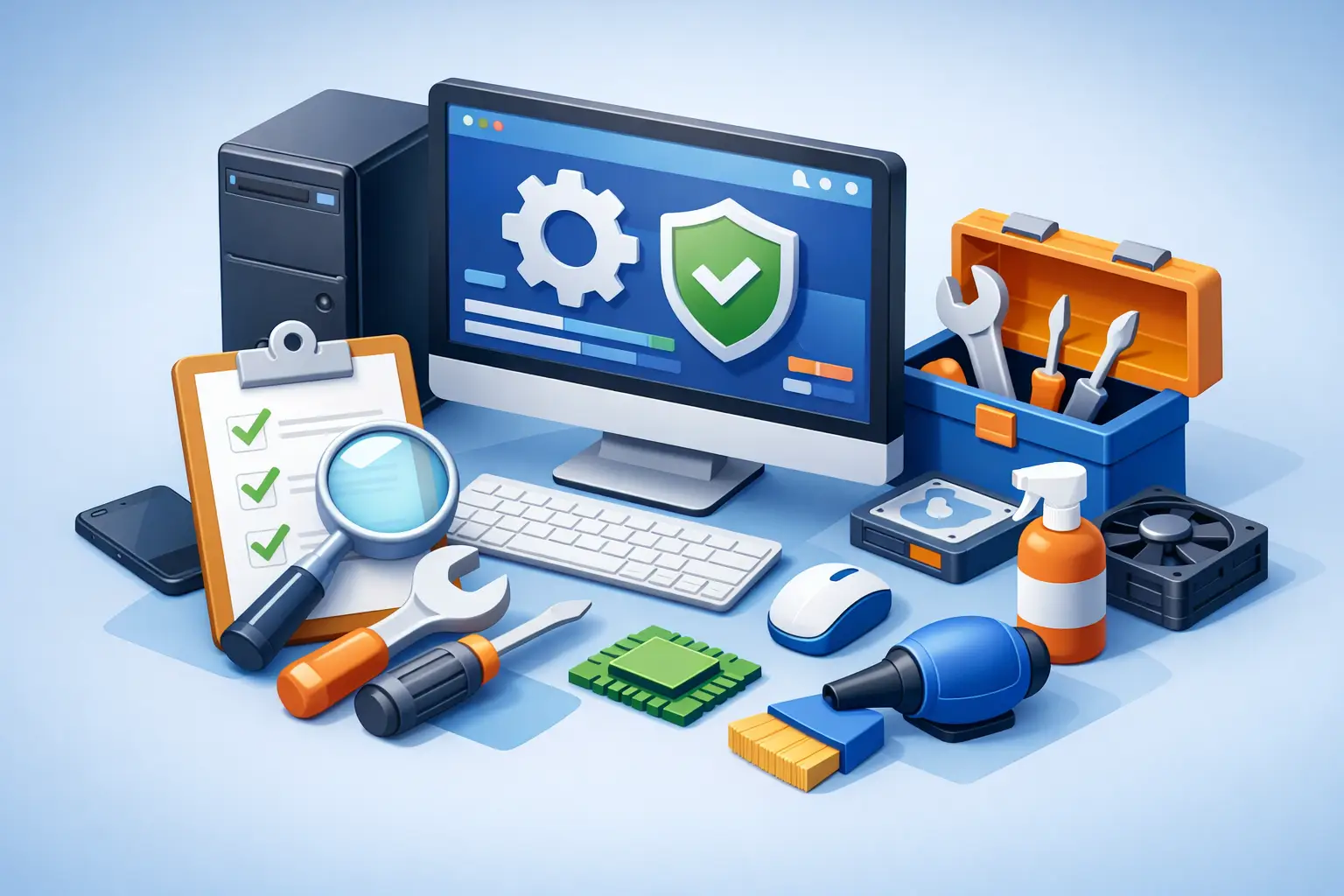
A computer rarely fails at a convenient time. It slows down before a school deadline, stops printing before an invoice run, or crashes just as an important file has not been saved. This computer maintenance checklist guide gives Tullahoma-area homes, remote workers, and small businesses a practical routine for preventing many common problems before they cause downtime.
The goal is not to turn every computer owner into a technician. It is to handle the simple, low-risk habits consistently, recognize warning signs early, and know when a repair or IT professional should step in.
Start With the Tasks That Protect Your Data
A fast computer is useful. A fast computer with no backup is still one accident, hardware failure, or ransomware infection away from a serious loss. Backups should come before cleanup tools, upgrades, and cosmetic fixes.
For most households, maintain at least two copies of irreplaceable files such as photos, tax documents, schoolwork, and scanned records. Keep one copy on the computer or a local external drive and another in a separate location, such as a secure cloud backup service. For a business, backups should include essential documents, accounting data, customer records, shared folders, and any software databases that keep operations moving.
Test the backup occasionally. Open several restored files rather than assuming the backup ran correctly. A backup drive that is full, disconnected, encrypted by malware, or never actually configured will not help during a crisis.
Watch for these warning signs: repeated hard-drive errors, files that disappear or will not open, a computer that takes much longer than usual to boot, clicking or grinding from a mechanical drive, and sudden blue-screen crashes. Turn the device off and seek help if a drive appears to be failing. Continuing to use it can make data recovery more difficult and more expensive.
Computer Maintenance Checklist Guide: Monthly Tasks
A monthly maintenance session often takes less than an hour for a home computer. For a business workstation, it may take longer because updates and restarts need to be scheduled around staff activity. Set a calendar reminder so maintenance does not get postponed until something breaks.
- Install operating system, browser, and application updates. Security patches close vulnerabilities that criminals actively use, while application updates can correct bugs and improve stability.
- Restart the computer fully. A restart clears temporary processes and finishes many pending updates. Simply closing a laptop lid is not the same thing.
- Review available storage. If the main drive is nearly full, Windows and many applications can become slow or unstable. Remove unneeded downloads, duplicate files, old installers, and programs nobody uses.
- Run a trusted security scan and confirm real-time protection is active. Do not install multiple competing antivirus programs, as they can conflict and reduce performance.
- Check that your backup completed and restore a small test file. This is the step that confirms your recovery plan works.
- Look over startup programs. Too many apps launching at sign-in can make a new or otherwise capable PC feel sluggish.
Be selective with cleanup software. Built-in storage tools are often enough for routine temporary-file cleanup. Registry cleaners and aggressive “PC optimizer” programs frequently promise dramatic results but can remove useful settings, install unwanted extras, or create new problems. If a computer remains slow after basic maintenance, the cause could be aging hardware, malware, a failing drive, insufficient memory, or a deeper software issue.
Keep Security Practical, Not Complicated
Most infections do not begin with a highly technical attack. They begin with a convincing email, a fake delivery notice, a reused password, or a pop-up that pressures someone to call a number. Good security habits reduce the chance that one click becomes a costly repair or a business interruption.
Use unique, long passwords for email, banking, work accounts, and cloud storage. A password manager can make this manageable without relying on a notebook or a handful of repeated passwords. Enable multi-factor authentication wherever it is available, especially for email. Email access can often be used to reset passwords for other accounts.
Treat unexpected attachments, password-reset notices, invoice emails, and urgent payment requests with caution. Verify unusual requests using a known phone number or a separate message, not the contact information in the suspicious email. For small businesses, staff awareness matters as much as the firewall. A single compromised mailbox can expose customer information, redirect payments, or spread malicious links internally.
Home Wi-Fi and business networks also need attention. Change default router credentials, use a strong Wi-Fi password, install router firmware updates when available, and remove old devices that no longer need access. Businesses should separate guest Wi-Fi from work systems and avoid allowing every device to access sensitive files or point-of-sale equipment.
Quarterly Hardware Checks Prevent Bigger Repairs
Dust, heat, loose cables, and worn accessories can cause problems that look like software failures. Every three months, inspect the computer and its workspace with the power off.
Make sure vents are clear and that the computer has room to breathe. A desktop pushed tightly against a wall or a laptop used regularly on a blanket can trap heat. Overheating may lead to loud fans, random shutdowns, performance drops, and shortened component life. Use compressed air carefully around external vents, holding fans in place when appropriate, but avoid opening a device if you are unsure how to do it safely.
Check charging cables, power strips, display cables, keyboards, mice, and printer connections for wear. A damaged charging port, frayed cable, or failing power supply can cause intermittent issues that are frustrating to diagnose. Replace questionable accessories before they damage equipment or create a safety concern.
For desktop systems, confirm that monitors, external drives, and surge protection are working as expected. A quality surge protector is a sensible layer of protection, but it is not a replacement for backups. If a business cannot afford downtime during an outage, battery backup equipment and a documented shutdown plan may be worth the investment.
Plan for Performance Instead of Chasing Quick Fixes
When a computer feels slow, the right solution depends on what is causing it. A newer computer with too many startup apps may only need cleanup and updates. An older computer with a traditional hard drive may benefit dramatically from a solid-state drive upgrade. A system used for multiple browser tabs, video meetings, accounting software, or design work may need more memory.
Before buying parts, look at the computer’s age and its role. Spending money on upgrades makes sense when the device is otherwise reliable and meets current operating system requirements. It may make less sense when the battery, screen, motherboard, drive, and operating system are all nearing the end of their useful life. A professional assessment can prevent spending money on an upgrade that only delays a larger replacement decision.
For business computers, standardizing equipment helps. Similar models, operating systems, security settings, and software versions are easier to support and recover after an issue. Keep a basic inventory that records the device name, user, purchase date, warranty details, installed software, and location of backups. That small amount of organization saves time when equipment must be repaired, replaced, or secured quickly.
Know When to Call a Technician
Some maintenance tasks are safe for most users. Others can risk data loss or hardware damage when handled without the right tools. Call for help when you see persistent malware warnings, ransomware messages, repeated blue screens, liquid damage, cracked screens, overheating, a drive making unusual noises, or a computer that will not power on.
Businesses should also get support for recurring network drops, slow shared files, unreliable Wi-Fi, access-control issues, unprotected customer data, and systems that have not been backed up or patched in months. These are not just technical annoyances. They can affect sales, customer trust, and the ability to operate.
TN Computer Medics helps local residents and businesses address both routine computer care and urgent repair needs, from malware removal and data recovery to hardware upgrades, networking, and managed IT support. Getting a clear diagnosis early is usually faster and more affordable than waiting for a minor issue to become a complete failure.
A dependable computer is built on small habits: keep backups verified, apply updates, protect accounts, leave room for cooling, and respond quickly to changes in performance or behavior. Put the monthly reminder on the calendar now, while the computer is still working normally.