
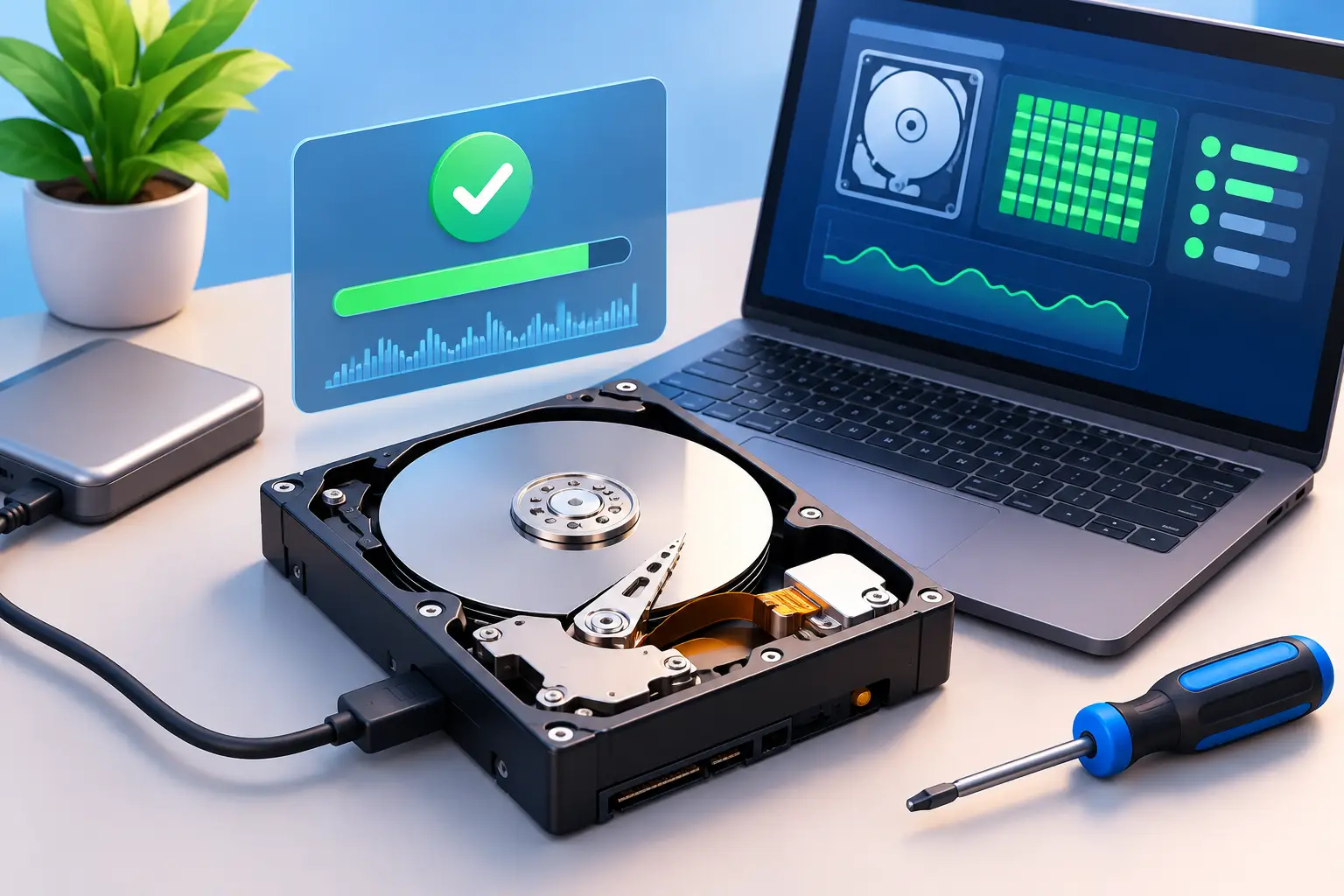
A computer that suddenly takes ten minutes to start, freezes while opening family photos, or displays a “disk error” message is not just frustrating. It may be warning you that the drive holding your files is in trouble. If you are trying to learn how to test hard drive health, start by protecting your data first. A test can identify problems, but it cannot guarantee a drive will keep working long enough to recover files afterward.
Hard drives are mechanical devices. Inside a traditional hard disk drive (HDD), spinning platters and a moving read/write head work thousands of times each day. Age, heat, power loss, physical impact, and normal wear can all lead to failure. Solid-state drives (SSDs) do not have moving parts, but they can still develop data errors or reach the end of their usable write life.
Back Up Important Files Before You Test Anything
Before running a scan, copy critical files to an external drive, cloud storage, or another computer. Prioritize documents, photos, accounting records, customer data, schoolwork, saved passwords, and any files that would be difficult or impossible to replace.
This step matters most when the computer is already showing serious symptoms. Repeated freezing, clicking or grinding sounds from an HDD, disappearing files, blue-screen errors, or a drive that is intermittently missing from the computer can indicate an active failure. A lengthy test puts additional read activity on the drive, which may be more than a failing disk can handle.
For a small business, do not rely on one copied folder as a backup plan. Confirm that current business files, point-of-sale records, shared folders, and cloud-synced data are actually protected and recoverable. Downtime is expensive, and a hard drive failure can become a business interruption when backups have not been checked.
Warning Signs Your Hard Drive Needs Testing
A slow computer does not always mean the hard drive is failing. Low storage space, too many startup programs, malware, outdated software, or a weak internet connection can create similar frustration. Still, certain patterns deserve attention.
An HDD that clicks, beeps, scrapes, or repeatedly spins up and down needs immediate attention. Normal drives make some quiet operational noise, but new rhythmic clicking or grinding is not normal. Shut the computer down if possible and avoid repeatedly restarting it.
Other signs include files that will not open, folders that take unusually long to load, messages asking you to scan or repair a drive, corrupted documents, frequent application crashes, or Windows taking much longer than usual to boot. On an SSD, you may see sudden read-only behavior, system crashes, missing partitions, or unexplained file errors rather than mechanical noise.
How to Test a Hard Drive With Windows Tools
Windows includes several useful tools for checking a drive. They provide different types of information, so it is wise to use more than one when the computer is stable enough to do so.
Check the Drive’s SMART Status
SMART stands for Self-Monitoring, Analysis, and Reporting Technology. Most modern HDDs and SSDs track internal reliability indicators, such as read errors, bad sectors, temperature, and power-on hours. A SMART warning does not always mean immediate failure, but a failed status should be treated seriously.
In Windows, right-click the Start button, select Terminal or Command Prompt, and enter:
`wmic diskdrive get model,status`
A result of “OK” is reassuring, but it is not a complete clean bill of health. This basic Windows command is limited and may not show developing issues. A result such as “Pred Fail,” “Bad,” or anything other than OK means you should back up data immediately and plan for drive replacement.
For a deeper SMART review, a technician can examine the specific error counts and wear indicators reported by the drive. This is especially helpful when a computer is slow but has not yet produced an obvious failure message.
Use Windows Error Checking
File system errors can make a healthy drive appear unreliable. Windows Error Checking looks for problems with the way files and folders are organized on the disk.
Open File Explorer, select “This PC,” right-click the drive you want to check, and choose Properties. Under the Tools tab, select Check in the Error checking section. Windows may report that no scan is needed, but you can still run a scan if you are troubleshooting crashes, file errors, or unexpected shutdowns.
This tool is useful for logical file system problems. It does not prove that the physical drive is healthy, so pair it with SMART information and a closer look at system symptoms.
Run CHKDSK Carefully
CHKDSK is a more detailed Windows disk-checking utility. Open Command Prompt or Terminal as an administrator and use this command for a standard file system scan:
`chkdsk C: /scan`
Replace C: with the correct drive letter if you are testing another internal or external drive. If Windows finds file system issues, it may recommend a repair command such as:
`chkdsk C: /f`
The `/f` option fixes logical errors. Windows will usually schedule the repair for the next restart when checking the main system drive.
You may also see advice to use `/r`, which searches for bad sectors and attempts to recover readable information. This can take many hours on a large HDD. It can be useful on a stable drive with suspected bad sectors, but it is not the first move for a drive making clicking sounds or repeatedly disconnecting. Back up what you can first, because a full surface scan places heavy demand on an already weak disk.
Test a Drive on a Mac
Mac users can check an internal or external drive with Disk Utility. Open Disk Utility, select the drive from the sidebar, and choose First Aid. The tool checks the disk structure and attempts repairs where appropriate.
First Aid is useful for volume and file system errors, particularly after an improper shutdown or an external drive disconnects unexpectedly. If Disk Utility reports a hardware problem, repeatedly fails, or cannot mount the drive, stop using that drive for everyday work and make data recovery a priority.
Use Manufacturer Diagnostics When Available
Many drive manufacturers offer diagnostics designed for their own HDDs and SSDs. These utilities can run short tests, extended tests, and sometimes firmware checks. A short test is a good initial screen. An extended test reads more of the disk and may find problems a quick scan misses.
Manufacturer diagnostics can be more informative than a basic SMART status, but results still require context. A passed test does not erase the significance of clicking noises, recurring crashes, or files that are becoming corrupted. Likewise, a failed test generally means replacement is safer than continued use.
If the drive is external, test the basics before assuming the disk itself is bad. Try a known-good USB cable, a different port, and another computer. A damaged cable, weak USB hub, or failing enclosure can mimic a bad drive. Never open an external drive enclosure unless you understand the risks, especially if data recovery is needed.
Know When to Stop Testing and Get Help
There is a point where more testing creates more risk. Stop using the computer and seek professional support if the drive clicks or grinds, is no longer detected consistently, causes repeated blue screens, reports SMART failure, or contains data that has not been backed up.
Do not install new programs, download large files, run defragmentation, or keep restarting a potentially failing HDD. Defragmentation is not appropriate for SSDs and can add unnecessary wear. Avoid opening a failed hard drive yourself as well. Internal components are extremely sensitive, and clean-room recovery is sometimes the only option once mechanical damage occurs.
For business computers, servers, or network-attached storage, a single drive alert may affect more than one person. Check whether the system uses RAID, but do not assume RAID is a backup. One failed drive can often be replaced without data loss in a properly configured array, yet a second failure, a failed rebuild, ransomware, or accidental deletion can still put operations at risk.
What a Healthy Drive Check Should Lead To
Testing a drive is not only about finding a failure. It is an opportunity to prevent the next emergency. Keep enough free space for Windows and your applications to work properly, use surge protection where practical, shut computers down correctly, and verify backups on a schedule. HDDs that are several years old and hold essential data deserve extra attention, even if they are currently passing tests.
When the results are unclear, a local technician can separate drive trouble from malware, memory errors, overheating, software corruption, or a failing power supply. TN Computer Medics can assess the drive, protect recoverable data, and recommend a practical repair or replacement based on how you use the computer. The best time to address a questionable hard drive is while your files are still accessible and your workday is still moving.