
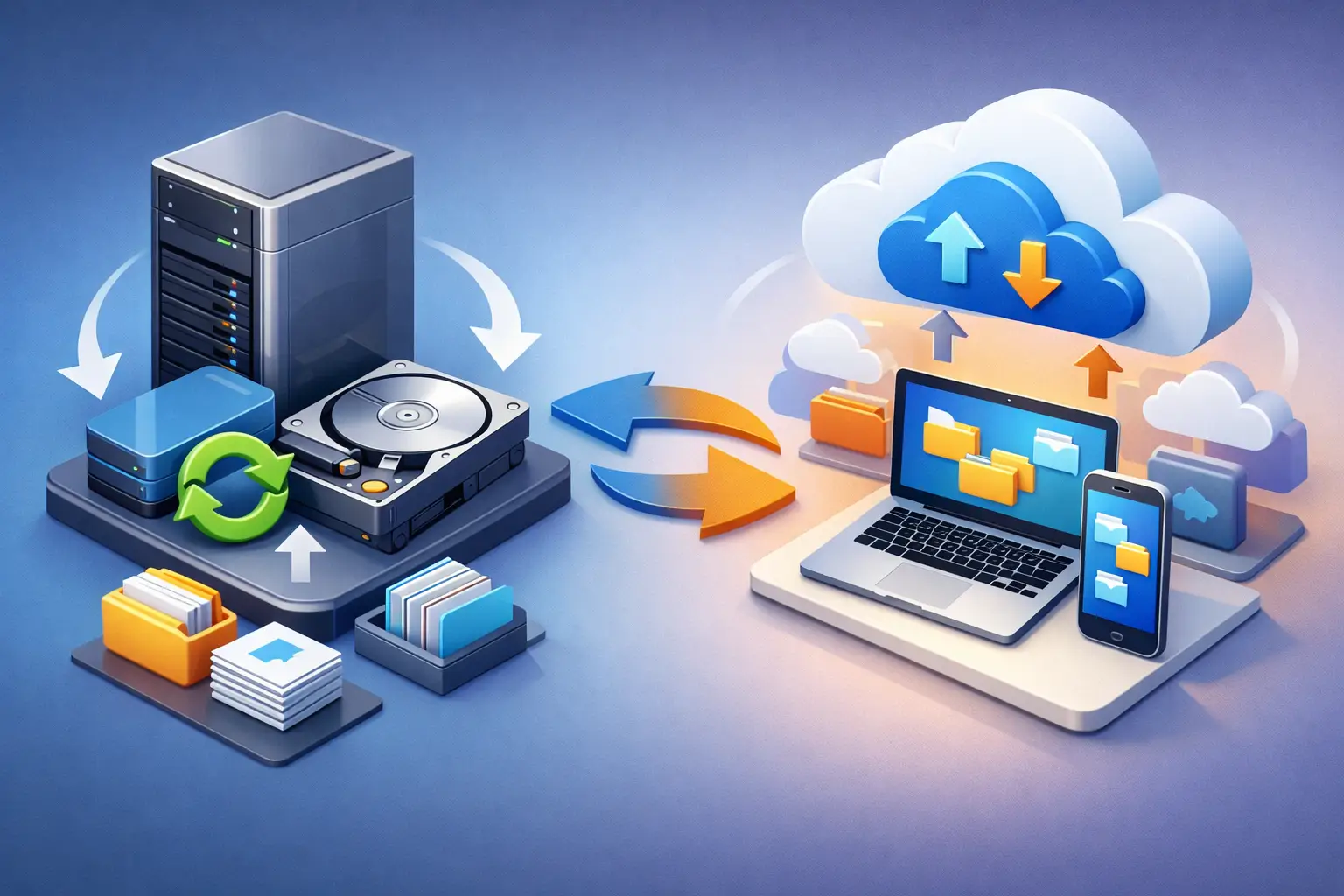
A staff member deletes the wrong folder at 4:45 p.m. Another file gets overwritten the next morning. By Friday, accounting is asking where last month’s invoices went. That is usually the moment when business backup vs cloud sync stops being an abstract IT topic and turns into a real business problem.
Small businesses often assume cloud sync means their files are protected. Sometimes they are partially protected. Often they are simply copied between devices fast enough to spread a mistake everywhere. If you rely on shared folders, Microsoft 365, Google Workspace, QuickBooks exports, customer records, or point-of-sale data, knowing the difference matters.
Business backup vs cloud sync: what is the difference?
Cloud sync is designed for access and collaboration. It keeps the same file available across multiple devices and users. When someone edits, renames, or deletes a file, that change usually syncs across the whole environment. That is useful when your team needs the latest version right away.
Business backup is designed for recovery. It creates separate copies of your data so you can restore files, folders, systems, or sometimes entire servers after deletion, corruption, ransomware, hardware failure, or user error. A proper backup is not just another live copy. It is a recovery system with retention, version history, and controlled restore points.
That distinction sounds simple, but it gets overlooked all the time. A synced folder helps people work. A backup helps a business survive mistakes and downtime.
Why cloud sync feels like backup until something goes wrong
Cloud sync platforms are convenient, and that convenience can create false confidence. If a file is on a laptop, desktop, and cloud portal, it looks protected. The problem is that synced copies often mirror damage just as efficiently as they mirror useful work.
If an employee accidentally deletes a folder and the deletion syncs, every connected device may reflect that deletion. If ransomware encrypts synced files before security tools catch it, corrupted versions can be pushed into shared storage. If someone saves over a contract with the wrong numbers, the bad version may become the current version everywhere.
Some sync platforms offer file history or recycle bins, and those features absolutely help. But they are not the same as a structured backup plan. Retention may be limited. Recovery may be incomplete. Certain changes may not be easy to roll back. And if user accounts are compromised, the attacker may tamper with cloud-stored content too.
For a home user with a few school documents, sync alone may feel good enough. For a business with payroll records, customer files, tax documents, vendor agreements, and operational data, it usually is not.
What a real business backup should include
A real backup strategy does more than copy files to another location. It preserves recoverable versions over time and gives you options when something fails.
For most small businesses, that means backups should cover workstations, servers if you have them, shared drives, and cloud-based business data that your team depends on every day. It should also include scheduled backups, retention policies, and tested restoration procedures. Backups that have never been tested are a gamble.
Good business backup planning also separates backup storage from the live production environment. That way, one mistake, infection, or hardware problem does not take out everything at once. In many cases, the best setup includes a local backup for faster restores and an off-site or cloud backup for disaster recovery.
Versioning matters too. If a file was corrupted three days ago but nobody noticed until today, you need the ability to restore a clean version from before the problem started. A single mirrored copy will not help much there.
Business backup vs cloud sync for common small business risks
The easiest way to compare them is by looking at what actually happens in day-to-day business operations.
If an employee needs the latest sales spreadsheet from both the office PC and a laptop at home, cloud sync is excellent. It keeps work moving and reduces confusion around which file is current.
If an employee accidentally deletes the entire sales folder, business backup is what gives you a path back.
If a hard drive fails in a front desk computer, sync may help retrieve files that were already uploaded, but it may not restore local applications, system settings, or unsynced data. Backup gives you broader recovery options.
If ransomware hits one machine, sync can become part of the problem if encrypted files start replacing healthy ones. Backup becomes the safety net, provided it is isolated and not compromised.
If internet service goes down, sync may stall completely. A local backup may still give you immediate access to recent recovery points.
This is why the right answer is rarely one or the other. It is usually both, with each doing a different job.
Where cloud sync fits in a healthy IT setup
Cloud sync still has a valuable place in business technology. It supports remote work, file sharing, collaboration, and access from multiple devices. For many small companies, it is a practical way to keep teams connected without expensive infrastructure.
The mistake is treating sync as the whole data protection plan.
Used correctly, sync improves workflow while backup protects continuity. One keeps the office productive on a normal day. The other gives you a recovery path on the bad day. Both matter, but they are not interchangeable.
That is especially true for small businesses that do not have a full in-house IT department watching retention settings, monitoring failed backups, or reviewing security alerts. A simple setup can still be effective, but it needs to be intentional.
How to choose the right backup approach
The right setup depends on how your business operates, what data you handle, and how much downtime you can tolerate.
A medical office, retail store, contractor, law office, or accounting firm will all have different recovery needs. If you can function for a day without access to files, your recovery strategy may be simpler. If every hour of downtime means lost sales, missed appointments, or payment issues, you need faster restore options and tighter monitoring.
It also depends on where your data lives. Some businesses store most of their critical files in cloud apps. Others still rely heavily on local desktops, external drives, network-attached storage, or industry-specific software running on a single office machine. Many use a mix of all of it.
That mix is where weak spots usually show up. Business owners may assume their email provider backs up everything, their sync service protects deleted files forever, or their external drive is enough because it worked last year. In practice, partial protection leaves gaps. Those gaps tend to show up when a machine dies, an employee clicks the wrong attachment, or someone needs a file they thought would always be there.
Signs your business is relying too much on sync
If your team says, “It’s in the cloud, so we’re covered,” that is worth a closer look. The same goes for businesses that have no written retention policy, no test restores, or no backup reporting. If nobody knows how far back you can recover, that is a risk. If one staff member is manually copying files whenever they remember, that is another risk.
You should also pay attention if critical data is spread across employee laptops, front-desk computers, mobile devices, and cloud storage with no central plan. Convenience tends to grow faster than protection. Over time, businesses end up with important information living in too many places and not enough reliable recovery.
A lot of local businesses do not need enterprise-level complexity. They do need clarity. What are we protecting, how often is it backed up, where is it stored, and how quickly can we restore it?
A practical answer for small businesses
For most small organizations, the smart approach is simple: use cloud sync for collaboration and business backup for recovery. Let sync do what it does best – keeping files current and accessible. Let backup do what it does best – preserving recoverable copies that are separate from daily changes.
That may include workstation backups, server backups, cloud application backups, and monitored recovery testing. The exact tools matter less than the strategy behind them. If your backup system is not verified, not retained long enough, or not separated from live data, it may not be there when you need it.
For businesses in Tullahoma and surrounding communities, this is often one of the most overlooked parts of IT planning. It is not flashy, but it is one of the first things you appreciate after a failed drive, ransomware event, or accidental deletion. Teams like TN Computer Medics often see the same pattern – businesses invest in convenience first, then realize later they still need true recovery.
The best time to sort out your backup plan is before somebody asks where the file went. A little clarity now can save days of downtime, a lot of stress, and data you may not be able to recreate.