
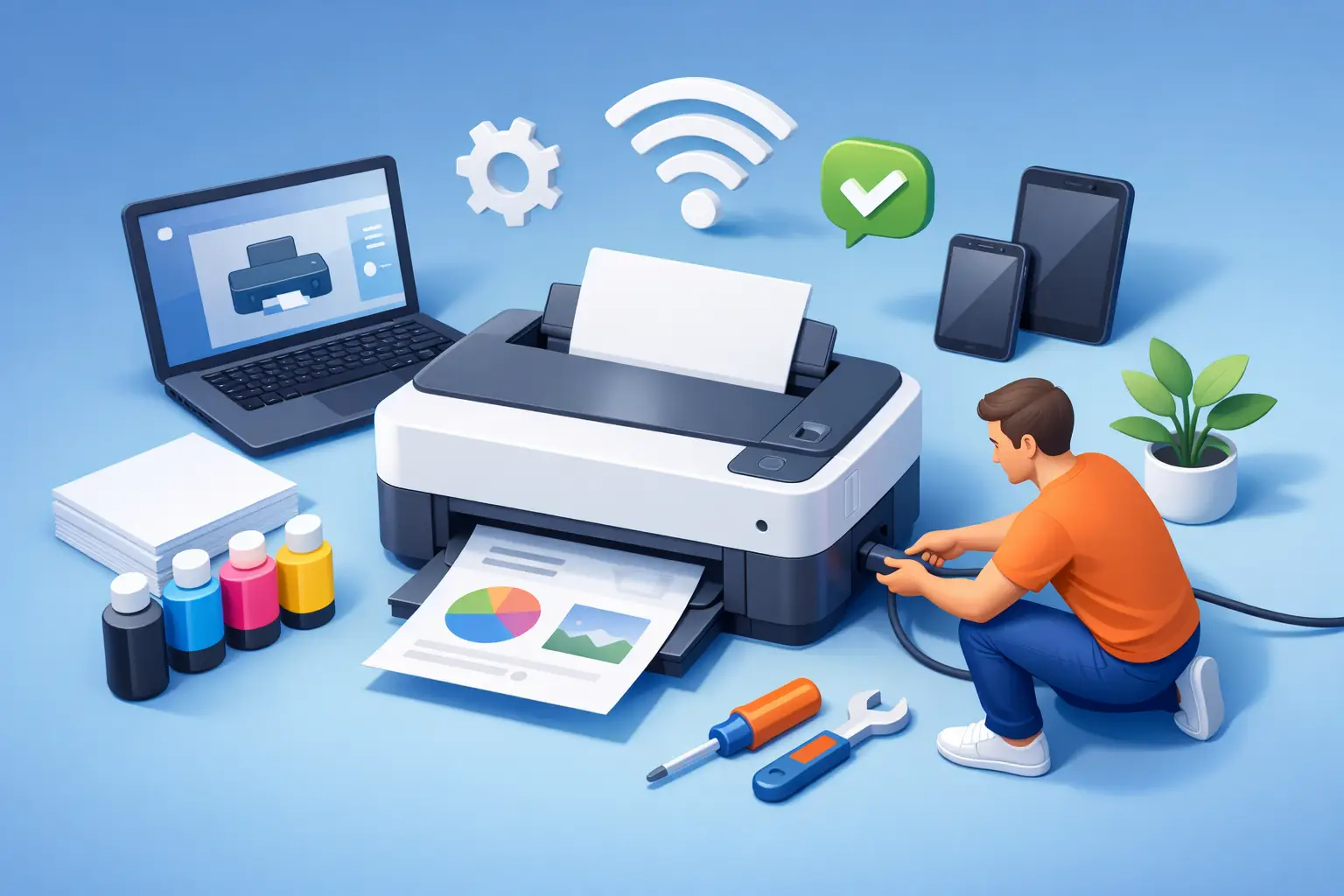
A printer usually decides to become difficult right when you need it most – five minutes before school drop-off, right before a client meeting, or when you finally have time to print tax forms. If you are trying to figure out how to set up printer equipment correctly, the good news is that most problems come from a small number of setup mistakes that are easy to avoid.
The key is doing the setup in the right order. Many people plug everything in, tap through prompts, and hope for the best. That can work, but it often leads to Wi-Fi issues, missing drivers, or a printer that shows up on one device and nowhere else. A cleaner setup saves time and prevents the usual frustration later.
How to set up printer hardware the right way
Start with the physical setup before you worry about apps, drivers, or wireless connections. Unbox the printer carefully and remove every piece of packing tape, cardboard, and protective plastic. Manufacturers hide shipping material in places that are easy to miss, including inside paper trays and around the ink carriage.
Place the printer on a stable surface with enough room for airflow and paper movement. If it is going in a home office or business workspace, keep it close enough to the router or computer for the first setup if possible. Even wireless printers are easier to configure when they are nearby.
Next, install the ink or toner exactly as directed by the printer prompts. This is one of those steps where forcing a cartridge into place usually creates a bigger problem. Once the cartridges are in, load plain letter-size paper and power the printer on. Most new printers will run an initial alignment or calibration. Let that finish fully before moving on.
If your printer has a touchscreen, use it to choose language, region, date, and time if those options appear. These settings matter more than they seem, especially on all-in-one printers that scan, fax, or connect to cloud features.
Choose USB or Wi-Fi before you install software
This is where setup often gets messy. You need to decide how the printer will connect before installing it on your computer or phone.
A USB connection is the most straightforward option. It is often best for a single desktop computer, a point-of-sale station, or any setup where reliability matters more than flexibility. If the printer will only be used by one machine, USB can reduce connection headaches.
Wi-Fi is better when multiple people need access, or when you want to print from laptops, tablets, and phones. It is the more common choice for homes, home offices, and small businesses. The trade-off is that wireless setup can fail if the signal is weak, the password is entered incorrectly, or the printer connects to the wrong network band.
If your router broadcasts both 2.4 GHz and 5 GHz networks, check the printer’s requirements. Many printers connect more reliably on 2.4 GHz. If the printer supports only one band and your device tries to force another, setup may stall or fail.
Installing printer software and drivers
A lot of newer computers will detect a printer automatically, but that does not always mean the full setup is complete. Basic printing may work without the proper manufacturer software, but scanning, duplex settings, tray management, and maintenance tools may be missing.
The safest approach is to use the printer’s guided setup process from the manufacturer software or your operating system’s printer settings. On Windows, go to Settings, then Bluetooth & devices, then Printers & scanners. On a Mac, go to System Settings, then Printers & Scanners. Add the printer from there and follow the prompts.
If your printer came with a setup sheet that recommends downloading current software, that is usually better than relying on an old installation disc. Discs can be outdated, and newer operating systems may not support them well.
During installation, pay attention to whether the system is adding the printer as a standard printer, a scanner, or both. All-in-one devices should usually appear with full multifunction support. If only part of the device appears, the setup may be incomplete.
How to set up printer on Wi-Fi
Wireless printer setup is usually done one of three ways: through the printer touchscreen, with a temporary USB connection, or with a mobile app. The exact method depends on the model, but the process is similar.
On the printer itself, open the network or wireless menu and look for setup wizard options. Select your Wi-Fi network and enter the password carefully. Password errors are common because many printer screens are small and awkward to type on. If the printer says it connected, print a network status page if that option exists. That gives you confirmation and often shows the printer’s IP address.
If the printer supports WPS and your router does too, you may be able to connect by pressing the WPS button on both devices. This can be fast, but it is not always the best long-term method for troubleshooting because you do not manually confirm all network details.
After the printer joins Wi-Fi, go back to your computer and add it as a network printer. If it does not appear right away, wait a minute and refresh. Some printers take a little time to register on the network.
For phones and tablets, install the matching print service or app if needed. iPhones often work through AirPrint when the printer is compatible. Android devices may use built-in print support or a manufacturer app. If mobile printing matters in your home or business, test it during setup instead of assuming it will work later.
Common setup problems and what they usually mean
When a printer fails during setup, the problem is often more specific than it looks. A printer that powers on but will not connect usually points to network settings, not hardware failure. A printer that installs but will not print may be using the wrong driver or be stuck as offline.
If the printer is not found on Wi-Fi, restart the printer, restart the router, and make sure the computer and printer are on the same network. Guest networks can also cause problems because some isolate devices from each other.
If print jobs get stuck in queue, clear the queue and restart the print spooler or the printer itself. Sometimes the first failed job blocks every job behind it. If the print quality is poor immediately after setup, run alignment and nozzle cleaning tools before assuming the cartridges are bad.
If scanning works but printing does not, or the reverse, that usually means part of the software installed correctly and part did not. Removing the printer and reinstalling it often fixes this faster than trying random settings one by one.
Setting up a printer for a home office or small business
Business and work-from-home setups need a little more planning. A printer used by one person occasionally is very different from a printer used by staff, family members, or customers all day.
If multiple devices need access, assign the printer a stable location on the network. In many cases, giving it a reserved IP address helps prevent disappearing printer issues after router restarts. That matters more in small offices where downtime costs real time and money.
Think about who needs printing and who needs scanning. A front desk, back office, and manager station may all use the same machine differently. It is worth testing from each workstation during setup. If you wait until the printer is needed urgently, small permission or driver issues become bigger interruptions.
Security also matters. Many modern printers store network details, scan history, and user settings. Change the default admin password if the printer has a web interface or management panel. For businesses handling customer records, invoices, or internal documents, that is basic good practice, not overkill.
When DIY setup is enough and when it is not
For a simple home printer, a careful step-by-step setup is often enough. If the printer powers on, connects to Wi-Fi, appears on your device, and successfully prints a test page, you are probably in good shape.
It gets more complicated when the printer is shared across several computers, tied into a POS system, used for wireless scanning, or affected by existing network problems. In those cases, the printer may not be the real issue. Weak Wi-Fi, outdated operating systems, old drivers, and router misconfiguration can all make a printer look defective when it is not.
That is where local support can save hours. TN Computer Medics regularly helps home users and small businesses with printer setup, network troubleshooting, driver problems, and the kind of device issues that do not show up clearly in manufacturer instructions.
A printer should be one of the simpler tools in your home or office. If setup starts turning into repeated error messages, disappearing devices, or half-working features, pause and fix the foundation first. A little patience during setup is usually what keeps that printer from becoming next week’s tech problem.