
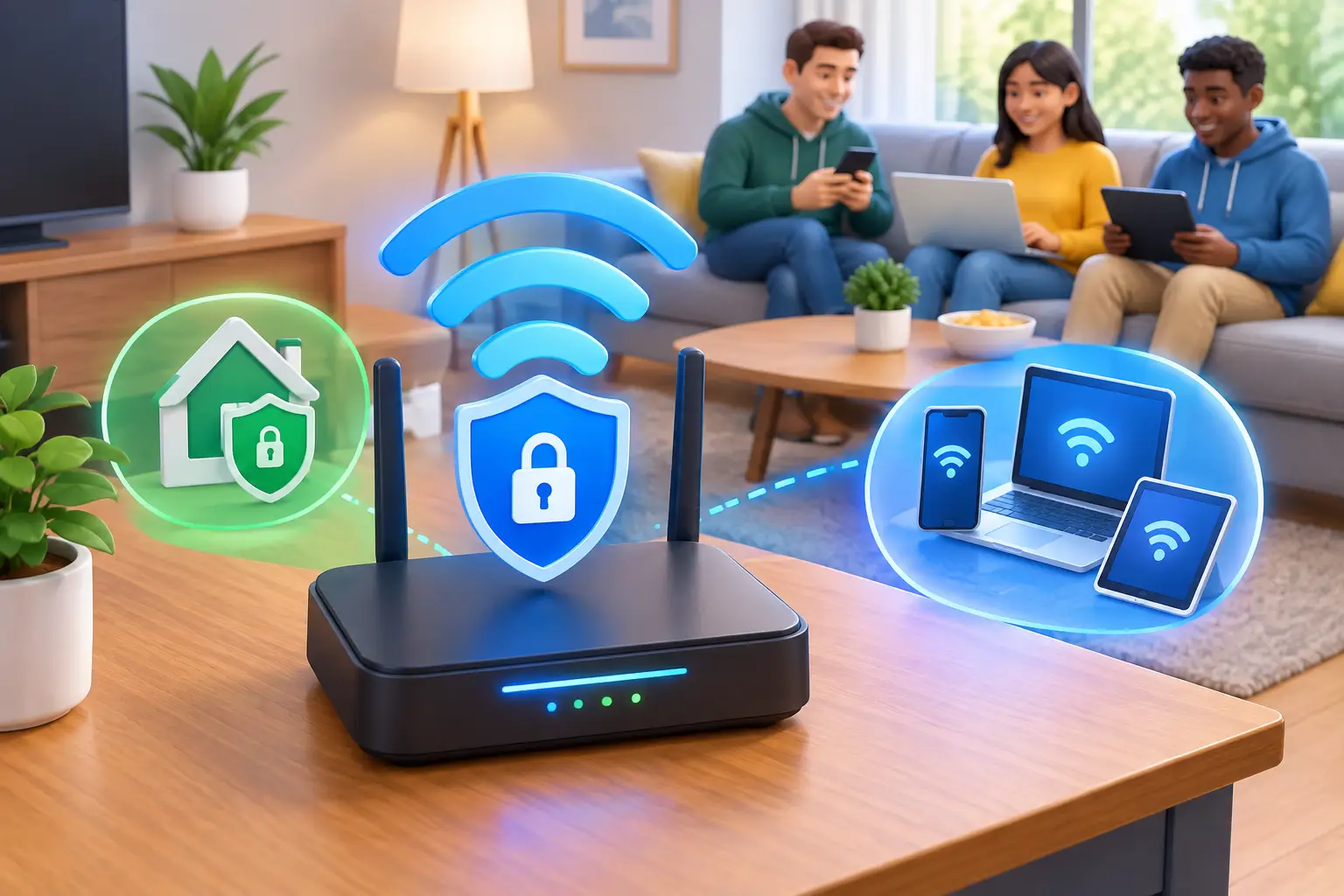
A guest asking for your WiFi password is normal. Giving that guest the same network access as your work computer, smart TVs, security cameras, printers, and business files is where problems begin. When you set up secure guest WiFi, visitors get the internet connection they need without gaining a path to the devices and information you rely on every day.
For a family in Tullahoma, that may mean keeping a teenager’s friends away from a home office laptop or smart doorbell. For a small business, it can mean separating customer internet access from POS systems, shared files, office printers, and staff devices. The setup is usually straightforward, but the details matter.
Why a Guest Network Is Worth the Extra Five Minutes
Your primary WiFi network is intended for trusted devices. Phones, computers, tablets, streaming equipment, thermostats, cameras, and printers often communicate with one another across that network. A guest network creates a separate lane for people who need internet access but do not need access to those devices.
That separation reduces risk in several ways. If a visitor’s phone is infected with malware, network isolation can help keep it from probing devices on your main network. If you run a business, it also helps prevent a customer from accidentally seeing a shared printer, network drive, or device used for payment processing. It is not a replacement for antivirus protection, backups, or proper business cybersecurity, but it is a smart first layer.
There is a practical benefit, too. You can change the guest password whenever needed without reconnecting every trusted device in your home or office. That is especially useful for rentals, waiting rooms, event spaces, churches, and businesses with frequent visitors.
What You Need Before You Set Up Secure Guest WiFi
Most current routers and mesh WiFi systems include a guest network option. Start by identifying the brand and model of your router, then make sure you can sign in to its management page or mobile app. The login information may be printed on the router, stored in the provider’s app, or documented by the person who installed the network.
If you have never changed your router’s administrator password, do that first. The administrator login controls the network itself. It should not use the same password as your WiFi. A strong, unique passphrase with several unrelated words and numbers is far safer than a short name-and-date combination.
Before making changes, consider what needs to stay on the primary network. Workstations, printers, storage devices, cameras, smart home hubs, and payment terminals generally belong there. Guests, personal visitor devices, and customer phones belong on the guest network.
Update the Router Before Opening Guest Access
Router updates are often ignored because the network appears to be working. That can leave known security weaknesses in place. Sign in to the router settings or app and check for firmware updates before enabling guest access. Many newer systems can automatically install updates, which is a worthwhile setting for most homes and small offices.
An update may briefly interrupt internet service, so schedule it outside busy hours if your business depends on the connection. If your router is too old to receive security updates or does not support WPA2 or WPA3 security, replacement is the safer choice. A low-cost outdated router can create a much larger problem than it solves.
How to Set Up Secure Guest WiFi Step by Step
Open your router’s mobile app or type its local management address into a browser while connected to your network. Look for a menu labeled WiFi, Wireless, Guest Network, Guest Access, or something similar. The wording varies by manufacturer, but the key settings are generally the same.
First, enable the guest network and give it a clear name. Avoid using your full name, street address, company name, or suite number in the network name. A label such as “Maple Guest” or “Office Guest WiFi” is easier for visitors to recognize without sharing unnecessary personal details.
Next, select WPA3 security when every device on the guest network supports it. If you have older visitor devices that cannot connect, WPA2-Personal with AES encryption remains a practical option. Avoid WEP, WPA, or an “open” network with no password. Those older settings do not provide adequate protection.
Create a separate guest password. It should be easy enough to provide to visitors but difficult to guess. A passphrase such as “River-Window-Coffee-48” is much stronger than a familiar name, “12345678,” or your business phone number. Do not reuse the primary network password.
Then find the setting that limits guest access to the local network. Depending on the router, it may be labeled “Allow guests to access local network,” “Access intranet,” “Client isolation,” or “AP isolation.” Turn off local network access and turn on client isolation when available. This helps keep guest devices from communicating with your computers, printers, cameras, and with one another.
Finally, save the settings and connect a phone to the new guest network. Confirm that it can browse the internet but cannot see shared computers, printers, or other internal devices. A quick test now can catch a setting that was missed before you hand out the password.
Four Settings That Make Guest WiFi Safer
A password alone is not enough. Review these settings after the guest network is active:
- Local network access: Keep this disabled unless there is a specific reason a guest must use an internal printer or device.
- Client isolation: Enable it to reduce communication between guest devices on the same WiFi network.
- WPS: Disable WiFi Protected Setup. Its push-button convenience can create avoidable security exposure.
- Guest network schedule: If your router supports scheduling, turn guest WiFi off after business hours or when it is not needed.
Not every router offers every control. If yours only provides a guest network name and password, use the strongest encryption available, keep firmware current, and consider upgrading if the network supports critical business equipment.
Home WiFi and Business Guest WiFi Are Not the Same Job
At home, a guest network is often enough to protect the devices connected to your primary WiFi. Still, homes with remote workers, network storage, security cameras, or a large number of smart devices may benefit from a more intentional setup. Separating work devices from smart home equipment can further reduce exposure if one device is compromised.
A small business has higher stakes. Customer WiFi should be separate from employee devices, POS systems, cameras, file storage, and management systems. For many businesses, that calls for network segmentation through VLANs, business-grade access points, firewall rules, and ongoing monitoring rather than relying only on a consumer router’s guest setting.
There is a trade-off: tighter separation can make it harder for staff to print from a personal phone or set up a temporary device. That inconvenience is usually manageable with clear procedures. It is much easier to grant limited access when needed than to recover from unauthorized access to business systems.
Common Guest WiFi Mistakes to Avoid
The most common mistake is creating a guest network but leaving local network access enabled. In that case, the new network may have a different name but still expose devices you intended to protect. Another frequent problem is sharing the primary WiFi password for convenience and never changing it after employees, contractors, tenants, or visitors no longer need access.
Avoid placing a QR code for your primary network in a public area. If you want to make guest access easy, create a QR code for the guest network only. Businesses should also be careful with captive portals that ask visitors to accept terms or provide contact information. These can be useful, but they should be configured correctly and should not become a substitute for network isolation.
Weak signal coverage creates another temptation: people connect guests to whichever network is strongest. If guests are gathering near an office area and cannot get reliable guest access, the answer may be another properly configured access point, not a shortcut to the internal network.
When It Is Time to Call a Local Technician
If you cannot find the guest-network option, do not know the router administrator login, or have multiple routers and extenders, the setup can become confusing quickly. The same is true when printers disappear, staff devices lose access, or an ISP-provided gateway is mixed with separate mesh equipment.
TN Computer Medics can help households and small businesses in the Tullahoma area configure secure wireless access, update aging equipment, and separate guest traffic from the devices that keep work and daily life moving. For businesses handling payments, client information, or shared files, getting the network design right is part of protecting operations and avoiding downtime.
A guest network should be simple for visitors and deliberately limited behind the scenes. Set it up once, test it, review it when you change routers or add equipment, and you will have one less password-sharing risk to worry about.