
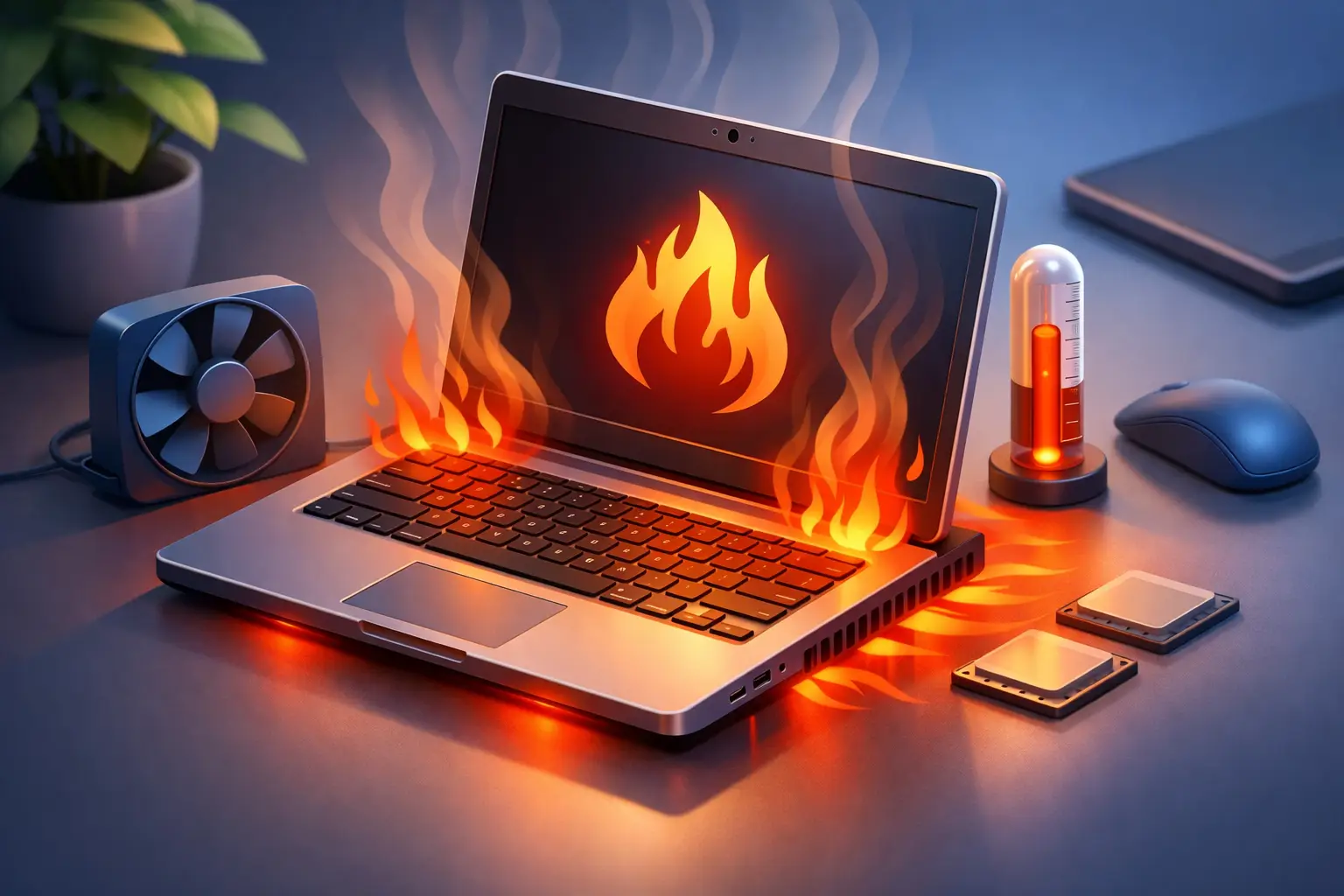
You notice the fan getting louder, the keyboard feels hot, and suddenly the laptop slows down right when you need it most. If you have been asking, “why is my laptop overheating,” the short answer is that your system is struggling to get rid of heat as fast as it is creating it. Sometimes the fix is simple. Other times, overheating points to a deeper hardware or performance issue that should be addressed before it leads to shutdowns, battery damage, or data loss.
Why is my laptop overheating in the first place?
Every laptop generates heat. The processor, graphics chip, battery, and storage all produce it while the system is running. Under normal conditions, that heat is pushed out through vents with the help of fans and heat sinks. When airflow is restricted, when internal parts are dirty, or when the laptop is working harder than it should, temperatures rise quickly.
A little warmth is normal. A laptop that becomes too hot to use comfortably, shuts off by itself, stutters during simple tasks, or sounds like a small vacuum cleaner is telling you something is wrong. Heat is not just an annoyance. Over time, it can shorten the lifespan of internal components and make everyday performance worse.
The most common reasons laptops overheat
Dust buildup is one of the biggest causes. Even in a clean home or office, laptops pull in dust, pet hair, lint, and debris through their cooling vents. That material settles on the fan blades and heat sink fins, reducing airflow and trapping heat inside the chassis.
Blocked ventilation is another frequent issue. Using a laptop on a bed, couch, blanket, or even your lap can cover intake vents. Many people do this without realizing how quickly soft surfaces can choke off airflow. A laptop needs room to breathe, especially during longer work sessions, streaming, gaming, or video calls.
Background processes can also push temperatures up. If your laptop is running too many apps, handling heavy browser use, processing updates, scanning for malware, or dealing with runaway software in the background, the processor stays under load and generates more heat. Sometimes the laptop feels hot not because the cooling system failed, but because the system is under constant strain.
Malware is a less obvious cause, but a real one. Certain infections use system resources heavily in the background, which can cause fans to run constantly and make the laptop feel unusually hot. If overheating comes along with pop-ups, sluggish performance, or strange behavior, it is worth considering a security issue.
A failing fan can create a major heat problem fast. If the fan is not spinning properly, spins intermittently, or makes grinding or rattling noises, your laptop may not be moving enough air to cool itself. In that case, no amount of software cleanup will fully solve the issue.
Old thermal paste is another factor, especially in older laptops. Thermal paste helps transfer heat from the processor to the heat sink. Over time, it can dry out and become less effective. This is not usually the first thing a casual user should attempt to fix, but it is a common repair item in laptops that run hot despite clean vents and normal usage.
Signs your laptop is overheating
Some signs are obvious, while others are easy to overlook. The clearest warning is excessive external heat around the keyboard, bottom panel, or near the vent area. Loud fan noise is also common, especially if the fan runs at high speed during light tasks.
Performance problems often show up next. The system may lag, freeze briefly, or throttle its speed to protect internal parts. Random shutdowns or restarts are more serious and usually mean the laptop is reaching unsafe temperatures.
You may also notice reduced battery life. Heat puts stress on batteries, and while a weak battery does not always mean overheating, the two often go together in aging laptops. If the battery area feels unusually warm or begins swelling, stop using the device and get it checked right away.
What you can do right away
Start with airflow. Move the laptop to a hard, flat surface like a desk or table. If you have been using it on fabric or soft furniture, that change alone may help temperatures drop. Make sure the vents are not covered and that there is open space around the device.
Next, close programs you are not using. Open Task Manager and check whether any apps are consuming an unusual amount of CPU or memory. A browser with too many tabs, a stuck update, or a misbehaving background process can keep the laptop working much harder than necessary.
Restart the laptop if it has been running for days without a break. Temporary software issues and runaway processes often settle down after a clean reboot. Then check for operating system and driver updates. In some cases, outdated drivers or firmware can affect fan behavior and thermal management.
If the vents are visibly dusty, basic external cleaning can help. Use compressed air carefully and in short bursts to clear dust from the vents. Do not stick objects into the openings, and do not spray too aggressively. Pushing debris deeper inside can make things worse.
You can also reduce heat by adjusting how the laptop is used. Lowering screen brightness, unplugging unused accessories, and avoiding high-demand tasks while charging can all help. For users who stream, game, edit videos, or run business software for long hours, a cooling pad may provide extra airflow, but it should be viewed as support, not a fix for a failing internal cooling system.
When overheating means something more serious
If your laptop still runs hot after basic cleanup and better airflow, the issue may be internal. Fans wear out. Heat sinks come loose. Thermal paste breaks down. Batteries degrade. Motherboard components can also develop heat-related faults.
This is where overheating shifts from inconvenience to repair issue. A laptop that repeatedly overheats can damage its processor, battery, charging system, or storage over time. That is especially important for students, remote workers, and small businesses that cannot afford downtime or sudden data problems.
There is also a trade-off to consider with do-it-yourself repairs. Cleaning the outside vents is low risk. Opening the laptop, disconnecting the battery, replacing the fan, or reapplying thermal paste requires care and the right tools. Some models are easy to service, while others are tightly packed and fragile. One cracked connector or stripped screw can turn a cooling issue into a much more expensive repair.
Why is my laptop overheating even when I am not doing much?
This question comes up a lot, and it usually points to hidden activity or a cooling system problem. If the laptop gets hot during basic web browsing, email, or idle time, there may be background apps using resources without you noticing. Antivirus scans, cloud sync tools, updates, and malware are all possibilities.
If software does not seem to be the cause, hardware is the next suspect. Dust-clogged vents, a weak fan, or failing thermal transfer can cause a laptop to overheat during tasks that should be easy. Older devices are more prone to this, but newer laptops can have the same problem if they are used heavily in dusty environments or never cleaned.
How to prevent overheating going forward
Good habits make a big difference. Use the laptop on a hard surface whenever possible. Keep vents clear. Shut the system down or restart it regularly instead of leaving it under constant load for weeks. Be selective about startup programs and uninstall software you no longer need.
Routine maintenance matters too. If you live in a home with pets, smoke, or a lot of dust, internal cleaning may be needed more often than you think. Business users and remote workers who depend on all-day performance should not wait until shutdowns begin. Preventive service is usually less expensive than emergency repair after heat has already caused damage.
It also helps to pay attention to early changes. A fan that gets louder, a bottom panel that grows hotter over time, or slower performance during ordinary tasks are all signs to act sooner rather than later. At TN Computer Medics, this is one of those issues we encourage people not to ignore, because heat rarely improves on its own.
If your laptop feels hotter than normal, trust that signal. A machine that runs cool tends to run longer, faster, and more reliably. A little attention now can save you from a much bigger repair later.