
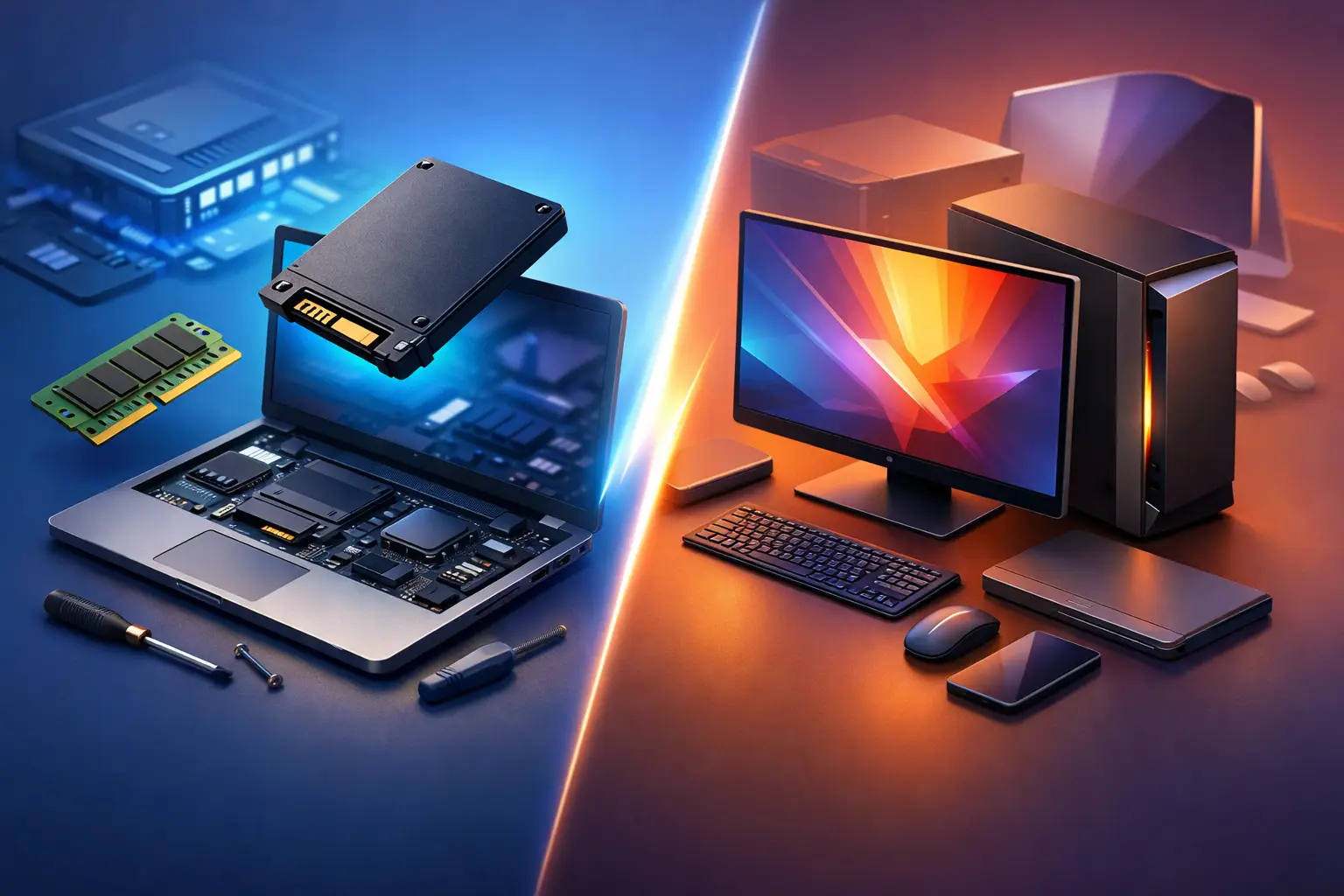
A slow computer can make a ten-minute task take half an hour. When that happens, most people land on the same question: is it smarter to choose an ssd upgrade versus new computer replacement? The right answer depends on what is actually causing the slowdown, how old the machine is, and whether you need a speed boost or a full reset.
For many homes, students, and small offices, an SSD upgrade can make an older computer feel dramatically faster. Startup times shrink, programs open quicker, and the system stops feeling like it is stuck in mud. But not every sluggish PC is a good upgrade candidate. Sometimes the hard drive is only one part of a bigger hardware problem, and putting money into it does not make sense.
SSD upgrade versus new computer: what changes most?
An SSD, or solid-state drive, replaces an older mechanical hard drive. Traditional hard drives use spinning disks and moving parts. SSDs use flash storage, which is much faster and far less prone to the performance bottlenecks that show up in aging systems.
That matters because a lot of the “my computer is too slow” complaint comes from storage lag. If your computer takes forever to boot, freezes while opening files, crawls during updates, or becomes almost unusable with several browser tabs open, a slow hard drive may be the main culprit. Swapping that drive for an SSD often delivers the biggest noticeable speed improvement for the lowest cost.
A new computer, on the other hand, changes everything at once. You are not just getting faster storage. You are also getting a newer processor, more modern graphics capability, updated ports, better power efficiency, improved wireless connectivity, and a fresh warranty. That broader improvement is why replacing the whole system is sometimes the better move, especially for business use or older machines with multiple weak points.
When an SSD upgrade makes sense
If your computer is generally stable and still fits your needs, an SSD upgrade is often the practical choice. This is especially true when the system has a decent processor, enough memory for daily work, and no major board-level issues.
A good example is a laptop or desktop that is five to seven years old, starts slowly, and struggles with basic tasks but still runs your software once everything loads. In that case, the hard drive may be the main bottleneck. Replacing it with an SSD can extend the life of the system without the higher cost of buying new.
This route also makes sense if you want to keep familiar software, avoid the hassle of moving everything to a new machine, or preserve an older setup that still works with a specific printer, POS system, or business application. For home users, that can mean keeping a family PC useful for schoolwork and bills. For small businesses, it can mean reducing downtime and stretching hardware budgets a little further.
There is another advantage people often overlook: value. If the upgrade cost is modest and the computer gains two or three more solid years of service, that is usually money well spent.
Signs your current computer is a good SSD candidate
The machine boots slowly but otherwise works. It has at least a usable processor and enough RAM for your daily tasks. You are happy with the screen, keyboard, and overall condition. It supports your current software without major compatibility issues. There are no signs of motherboard failure, overheating, or repeated crashes unrelated to storage.
If several of those are true, an SSD can be a smart repair instead of a replacement.
When buying a new computer is the smarter move
There are times when a storage upgrade is just putting a bandage on a bigger problem. If the computer is very old, underpowered, physically damaged, or already having multiple hardware issues, a new machine usually makes more financial sense.
Processor age matters here. If you are trying to run modern business applications, video conferencing, accounting software, large spreadsheets, design tools, or security-heavy workloads on an outdated CPU, an SSD will help load times but it will not change the limits of the processor itself. The same goes for systems with too little memory, failing batteries, broken hinges, unsupported operating systems, or graphics that cannot keep up with current tasks.
For business owners, reliability is often the deciding factor. If a workstation is already causing interruptions, random shutdowns, network issues, or recurring repair calls, replacing it may cost less than repeated downtime. A new computer also puts you on firmer ground for current security updates, modern encryption support, and compatibility with newer peripherals and software platforms.
Signs it is time to replace instead of upgrade
If the computer is more than seven to ten years old, that is one clue. If it cannot run the operating system you need, that is another. Add in battery problems, failing ports, a cracked screen, overheating, fan noise, or repeated blue screens, and the case for replacement gets stronger.
The key point is this: an SSD fixes storage speed. It does not fix everything else.
Cost matters, but so does total value
On paper, an SSD upgrade is almost always cheaper than buying a new computer. That makes it attractive right away. But the better question is not “Which costs less today?” It is “Which gives me the best value over the next two to four years?”
If your current machine is otherwise healthy, the answer may be the SSD. You spend less, keep your existing setup, and get a major improvement in daily performance. For a lot of home users and office staff, that is enough.
If your computer is already near the end of its usable life, replacement may actually be the better deal. Spending money on a drive today, then facing battery replacement, memory issues, operating system limits, or another hardware failure six months later, can turn a cheap fix into an expensive delay.
This is where a real diagnostic matters. Without checking the health of the drive, memory, thermals, battery, and operating system condition, you are guessing.
SSD upgrade versus new computer for home users and small businesses
For home users, the decision usually comes down to budget and expectations. If you need the computer for web browsing, email, schoolwork, streaming, and light office tasks, an SSD upgrade can be a very sensible move. It is one of the few repairs that people notice immediately.
For remote workers and small businesses, the decision is a little more strategic. Speed is important, but so are reliability, security, and downtime. If the computer supports your applications and just feels sluggish, an SSD upgrade may be the quickest path back to productivity. If the device is mission-critical and already showing its age, replacement often provides more stability and fewer surprises.
Businesses also need to consider transition planning. Replacing a computer can involve data migration, software setup, printer reconfiguration, account syncing, and security checks. That is manageable, but it is more involved than a drive upgrade. On the other hand, if the current machine is becoming a weak link, delaying replacement can create bigger disruptions later.
What people often miss before making the call
The biggest mistake is assuming every slow computer needs to be replaced. The second biggest mistake is assuming every old computer can be saved with an SSD.
Viruses, failing RAM, overheating, startup overload, operating system corruption, and low storage space can all mimic hard-drive-related slowness. That is why a proper evaluation matters before spending money. A technician should be looking at the full picture, not just recommending new hardware because it is the easiest answer.
At TN Computer Medics, this is usually where customers get the most peace of mind. A local diagnostic can tell you whether your system is worth upgrading, whether another repair is needed first, or whether replacing the computer will save you money and frustration in the long run.
If your computer is dragging, the choice between an SSD and a new machine does not have to be a guess. The best move is the one that fits your workload, your budget, and how much life your current system really has left. A good repair should buy you confidence, not just a little more time.