
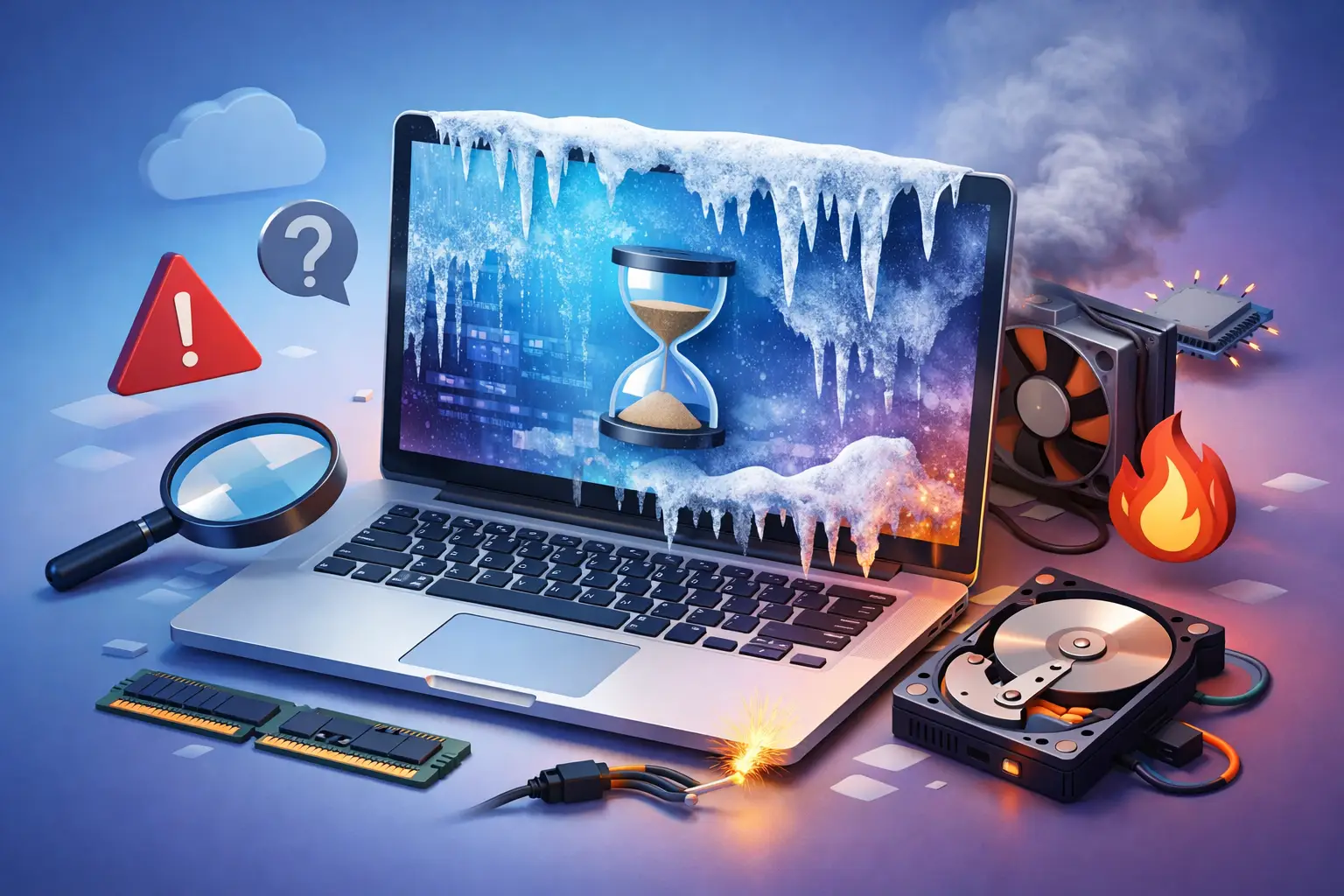
A computer that freezes in the middle of an email, school assignment, payroll task, or customer sale is more than an inconvenience. If you are asking, why is my computer freezing, the answer may be as simple as one overloaded program or as serious as failing hardware. The key is to notice when it freezes, what happens on screen, and whether the problem is getting worse.
A one-time lockup after opening too many browser tabs is usually manageable. Repeated freezes, blue screens, clicking noises, missing files, or a computer that locks up during startup deserve prompt attention. Waiting too long can turn a repairable issue into lost work, damaged components, or a difficult data recovery job.
Why Is My Computer Freezing? Common Causes
Freezing occurs when Windows, an app, or a hardware component stops responding quickly enough to complete what you asked it to do. Sometimes the mouse still moves but programs will not open. Other times, the entire display locks in place and even the keyboard does nothing. Those symptoms point technicians toward different causes.
Too many programs or too little available memory
Every open program uses processing power and RAM. Modern browsers can consume a surprising amount of memory, especially with dozens of tabs, video calls, online documents, and extensions running at once. Older computers with limited RAM may freeze when several demanding programs compete for resources.
Open Task Manager by pressing Ctrl + Shift + Esc after a slowdown or partial freeze. Look for programs using unusually high amounts of CPU, memory, or disk activity. If one application repeatedly causes the issue, updating, repairing, or reinstalling it may solve the problem. If memory use stays high during normal work, a RAM upgrade can make a meaningful difference.
A full or failing storage drive
Your computer needs working free space to manage updates, temporary files, virtual memory, and normal system activity. A nearly full drive can cause sluggish performance and lockups, particularly on older systems. Removing unneeded downloads, clearing temporary files, and moving large photos or videos to a backed-up external drive can help.
A failing hard drive or solid-state drive is more urgent. Warning signs include frequent freezing while opening files, unusually long startup times, error messages, files that disappear or will not save, and clicking or grinding sounds from a traditional hard drive. Do not keep restarting a computer that may have a failing drive. Back up important files if possible, then have the device evaluated before the drive stops working entirely.
Overheating and dust buildup
Computers protect themselves when internal temperatures get too high. They may slow down, freeze, shut off, or restart without warning. Dust-clogged vents, failing fans, dried thermal paste, and using a laptop on a blanket or couch can prevent heat from escaping.
Check whether the computer feels unusually hot or whether its fans run loudly even during simple tasks. Make sure desktop vents have room to breathe and place laptops on a hard, flat surface. A careful internal cleaning and cooling-system inspection is often needed when overheating has become routine. For a business workstation, recurring heat problems are not something to ignore, since unexpected shutdowns can interrupt customer service and risk unsaved work.
Malware, unwanted software, or browser extensions
Malware can use system resources, interfere with Windows processes, change browser settings, and cause freezing or crashes. Not every freeze means a virus, but the risk is higher if the problem started after a suspicious download, pop-up, fake security warning, or unfamiliar browser extension.
Run a trusted security scan and remove software you do not recognize. Avoid installing multiple antivirus programs at the same time, because they can conflict and create performance problems of their own. If you see signs of account compromise, ransom messages, repeated redirects, or security software that will not open, disconnect the computer from the internet and seek professional malware removal assistance.
Outdated or damaged drivers and updates
Drivers allow Windows to communicate with hardware such as your graphics card, printer, Wi-Fi adapter, and storage controller. A corrupt or outdated driver can cause freezes during specific activities, such as printing, joining video calls, playing a game, or waking the computer from sleep.
Windows updates can also expose an existing driver conflict. If the freezing began immediately after an update, write down the date and the error message, if one appears. Do not download random driver tools from pop-up ads or unfamiliar websites. They often create more problems than they fix. A technician can identify the correct driver version and determine whether an update, rollback, or clean installation is appropriate.
Hardware trouble beyond the hard drive
Faulty RAM, a failing power supply, a damaged motherboard, or a graphics issue can all make a computer freeze. Hardware freezes are often unpredictable. The computer may lock up at the Windows logo, during gaming, while editing video, or even when sitting idle.
RAM issues can produce random crashes and blue screens. Graphics problems may show as screen flickering, colored lines, black screens, or freezes when using video-heavy software. Power-related issues may cause sudden shutdowns or restarts rather than a traditional freeze. These problems need proper testing because replacing parts based on a guess can waste time and money.
What to Do When Your Computer Freezes
Start with the least disruptive option. Wait a minute or two if the computer is working on a large update, opening a very large file, or performing a security scan. Press Ctrl + Alt + Delete to see whether Windows gives you access to Task Manager or the sign-out screen. If it does, close only the program marked as not responding.
If nothing responds, hold the power button for about 10 seconds to shut the device down. This should be a last resort, since a forced shutdown can damage an open file or interrupt a Windows update. After restarting, do not immediately reopen every program. Use the computer normally for a few minutes and watch for the moment the freeze returns.
Before making major changes, protect your data. Copy important documents, photos, business files, and customer records to a secure backup if the computer will stay on long enough. If you use a laptop, make sure you know your BitLocker recovery key before attempting system resets or major repair steps. That key may be required to access encrypted files after certain hardware or recovery changes.
The Details That Help Diagnose a Freezing Computer
The pattern matters more than most people realize. A computer that freezes only when printing may have a driver or network issue. One that locks up after 20 minutes of use may be overheating. A system that freezes before Windows loads may have a hardware or drive problem. Freezes that happen only on one website or in one program usually point to software rather than a failing motherboard.
Write down the answers to a few practical questions: Did the issue begin after a new program, update, or drop? Does it freeze on battery power, wall power, or both? Are there noises, error codes, blue screens, or unusual heat? Is the computer part of a small business network, shared printer setup, or point-of-sale system?
Those details help avoid the common mistake of treating every freeze as a simple cleanup issue. A fast scan and tune-up may be enough for an overloaded home computer. A work computer that handles client information, accounting, or daily sales may need a deeper review of hardware health, malware exposure, backups, network stability, and security settings.
When to Call for Computer Repair
Professional help is the sensible next step when freezes happen repeatedly, the computer will not boot, important files are at risk, or you suspect malware or hardware failure. It is also worth calling sooner when downtime affects remote work, school deadlines, a home office, or a local business that cannot afford to lose access to its systems.
TN Computer Medics can test the underlying cause instead of relying on a guess, whether that means checking drive health, repairing Windows, removing malware, replacing failing hardware, improving cooling, or recovering accessible data. Mobile and local support can be especially helpful when a desktop setup, printer, network connection, or business workstation is part of the problem.
A freezing computer does not always mean it is time to replace it. With the right diagnosis and a backup plan in place, many systems can return to dependable daily use without losing the files and work that matter most.