
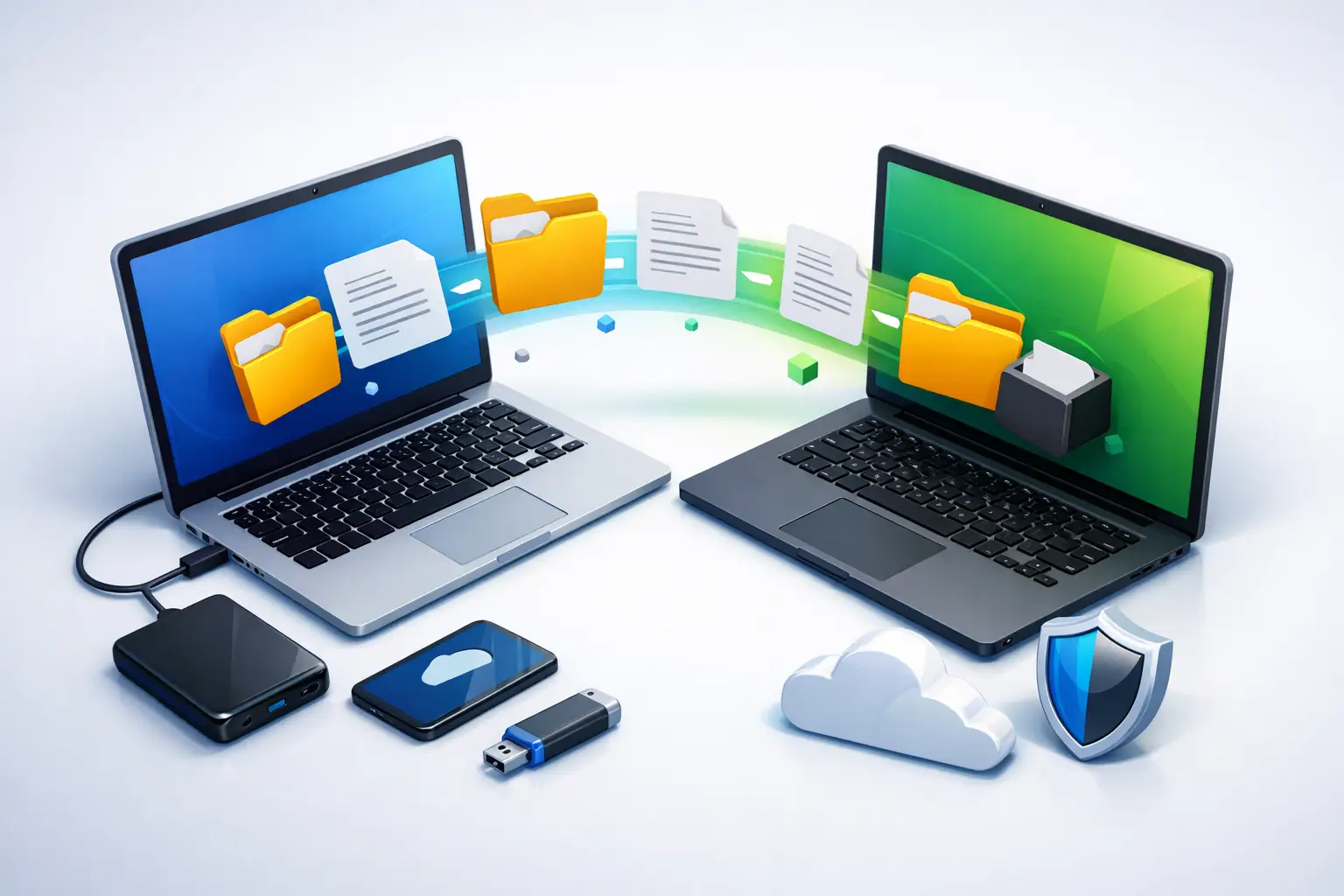
A new computer should feel like an upgrade, not a stressful hunt for years of family photos, tax records, schoolwork, and work files. When you transfer files to a new computer, the goal is not simply to copy folders. You need to make sure the right information arrives intact, remains organized, and is available when you need it.
For a basic home setup, the process may take an afternoon. For a home office or small business, a poorly planned move can interrupt email, accounting, shared files, printers, and daily operations. A little preparation protects your data and prevents the old computer from becoming the only place where an important file exists.
Before You Transfer Files to a New Computer
Do not wipe, donate, recycle, or reset the old computer until the new one has been checked thoroughly. Keep the old device powered on and available as your original source until you have opened important files on the replacement computer and confirmed that your accounts are working.
Start by identifying what needs to move. Most people think of the Documents, Pictures, Desktop, Downloads, Music, and Videos folders first. Those are important, but they are not always the whole picture. You may also have files saved in a custom folder, on a second internal drive, or within an application such as accounting software, an email program, or photo-editing software.
For business users, make a list of company-critical items before moving anything. That can include customer records, accounting data, contracts, scanned documents, browser bookmarks, email archives, password manager access, and files stored in shared network folders. If a file is essential to serving customers or running payroll, treat it as a separate verification item rather than assuming it copied successfully.
It is also wise to check the storage space on the new computer. If the old machine has 700 GB of files but the new laptop has a 512 GB drive, a direct copy will not fit. You may need to archive older material to an external drive or move selected files to approved cloud storage.
Choose the Right Transfer Method
The best method depends on how much data you have, the condition of the old computer, your internet speed, and whether applications or business systems are involved. No single option is right for every household or office.
Cloud storage works well for smaller, organized file collections
If your documents and photos already sync through a cloud service, signing in on the new computer may be the easiest route. This is useful when your folders are already organized and your internet connection is reliable.
Cloud syncing is less convenient for a large photo library, video collection, or a computer with years of unorganized downloads. Uploading hundreds of gigabytes can take a long time and may use a significant portion of your internet data allowance. It also does not automatically move every local program setting or file saved outside the synced folders.
An external drive is practical for most homes
An external USB hard drive or solid-state drive is often the most dependable way to move a large amount of data. Copy your files from the old computer to the drive, then copy them to the new one. A solid-state drive is faster and less prone to damage from bumps, while a traditional hard drive can be a lower-cost choice for large archives.
Use a drive with enough free space for your data, and do not treat the transfer drive as your only backup. If possible, keep the copied files on the external drive until you have used the new computer for several days and know everything is where it belongs.
Direct computer-to-computer transfers can be fast
If both computers are working properly, a wired transfer over a local network or a dedicated transfer cable can reduce copying time. This can be helpful for large files, but setup varies by operating system and hardware. Wireless transfers are convenient, though they may slow down or fail if the signal is weak.
A direct transfer is best when you are comfortable troubleshooting connection issues. If the old computer is unstable, infected, or has a failing drive, repeatedly moving large amounts of data may place extra strain on it. In that case, data recovery or a technician-assisted transfer is the safer choice.
Professional migration is the right call for complex setups
A professional transfer is especially worthwhile if the old computer has malware, error messages, a damaged drive, specialty software, or business data that cannot be replaced. It also makes sense when several devices, user accounts, printers, and shared folders need to be set up correctly at the same time.
TN Computer Medics can help local residents and businesses move data while checking for security risks, drive health problems, and missing files before the old system is retired. That support can prevent a new computer from inheriting the problems that made the previous one frustrating to use.
A Safe File Transfer Process
Begin by updating the old computer if it is functioning normally, then run a malware scan. Do not intentionally copy suspicious programs, unknown downloads, or files from folders associated with an active infection. Your documents, photos, and other personal files can often be recovered safely, but the source computer should be assessed carefully when malware is involved.
Next, create a backup before starting the migration. This step matters because copying files is not the same as having a backup. A failed drive, accidental deletion, or interrupted transfer can leave you with incomplete data in both locations. Make one copy to an external drive or another trusted backup location, then make the transfer.
Copy files in organized groups instead of dragging everything from the entire user profile at once. Start with Documents, Pictures, Desktop, and other clearly labeled folders. Give each transfer time to finish completely. Interrupting a large copy because the computer appears idle can result in missing or corrupted files.
After copying, compare folder sizes and file counts when possible. A photo folder with 12,000 images should not arrive with only 11,200. Open a sampling of files on the new computer, including PDFs, Word documents, spreadsheets, photos, videos, and any files created by specialized programs. Check older files as well as recent ones.
Finally, organize the new computer before the clutter returns. Put active work files in a clear location, create a sensible photo folder structure, and avoid using the Desktop as permanent storage. A clean setup makes backup easier and helps you find what you need months from now.
Files, Programs, and Settings Are Different Things
One of the most common surprises during a computer replacement is that files transfer easily, but applications do not. Most programs must be reinstalled on the new computer using their original installer, an account download, or a valid license key. Copying a program folder from the old drive usually will not make the program work on the new system.
Before retiring the old device, collect login information and license details for paid software. Check whether your printer, scanner, webcam, and other accessories need new drivers. Sign in to your web browser and verify that bookmarks, saved passwords, and extensions are synced or exported through a secure method.
Email deserves special attention. Web-based email generally reappears after you sign in, but locally stored messages or archived mail files may need to be exported and imported. This is particularly important for business accounts that retain customer communications, invoices, or project records.
Extra Precautions for Small Businesses
A business computer is often connected to more than files. It may access a shared server, cloud applications, point-of-sale systems, accounting platforms, network printers, remote desktop tools, or security software. Moving one workstation without reviewing those connections can cause avoidable downtime.
Before the new computer goes live, confirm that it has current operating system updates, active antivirus protection, encrypted storage where appropriate, and a standard user account for everyday work. Administrator access should be limited. Reconnect printers and shared drives, then test the workflows employees actually use: opening customer records, printing invoices, sending email, processing payments, and accessing company files.
If you handle sensitive customer information, do not transfer data through an unprotected personal flash drive or an unknown file-sharing service. Use a controlled process and keep track of where copies of business data are stored. Once the move is complete and verified, securely erase or recycle the old computer so company information does not remain on an unused device.
Mistakes That Cause Missing Data
The biggest mistake is rushing to erase the old computer as soon as the new one turns on. Keep it intact until you have worked from the new system long enough to notice missing folders, old email archives, or a program you forgot to reinstall.
Another common problem is assuming a cloud folder contains everything. Many people store important files in Downloads, on the Desktop, or in a custom folder that was never included in cloud syncing. Check those locations manually.
Avoid transferring every file without reviewing it. Old installers, duplicate downloads, temporary files, and questionable software can waste storage and carry problems to the new computer. Move the data you need, reinstall trusted applications, and use the changeover as an opportunity to start with a cleaner system.
A careful transfer gives your new computer a better first day and gives you confidence that your important information is protected. Take the time to verify the files that matter most before letting the old machine go.