
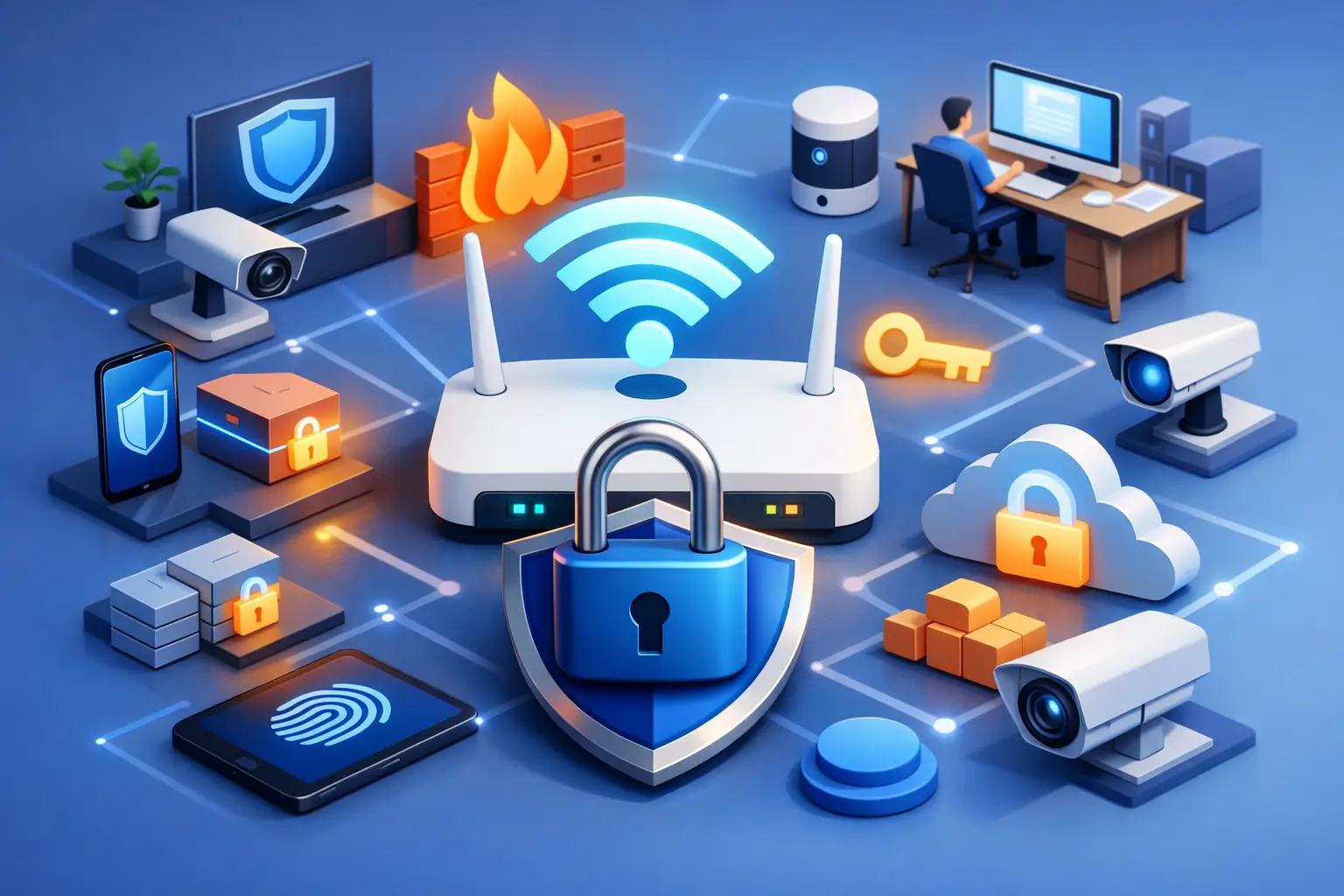
A weak WiFi setup can turn a family’s private devices or a small business’s daily operations into an easy target. Someone parked nearby may be able to use an open network, guess an old password, or take advantage of a router that has not been updated in years. The best ways to secure wifi are usually straightforward, but they need to be done correctly and checked regularly.
For homes, that protection helps keep personal accounts, smart TVs, cameras, and school devices private. For businesses, it also protects customer information, payment systems, shared files, and the reliable connection employees need to get work done. A secure network does not have to be complicated. It starts with a few smart settings and grows with the needs of your home or organization.
Start With a Strong WiFi Password
Your WiFi password is the front door to your network. If it is short, reused from another account, or based on an address, pet name, or birthday, it is easier to guess than most people realize. Replace the default wireless password immediately after setting up a new router.
Use a unique passphrase with at least 16 characters. A sentence-like mix of unrelated words, numbers, and symbols is often easier to remember and much harder to crack than a short, complicated-looking password. For example, several random words combined with numbers are better than a child’s name followed by an exclamation point.
Do not give the main password to every visitor, contractor, or customer. If too many people have it, there is no practical way to know who is connected or whether the password has been passed along. Change it when a tenant moves out, an employee leaves, or you suspect an unfamiliar person has used the network.
Change the Router Administrator Login
The WiFi password and the router administrator password are not the same thing. The WiFi password lets a device join the network. The administrator login controls the router itself, including security settings, connected devices, port forwarding, and DNS settings.
Many routers arrive with a default administrator username and password. Those defaults are widely known and should never remain in place. Log in to the router’s management page and create a different, strong administrator password. Store it in a trusted password manager rather than on a note beside the router.
While you are there, verify that the recovery email and security questions associated with the router account are current. If your router is managed through a mobile app or cloud account, protect that account with a unique password and multi-factor authentication when available.
Use WPA3 Encryption When Your Equipment Supports It
Encryption prevents nearby outsiders from easily reading information traveling between your devices and router. WPA3 is the current preferred security standard for most modern home and small-business WiFi equipment. If every device on the network supports it, use WPA3-Personal for a home or WPA3-Enterprise for a business with managed user access.
Some older printers, smart home devices, laptops, and handheld scanners may not connect through WPA3 alone. In that situation, WPA2-AES is still an acceptable fallback. Avoid outdated options such as WEP, WPA, or WPA2-TKIP. They are no longer appropriate for a network that handles personal information, work files, or financial activity.
Compatibility matters. Forcing the newest security mode without checking older devices can disconnect equipment that a household or business relies on. A technician can help identify which devices need updates, replacement, or placement on a separate network.
Keep Router Firmware Current
Your router is a small computer exposed to the internet all day, every day. Like a laptop or phone, it needs security updates. Router manufacturers release firmware to correct flaws that could allow attackers to take control of the device, redirect traffic, or change network settings without permission.
Check your router’s management page for firmware updates at least a few times each year. If it offers automatic updates from the manufacturer, turn that feature on. Restarting the router after an update is normal and may briefly interrupt internet access, so schedule updates outside business hours if the connection supports customer service, POS equipment, or remote staff.
If a router no longer receives updates, replacement is usually safer than trying to make an unsupported device last another year. This is especially true for routers supplied years ago by an internet provider. A newer model may also improve coverage, speed, and reliability.
Turn Off Features You Do Not Need
Convenience settings can create unnecessary exposure. WPS, or WiFi Protected Setup, is designed to connect devices by pressing a button or entering a short PIN. It can be useful in limited cases, but disabling it removes a feature that has had security weaknesses.
Remote administration should also stay off unless there is a clear business reason for it. It allows router settings to be accessed from outside the network. If remote management is necessary, use a secure business-grade solution, strong credentials, multi-factor authentication, and access restrictions rather than leaving a standard router login exposed to the internet.
Review port forwarding rules as well. A port forward may be needed for a specific camera system, server, or remote-work application, but old or unexplained rules should be removed. Each open path into a network should have a known purpose and an owner responsible for maintaining it.
Create a Guest Network for Visitors and Smart Devices
A guest network gives visitors internet access without putting them on the same network as your computers, storage drives, printers, and security equipment. Enable guest access for friends, clients, waiting-room visitors, or temporary workers, and use a separate password from your primary WiFi.
For a home, it can also make sense to isolate smart devices such as TVs, speakers, doorbells, and light bulbs. These products are convenient, but they do not always receive security updates as consistently as computers and phones. Keeping them apart from laptops that hold banking information or work files limits the damage if one device is compromised.
Small businesses should go further when possible. Employee computers, guest WiFi, point-of-sale systems, security cameras, and business servers should not all share one flat network. Proper network segmentation takes planning, but it can prevent a problem on a guest device from spreading into critical operations.
Check Who Is Connected
Open the router dashboard occasionally and review the connected-device list. You may see phones, tablets, streaming devices, thermostats, printers, and computers. Rename devices when the router allows it, so an unfamiliar entry stands out instead of getting lost among generic names.
If you find a device you do not recognize, remove or block it, then change the WiFi password. Also check whether the router has created unknown administrator accounts, altered DNS settings, or unusual port forwarding rules. Those signs deserve prompt attention.
Slow internet does not always mean someone is stealing WiFi. It may be caused by poor router placement, too many devices, outdated hardware, or an internet service issue. Still, reviewing connections is a sensible first step before assuming the problem is only speed-related.
Protect Devices Connected to the Network
WiFi security is only one part of the picture. A secure router cannot fully protect a computer that has malware, an unpatched operating system, or a stolen password. Keep computers, phones, browsers, and security software updated. Use multi-factor authentication on email, financial accounts, and business applications, because a compromised email account can lead to much bigger problems than a WiFi password leak.
For businesses, employees should know not to connect company devices to unknown public hotspots without approved protection. Remote workers also need secure home networks, especially when accessing shared documents, accounting platforms, customer records, or remote desktop tools.
When a Network Needs Professional Attention
A basic home setup can often be secured in an afternoon. A network with dead zones, multiple access points, cameras, printers, smart equipment, POS terminals, or remote employees deserves a more careful review. The goal is not simply to make WiFi available everywhere. It is to make it dependable, appropriately separated, and manageable when something goes wrong.
TN Computer Medics helps homes and small businesses in the Tullahoma area evaluate router settings, improve coverage, remove risky configurations, and build practical network security around the equipment they actually use. A properly configured network should support daily life and business operations without becoming another source of stress.
Take a few minutes this week to check your router password, administrator login, and update status. Those small actions can prevent a stranger’s connection from becoming a much larger repair, privacy, or downtime problem.