
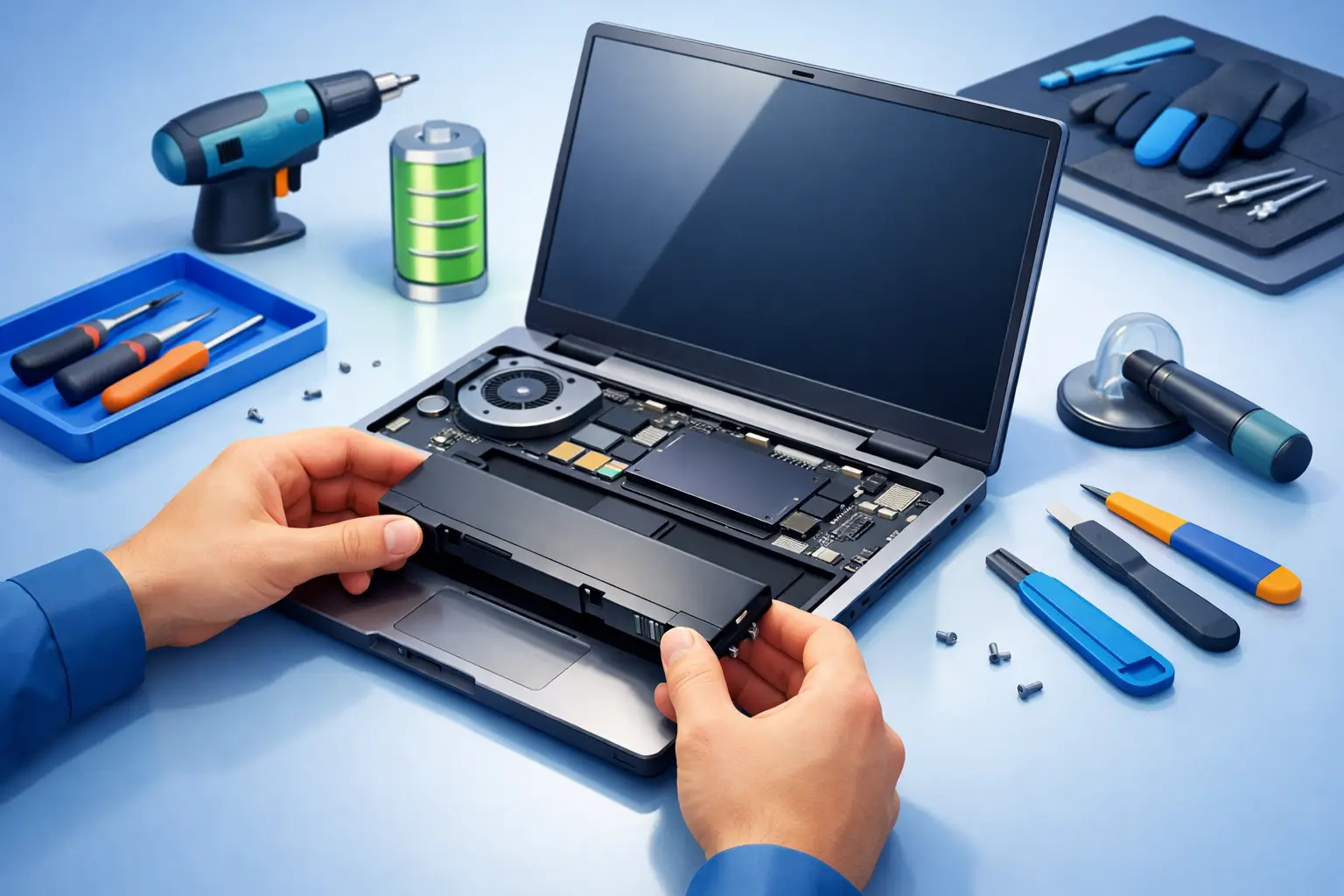
A laptop that drops from 60% to 5%, shuts off the moment you unplug it, or gets unusually hot is more than an inconvenience. For students, remote workers, families, and small businesses, an unreliable battery can interrupt work, risk unsaved files, and turn a portable computer into a device that never leaves the outlet. This laptop battery replacement guide explains how to recognize a failing battery, decide whether replacement makes financial sense, and handle the repair safely.
When Does a Laptop Battery Need Replacement?
Laptop batteries do not last forever. Most use lithium-ion cells, which gradually lose their ability to hold a charge through normal use, heat exposure, and repeated charging cycles. A battery may still power on a laptop while holding far less charge than it did when new.
The clearest sign is sharply reduced runtime. If a laptop once lasted five or six hours but now dies in under an hour during ordinary web browsing or document work, battery wear is likely the cause. Other warning signs include inaccurate battery percentages, sudden shutdowns while the meter still shows charge, charging that stops at a low percentage, or a battery warning from Windows or the laptop manufacturer’s diagnostic tool.
Heat matters, too. A laptop that becomes hot while charging may have a battery issue, although dust buildup, a failing fan, or demanding software can also cause high temperatures. The key is to look at the full picture rather than assuming every heat or charging problem requires a new battery.
Treat a Swollen Battery as Urgent
A swollen battery requires immediate attention. You may notice the bottom cover separating, the keyboard or trackpad lifting, a gap around the case, or a laptop that no longer sits flat on a desk. Do not press the case closed, puncture the battery, continue charging it, or put it in the trash.
Power the laptop down, unplug it, and place it on a hard, nonflammable surface away from children and pets. A swollen lithium-ion battery should be removed and recycled through the proper channel by a qualified technician. This is one repair where waiting can create a safety risk and cause additional damage to the laptop chassis, trackpad, or motherboard.
Check Whether the Battery Is Actually the Problem
Before ordering a replacement, rule out the simpler possibilities. A damaged charging cable, worn AC adapter, loose charging port, or software setting can look like battery failure. If the charging light flickers when the cord moves, the port or adapter may be the real issue.
Windows can provide useful information. Open Command Prompt and run `powercfg /batteryreport`. The report compares the battery’s original design capacity with its current full-charge capacity. A meaningful drop is normal as a battery ages, but a capacity that has fallen dramatically helps confirm that replacement is reasonable.
Manufacturer diagnostics can be helpful as well. Many Dell, HP, Lenovo, ASUS, and other laptops include pre-boot tests or support utilities that identify battery health and charging faults. These tools are not perfect, but they can help separate a worn battery from a power-system problem.
If the laptop only works when connected to power, do not assume the battery is the only failed part. A technician may need to test the adapter’s output, inspect the charging circuit, and check the DC jack or USB-C charging port. Replacing a good battery will not fix a damaged charging system.
Laptop Battery Replacement Guide: Choose the Right Part
The right replacement is based on the exact laptop model and battery part number, not simply the brand name. Two laptops in the same product line can use different battery shapes, connectors, voltages, or capacities. Check the service tag, model number, and the label printed on the existing battery whenever possible.
An original manufacturer battery is often the safest match for fit, charging behavior, and quality control. A reputable third-party replacement can be a practical option for an older laptop, especially when an original part is unavailable or costly. The trade-off is that quality varies widely. Extremely cheap, unbranded batteries may have poor cell quality, incorrect capacity claims, or weak protection circuitry.
Avoid choosing solely by the highest listed milliamp-hour rating. A battery must physically fit, use the correct connector, and operate at the proper voltage. An incompatible battery can prevent the laptop from closing correctly, cause charging errors, or damage the device.
For a business laptop, part selection deserves extra care. A poor replacement can create unexpected downtime for a remote employee or a front-office system that needs to stay mobile. Reliable parts and a verified installation usually cost less than repeating the repair after a low-quality battery fails.
Can You Replace a Laptop Battery Yourself?
It depends on the laptop design and your comfort level with small electronics. Older laptops often have removable batteries that slide out from the bottom. In that case, replacement is usually straightforward: shut down the laptop, disconnect power, release the battery latches, install the matching battery, and charge it fully before normal use.
Modern thin laptops are more complicated. Their batteries are commonly installed inside the chassis with small screws, adhesive strips, fragile connectors, and components positioned closely together. Opening the case may require specialty screwdrivers and careful handling to avoid breaking clips or damaging the bottom cover.
Before beginning any internal repair, back up important files. Battery replacement should not erase data, but an unexpected shutdown, accidental cable damage, or existing storage issue can still turn a simple repair into a data-recovery situation.
Safe Steps for an Internal Battery Replacement
If the battery is not swollen and you have confirmed the correct replacement part, work slowly and keep the workspace organized. Shut the laptop down completely, unplug the charger, and disconnect all accessories. Use the appropriate screwdriver, and keep screws arranged in the order they were removed since lengths can vary.
After opening the bottom cover, disconnect the battery from the motherboard before removing its screws. Never pry, bend, puncture, or force the battery pack. If adhesive holds it in place, use the manufacturer-approved method for that model or stop and seek professional help. Metal tools near the battery connector can create a short if handled carelessly.
Install the new battery in the same position, reconnect it securely, and inspect the interior before closing the case. Confirm that no cables are trapped and that the battery sits flat. Once the laptop is reassembled, connect the charger and verify that Windows recognizes the battery and charging status correctly.
A full charge after installation is a good starting point, but you do not need to repeatedly drain modern lithium-ion batteries to 0%. In fact, frequent deep discharges can add unnecessary wear. Normal charging habits and keeping the laptop out of excessive heat will do more for battery life than old-fashioned calibration routines.
When Professional Repair Is the Better Choice
Professional battery replacement is the sensible option when the battery is swollen, the laptop uses adhesive-secured cells, the case is difficult to open, or the charging problem is not clearly diagnosed. It also makes sense if your laptop contains business files, family photos, tax records, or schoolwork that you cannot afford to put at risk.
A repair technician can verify the battery’s condition, test the charger and power circuitry, source a compatible part, and check the laptop for related issues such as overheating or damaged ports. That broader diagnosis matters because battery symptoms can overlap with motherboard, charger, and software problems.
For Tullahoma-area customers, TN Computer Medics can help determine whether a battery replacement is the right repair or whether another power issue is behind the problem. A clear diagnosis helps you avoid buying parts that do not solve the actual failure.
Decide Whether Repair Is Worth It
Battery replacement is often worthwhile when the laptop otherwise performs well, receives current security updates, and meets your day-to-day needs. A newer laptop with a weak battery can gain years of useful service from a quality replacement.
The decision changes when a device also has a cracked screen, failing storage drive, major overheating, obsolete software support, or repeated charging-port problems. In those cases, compare the total repair cost with the price of a replacement computer. A technician can help prioritize repairs, preserve your data, and give you a realistic answer rather than pushing a repair that does not make financial sense.
A dependable battery should let your laptop work where you need it to work – at the kitchen table, in class, at a client site, or during a busy workday. Addressing warning signs early is the best way to avoid an emergency shutdown when the computer matters most.