
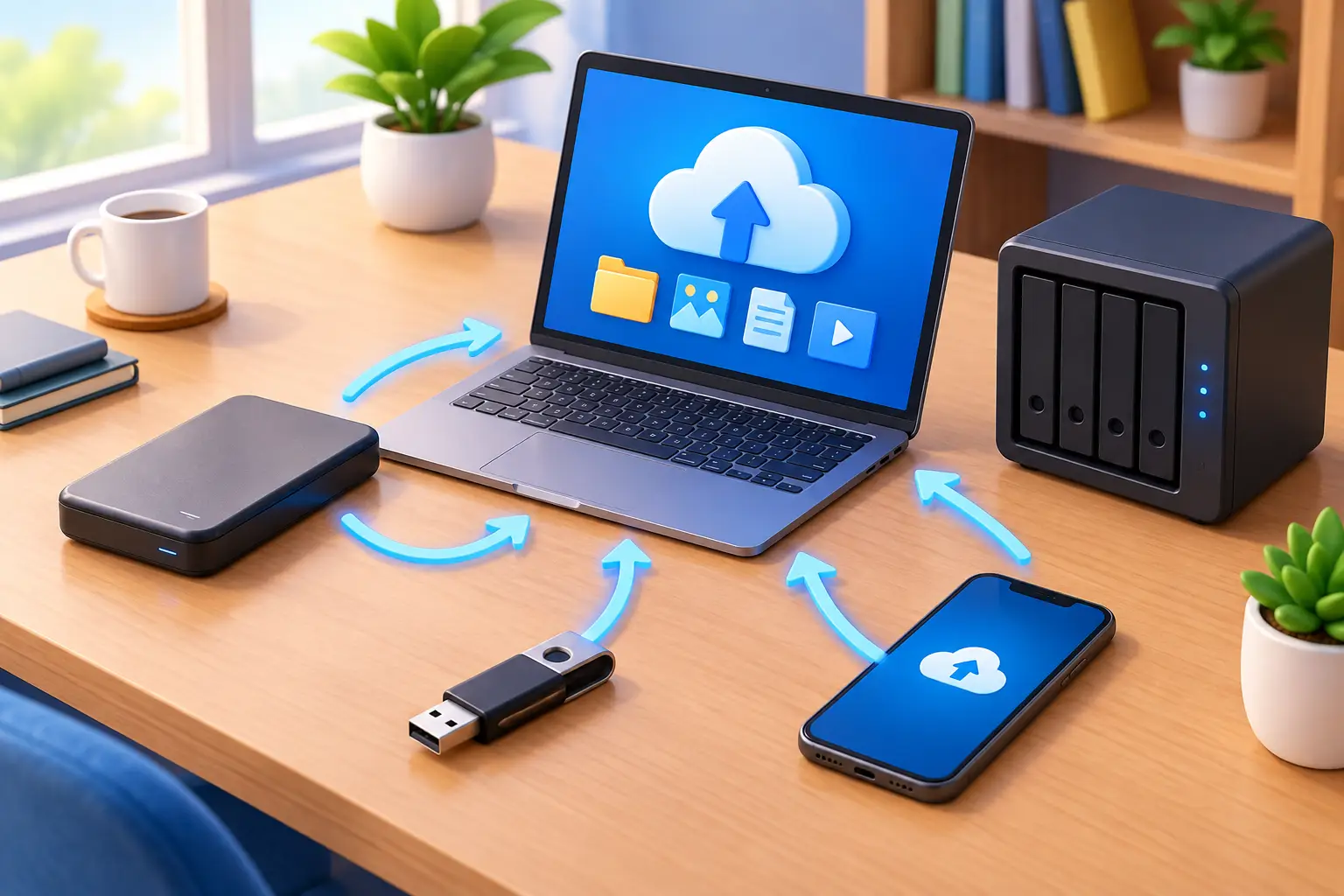
A hard drive can fail without warning. A laptop can be dropped, stolen, or hit with ransomware. One accidental click can remove years of family photos, tax returns, schoolwork, and business files. The best backup methods home users choose are not necessarily the most expensive. They are the methods that run consistently, keep more than one copy of important data, and can be restored when something goes wrong.
For families, students, remote workers, and home office users in the Tullahoma area, a backup plan is a practical form of insurance. It protects the files that cannot be replaced with a new computer. A new laptop is easy to buy. The only copy of your child’s graduation pictures is not.
The best backup methods for home users start with 3-2-1
The most dependable approach is called the 3-2-1 rule. Keep three copies of your data, on two different types of storage, with one copy stored off-site. Your original files on the computer count as one copy. A backup on an external drive counts as another. A secure cloud backup or a drive stored somewhere else provides the off-site copy.
This approach matters because different problems require different protection. An external drive can save your files when your computer’s internal drive fails. Cloud storage can save them when a fire, flood, theft, or power surge affects both the computer and the external drive. Multiple copies also reduce the risk of discovering that a backup was incomplete or corrupted only after you need it.
The 3-2-1 rule is flexible. You do not need enterprise equipment to use it. For most homes, one external drive plus one reputable cloud backup service is a sensible, affordable starting point.
Use an external drive for fast local recovery
An external hard drive or solid-state drive is one of the easiest ways to create a full backup at home. Connect the drive to your computer, use built-in backup software or a trusted backup program, and schedule regular backups. This gives you a local copy that is usually much faster to restore than downloading everything from the internet.
A full-system backup can be especially valuable for a remote worker or student. If the computer’s drive fails, a system image may restore the operating system, applications, settings, and personal files together. That can turn a long rebuild into a much shorter recovery.
Traditional external hard drives offer a lower cost per terabyte and are a good choice for large photo libraries, videos, and desktop backups. External solid-state drives cost more but are faster, smaller, and less vulnerable to damage from a drop. Either can work well when it is sized correctly and used consistently.
There is one major limitation: do not leave the backup drive connected all the time. Ransomware can encrypt connected drives along with the computer. A power event can also damage both devices. Run the backup, confirm it finishes, then disconnect the drive and store it somewhere dry and secure. For very important files, rotate between two external drives so one is always stored away from the computer.
Add cloud backup for off-site protection
Cloud backup provides the off-site layer that an external drive cannot. Once configured, it can automatically copy selected folders or the whole computer over your internet connection. If your device is stolen or your home suffers a major loss, you can recover files from another device after signing in securely.
Cloud backup is different from simple file synchronization. Sync services are useful for keeping a document available on a phone, tablet, and computer, but they can copy mistakes too. If you delete a synced file or ransomware encrypts it, the changed version may sync across every connected device. Look for a service with file version history and a recovery window that lets you restore an earlier, clean version.
Upload speed is the trade-off. The first backup of a large photo or video collection may take days or weeks, particularly with slower home internet. Let it run in the background, avoid shutting the computer down every night during the initial backup, and prioritize your most important folders first. After that first copy is complete, most services only upload new or changed files.
Use a unique, long password for the account and turn on multi-factor authentication. A cloud backup is only as safe as the account protecting it.
Choose the right files before you choose the tool
Many people think they have a backup because their Documents folder is copied somewhere. Then a computer fails and they discover their pictures were saved in a different location, their email archive was local, or their desktop files were never included.
Start by identifying what would hurt most to lose. This commonly includes family photos and videos, financial records, tax documents, scanned legal paperwork, school projects, personal email archives, creative work, and files used for a side business or home office. If you use accounting, design, medical, or point-of-sale software at home, verify where that software stores its data before assuming it is protected.
Do not forget browser bookmarks, password manager recovery information, and phone backups. Password managers should be secured with a strong master password and recovery plan, not casually copied into an unprotected text document. For phones, confirm that photos and device backups are actually completing over Wi-Fi and that you have enough account storage available.
Consider a NAS only when it solves a real need
A network-attached storage device, commonly called a NAS, can be a good option for households with several computers, large media libraries, or a home office that needs shared storage. It sits on your home network and can automatically back up multiple devices to one central location.
Some NAS systems use multiple drives for redundancy. That helps keep the system running if one drive fails, but redundancy is not the same as backup. A NAS can still be affected by accidental deletion, malware, electrical damage, theft, or a configuration error. Important NAS data should also be copied to a separate external drive or an off-site cloud destination.
A NAS requires more setup and maintenance than a USB drive. It should be updated regularly, protected with strong credentials, and never exposed directly to the internet without proper security planning. It makes sense for the right household, but it is not required for a reliable backup plan.
Set a schedule you can actually maintain
The best plan is one that does not depend on remembering it every Friday. Automate backups whenever possible. A good baseline is daily cloud backup for active files and a weekly external-drive backup. If you work from home, manage client records, or create new files every day, daily local backups may be worth the extra effort.
Keep the external drive in a different part of the home when it is not in use. For stronger protection, store a second rotated drive at a trusted family member’s home, a secure office, or another safe location. Make sure the location is private, climate-controlled, and not accessible to casual visitors.
Encryption is also worth using, especially for drives that hold tax records, identity documents, or client information. Encryption protects the backup if the drive is misplaced or stolen. Save the recovery key somewhere safe. If the key is lost, even the rightful owner may be unable to access the data.
Test your backup before an emergency
A backup is not proven until you restore from it. Once a month or once per quarter, choose a few files and restore them to a separate folder. Open the restored photos, documents, and spreadsheets to confirm they are complete and usable. Check the dates as well. A backup that quietly stopped six months ago may not help much after a failure.
For a system image, make sure you know how to access the recovery tools and that any required boot media is available. Keep a simple note with account information, device details, encryption recovery keys, and backup instructions in a protected place. This is especially helpful if another family member needs to recover files during an emergency.
If backup software reports errors, low storage space, or failed jobs, address them promptly. Ignored warnings are one of the most common reasons a supposedly protected computer turns into a data recovery case.
Get help before a drive starts clicking
A clicking hard drive, repeated blue screens, disappearing files, or a computer that will not boot are warning signs to take seriously. Avoid repeatedly restarting a failing drive or installing recovery software over it, as that can reduce the chance of recovering data. Disconnect the device if possible and seek professional help.
TN Computer Medics can help local residents build a backup plan, configure external and cloud backups, verify recovery options, and respond when a device shows signs of failure. The goal is not to make home technology complicated. It is to make sure a broken computer stays a repair problem, not a permanent loss of the files that matter most.
Set up one automated backup this week, then test one restored file. That small task can save years of memories and work when your computer eventually has a bad day.