
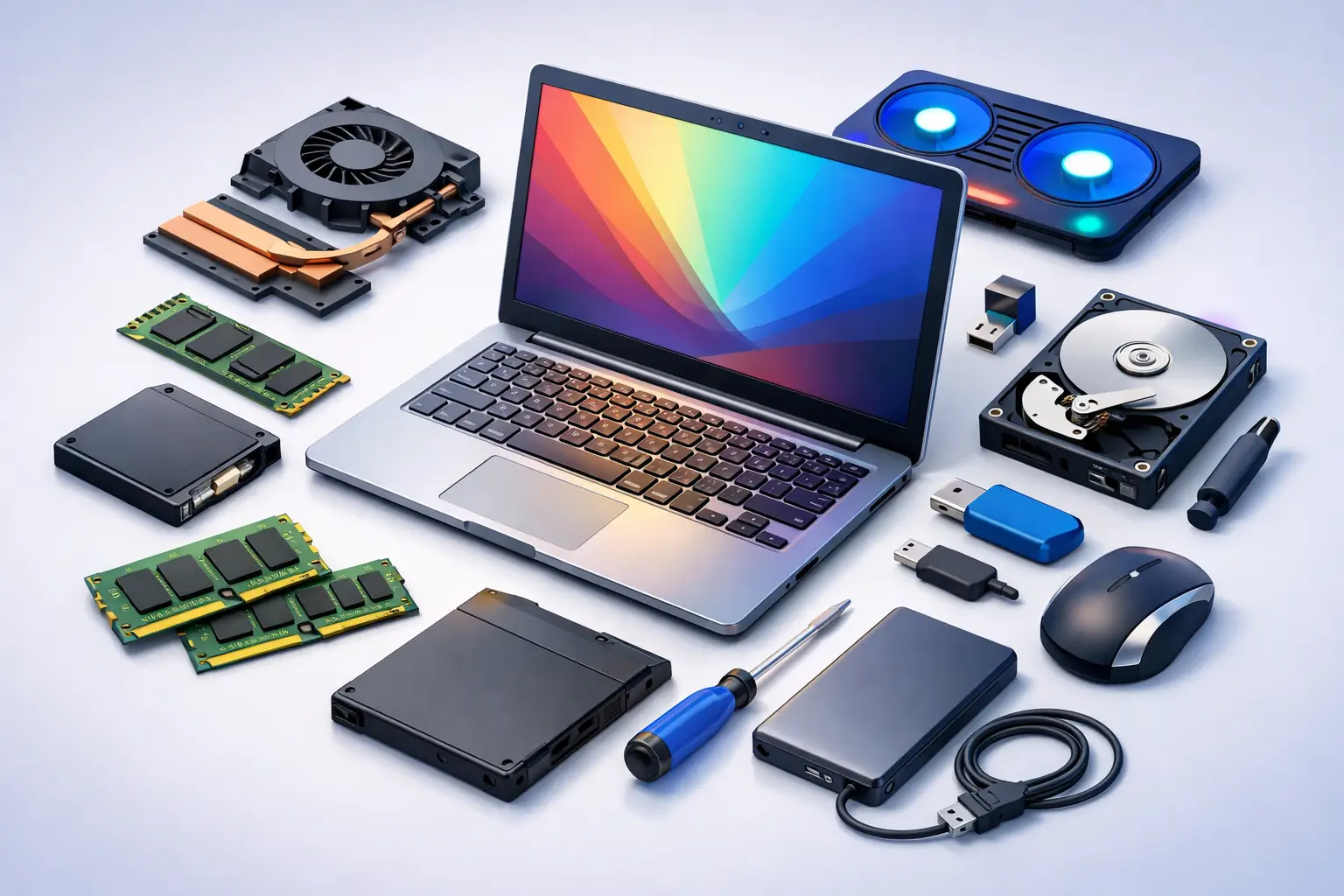
A laptop that takes five minutes to boot, freezes during video calls, or dies the moment you unplug it is more than annoying – it gets in the way of work, school, and everyday life. The good news is that the best upgrades for older laptops are often straightforward, affordable, and capable of adding real usable life to a machine you already own.
Not every older laptop is worth putting money into, though. Some systems respond well to a few targeted hardware improvements. Others are held back by age, weak processors, or parts that were never designed to be replaced. The smartest approach is to upgrade the components that solve your actual problem instead of throwing money at a laptop that still will not meet your needs.
Which older laptops are worth upgrading?
In most cases, laptops that are slow but still physically sound are good candidates. If the screen works, the motherboard is healthy, and the device can still support your daily tasks, an upgrade can be a practical fix. This is especially true for students, home users, and small business owners who mainly need reliable web access, office apps, email, accounting software, or remote work tools.
A very old laptop with a failing hinge, cracked case, overheating issues, and a battery that no longer holds a charge may be a different story. The same goes for low-end models with soldered memory and limited storage options. If the processor is too weak for current software, adding parts may help only a little. That is where a proper diagnostic matters.
The best upgrades for older laptops that usually pay off
1. Replacing a hard drive with an SSD
If your laptop still uses a traditional spinning hard drive, this is usually the first upgrade to consider. In many older systems, swapping that drive for a solid-state drive makes the biggest difference in day-to-day speed. Boot times improve, programs open faster, and the system feels more responsive overall.
For people dealing with constant waiting, an SSD is often the closest thing to making an old laptop feel new again. It does not make the processor more powerful, so heavy editing or gaming workloads may still be limited. But for regular use, the improvement is often dramatic.
2. Adding more RAM
If your laptop slows down when you open multiple browser tabs, run spreadsheets, stream video, or use work apps at the same time, memory may be the bottleneck. Upgrading RAM helps the laptop handle more tasks without bogging down.
This upgrade is especially useful for remote workers, students, and small offices that rely on multitasking. Going from 4GB to 8GB can be a major improvement on many older machines. Going from 8GB to 16GB can also help, but only if the laptop supports it and your workload actually needs it.
3. Installing a new battery
Performance is not only about speed. Portability matters too. If your laptop only works while plugged in, shuts down unexpectedly, or drains within an hour, a battery replacement can make it useful again.
This is one of the most practical upgrades for people who carry their laptop between rooms, classrooms, offices, or job sites. A fresh battery will not fix slow performance, but it will restore convenience and reliability. That alone can be worth it.
4. Cleaning the cooling system and replacing thermal paste
This is not always thought of as an upgrade, but it often acts like one. Older laptops collect dust in their fans and vents. Over time, dried thermal paste can also reduce heat transfer between the processor and cooling system. The result is overheating, noisy fans, random shutdowns, and poor performance.
A professional internal cleaning and thermal service can help the laptop run cooler and more consistently. On systems that are throttling due to heat, this can noticeably improve responsiveness. It also helps protect internal components from long-term heat damage.
Other upgrades that help in the right situation
5. Replacing a damaged keyboard or screen
These upgrades will not make a laptop faster, but they can absolutely make it usable again. A broken key, dim display, flickering panel, or cracked screen can turn a working computer into a daily frustration.
For business users and families trying to extend the life of a dependable machine, replacing the screen or keyboard can be more cost-effective than buying a whole new device. The decision depends on the laptop’s age, overall condition, and replacement part cost.
6. Upgrading the Wi-Fi card
If an older laptop struggles to maintain a stable wireless connection while everything else in the house or office works fine, the internal Wi-Fi card may be outdated or failing. In some laptops, replacing it can improve connection reliability and network speed.
This matters more than many people realize. Slow internet is not always an internet provider issue. Sometimes the laptop itself is the weak link. That said, not every model makes this easy, and some systems have compatibility limits.
7. Replacing the charging port or power jack
A loose charging connection can make a laptop unreliable fast. If the charger only works at a certain angle or stops charging with slight movement, the port may be worn or damaged.
This is more of a repair than an upgrade, but it restores normal use and can prevent battery issues caused by inconsistent charging. Left alone, a damaged port can sometimes affect the motherboard too, which makes early service the better option.
8. Updating the operating system and removing software clutter
Not all improvements require new hardware. Older laptops often slow down because of startup overload, malware, outdated drivers, unnecessary software, or years of system clutter. A clean operating system reinstall, proper updates, and malware removal can bring back stability and speed.
This is often the right move when the hardware is still adequate but the machine has become unreliable. In a lot of real-world cases, the best result comes from combining software cleanup with an SSD or RAM upgrade.
When upgrades are not the best answer
There are times when replacement is the better investment. If the motherboard is failing, the processor is far below what modern programs require, or several major parts need work at once, repair costs can stack up quickly. A laptop that overheats, has battery failure, storage issues, a damaged screen, and broken hinges all at the same time may not be the best place to keep spending money.
The same goes for certain ultra-thin or budget laptops where RAM and storage are soldered in place. Some are built with little or no upgrade path. In those cases, there may be very little room to improve performance beyond software cleanup.
For small businesses, this decision is even more important. If an aging laptop causes downtime, missed invoices, dropped calls, or security concerns, replacement may make better financial sense than repeated repairs. The right answer depends on how critical the machine is to daily operations.
How to choose the right upgrade first
Start with the symptom, not the part. If the laptop is slow all the time, look first at storage type, RAM, and overall system health. If it dies off the charger, focus on the battery or charging system. If it gets hot and loud, cooling service may matter more than any other change.
This is where many people waste money. They buy more RAM when the real issue is a failing hard drive. Or they replace a battery when the charging port is damaged. A proper diagnosis saves time and avoids guesswork.
For many customers in the Tullahoma area, the most cost-effective path is simple: test the laptop, identify the bottleneck, and make one or two upgrades that deliver the biggest real-world improvement. That is usually better than trying to overhaul every part of an aging system.
Best upgrades for older laptops for home and business use
For home users, the best value usually comes from an SSD, a RAM upgrade, battery replacement, or system cleanup. Those changes address the problems people notice most – slowness, poor multitasking, short battery life, and unstable performance.
For small business users, reliability matters just as much as speed. A laptop used for bookkeeping, scheduling, customer communication, or point-of-sale support needs consistent performance and dependable power. In those cases, storage upgrades, cooling service, and charging repairs can be just as important as memory upgrades.
If you are not sure whether your laptop is worth upgrading, that uncertainty is normal. Age alone does not decide it. The real question is whether the machine can still meet your needs after targeted improvements, without costing more than it should.
A good upgrade should solve a real problem, extend the life of the laptop, and help you avoid unnecessary downtime. If your current machine still has solid bones, a few smart changes can carry it a lot farther than most people expect.