
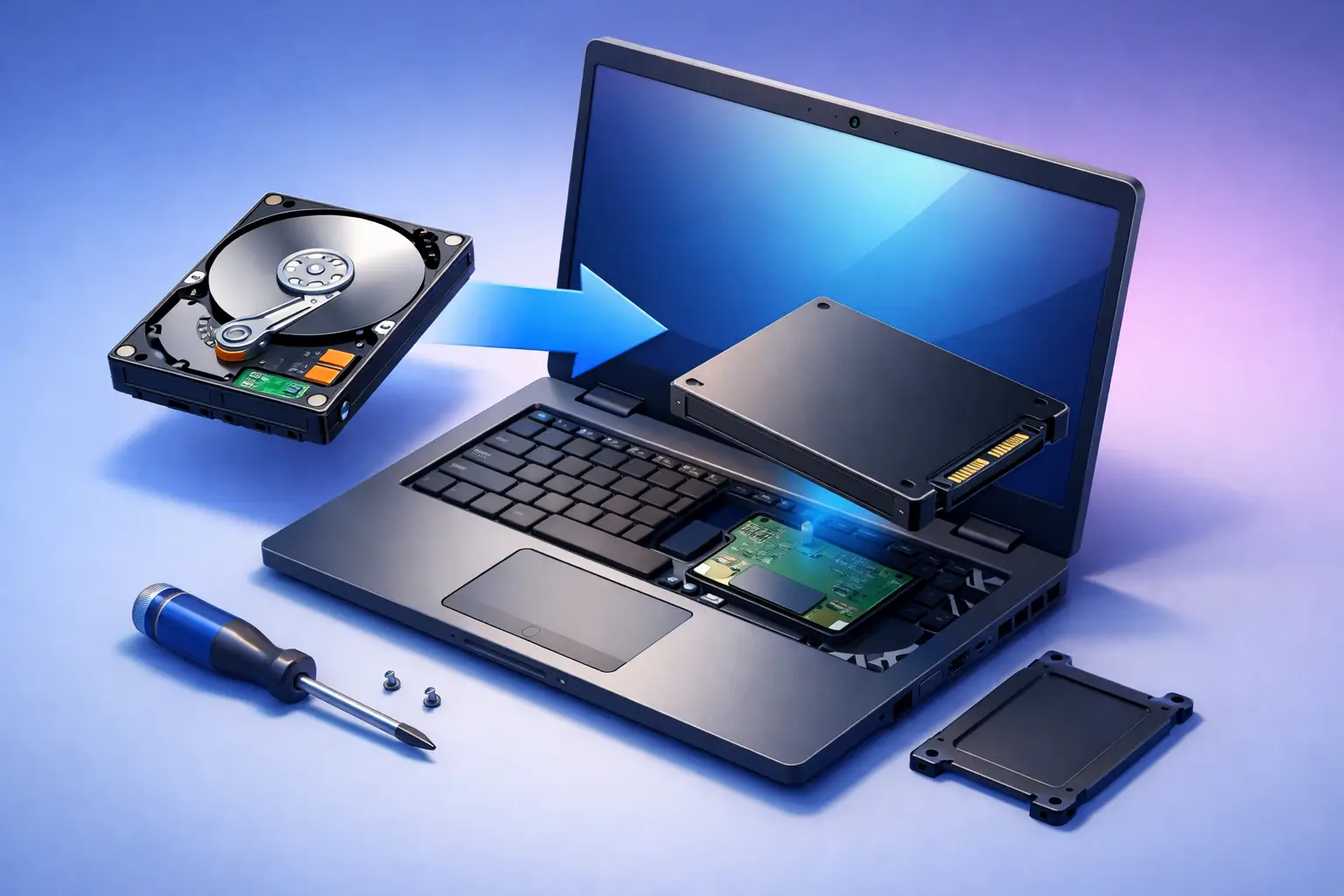
A laptop that takes five minutes to boot, stalls when opening email, or freezes during updates often does not need to be replaced. In many cases, the smartest fix is to replace laptop hard drive with SSD storage and give the system a real speed boost without buying a whole new machine.
For families, students, remote workers, and small business owners, that kind of upgrade can make the difference between daily frustration and a computer that feels usable again. But there is a right way to do it. The best result depends on your laptop model, the condition of the current drive, and whether your files need to be cloned, backed up, or recovered first.
Why replace laptop hard drive with SSD?
Traditional hard drives use spinning platters and moving parts. That older design is slower and more vulnerable to wear, impact damage, and performance drops over time. SSDs, or solid-state drives, have no moving parts, which makes them faster, quieter, and generally more reliable for everyday use.
The performance difference is usually obvious right away. Boot times shrink, programs open faster, updates install with less waiting, and multitasking feels less sluggish. If your laptop is otherwise in decent shape, replacing the hard drive with an SSD is often one of the most cost-effective upgrades you can make.
That said, an SSD is not a cure for every problem. If a laptop has failing memory, overheating issues, a damaged motherboard, or heavy malware infection, storage replacement alone may not solve the larger issue. That is why it helps to look at the full condition of the machine before buying parts.
What to check before you replace laptop hard drive with SSD
Before opening the laptop, you need to answer a few practical questions. The first is compatibility. Many laptops use a 2.5-inch SATA drive, but newer models may use M.2 SATA or M.2 NVMe SSDs. Those drives are not interchangeable in every system, even if they look similar on paper.
The second question is capacity. If the old drive is nearly full, moving to a small SSD can create problems fast. A 250GB SSD may work for light use, but many users are better served with 500GB or 1TB, especially if they store photos, business files, or large applications.
You should also think about the health of the current hard drive. If it is still functioning, cloning the drive to the SSD may be the easiest route. If it is failing, making unusual noises, disappearing from the system, or causing read errors, cloning may not work cleanly. In that case, backup and recovery steps matter more than speed.
Finally, check whether the laptop has an easy-access drive bay or requires a more involved teardown. Some laptops are simple to service. Others hide the drive under the keyboard or mainboard, which increases the chance of broken clips, stripped screws, or cable damage if the repair is rushed.
Cloning vs. clean install
Most people replacing a laptop hard drive with an SSD are deciding between two paths: clone the existing drive or install Windows fresh.
Cloning copies the old drive to the new one so your files, settings, and programs stay largely intact. This is convenient and saves time. It works well when the current system is healthy and you want the laptop to feel the same, just much faster.
A clean install removes old clutter, software problems, and leftover junk that may have built up over years of use. This option often gives the best long-term performance, but it takes more setup afterward. You will need to reinstall programs, reconnect printers, sign back into accounts, and restore files from backup.
There is no one-size-fits-all answer. For a home user with a stable system, cloning may be the fastest path. For a business laptop with ongoing errors or years of accumulated software issues, a clean install may be the better investment.
The basic process
If you are comfortable working on hardware, the upgrade itself usually follows a straightforward order. First, back up important files before touching anything. Even a simple drive swap can go sideways if the original disk is already unstable.
Next, verify the SSD type your laptop supports and prepare any tools you need, including the correct screwdriver and, in some cases, a USB adapter for cloning. If you are cloning, do that before removing the old drive. If you are starting fresh, create installation media in advance.
Once the laptop is powered down and disconnected, remove the battery if the model allows it, open the case, and locate the drive. Swap the old drive for the SSD carefully, making sure connectors seat properly. After reassembly, boot the system and confirm that the BIOS and operating system recognize the new drive.
That sounds simple because, at a high level, it is. The complications usually show up in the details – hidden screws, incompatible firmware settings, broken mounting brackets, BitLocker encryption, failed clones, or missing drivers after setup.
Common problems people run into
The biggest issue is assuming every laptop upgrade is identical. It is not. Some systems require changing BIOS settings from legacy boot to UEFI. Others need the correct bracket or spacer to hold the SSD securely. In compact laptops, one wrong move can tear a ribbon cable or crack the bottom cover.
Another common problem is data loss during migration. People sometimes start a clone without checking whether the new SSD is large enough or whether the source drive has file system errors. If the original hard drive is failing, every extra hour it stays powered on can reduce your chances of recovering important files.
We also see laptops that feel slow even after the SSD upgrade because the real issue was not only storage. Too little RAM, a worn-out battery causing throttling, overheating, startup overload, or malware can all hold a system back. A good upgrade plan looks at the whole device, not just one part.
Is it worth doing on an older laptop?
Often, yes. If the screen is good, the keyboard works, and the processor still meets your daily needs, an SSD upgrade can add useful life to an older machine. For schoolwork, web use, office tasks, bookkeeping, and remote work, that may be all you need.
But there is a line where replacement makes more sense. If the laptop has multiple hardware issues, poor battery life, physical damage, or an outdated processor that struggles with modern software, putting money into storage alone may not be the smartest move. The right choice depends on the age of the system, the upgrade cost, and what you need it to handle.
For small businesses especially, downtime matters. Saving money on an older machine is only helpful if the device remains dependable. If staff productivity is already being affected by repeated failures, a repair should be weighed against the cost of continued disruption.
When professional help is the better choice
If your laptop contains business records, family photos, tax documents, or anything else you cannot afford to lose, there is value in getting the drive upgrade handled correctly the first time. That is especially true if the hard drive is clicking, the system no longer boots consistently, or you suspect file corruption.
A professional can confirm compatibility, clone or reinstall the system properly, test the SSD, update drivers, and make sure the machine is actually stable after the repair. That reduces the risk of turning a performance upgrade into a data recovery situation.
For local customers around Tullahoma and surrounding communities, this is the kind of repair TN Computer Medics handles every day. The goal is not just to swap a part. It is to improve speed, protect your files, and make sure the laptop is dependable again for home, school, or business use.
What kind of speed improvement should you expect?
Most users notice the difference immediately. A laptop that once took several minutes to start may boot in well under a minute. Programs launch faster, file searches respond quicker, and overall lag drops significantly.
The exact gain depends on the old drive, the laptop’s processor, available RAM, and the condition of Windows. A modern SSD cannot turn a very old laptop into a new high-performance workstation, but it can remove one of the most common bottlenecks. For many people, that change alone makes the computer feel newer than they expected.
If you are tired of waiting on a slow laptop, replacing the hard drive with an SSD is one of the few upgrades that can still feel dramatic. Done carefully, it is a practical way to get more life out of the computer you already own and a lot less frustration every time you open the lid.