
A dropped internet connection during a card payment, a shared file that will not open, or Wi-Fi that slows to a crawl when everyone arrives can stop a small business cold. This small office network setup guide explains how to build a practical network that supports daily work, protects business data, and can grow without forcing a complete rebuild later.
For many offices, the network is not just the internet connection. It is the path between your computers, printer, phones, point-of-sale system, cloud applications, security cameras, and backup tools. A few smart decisions at the beginning can prevent long troubleshooting calls, lost productivity, and avoidable security exposure.
Start With the Work Your Network Must Support
Do not begin by buying the fastest router on the shelf. Start by identifying how your team works and what depends on the connection. A two-person office that uses email, cloud bookkeeping, and a wireless printer has different needs from a dental practice, retail store, construction office, or business with several remote employees.
Count the devices that connect now, then allow room for growth. Include desktops, laptops, phones, tablets, printers, smart TVs, cameras, POS terminals, voice-over-IP phones, and guest devices. Many offices underestimate this number because employees may use two or three devices each.
Also consider the type of traffic your business creates. Video meetings, cloud backups, large design files, security cameras, and internet phone systems all need more consistent performance than ordinary web browsing. Download speed matters, but upload speed and reliability matter just as much when staff send large files or participate in video calls.
If internet downtime would prevent you from serving customers, processing payments, or accessing essential records, ask your provider about a business-class connection and a backup option. A secondary connection, such as cellular failover, adds cost, but it can be worthwhile for offices where even an hour offline has real consequences.
Small Office Network Setup Guide: Build the Right Foundation
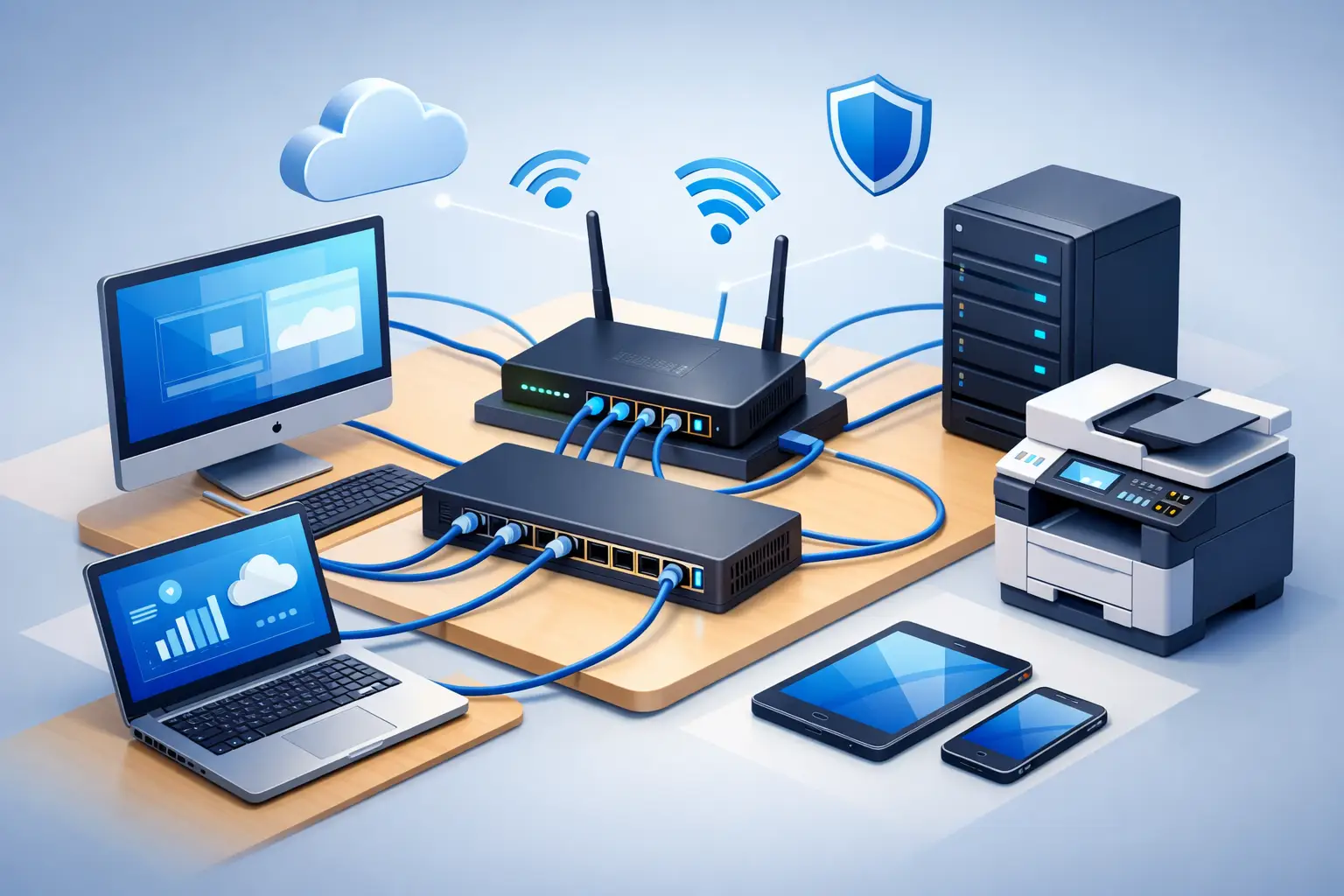
A reliable small office network generally includes an internet modem or gateway, a business-grade firewall or router, a network switch, Wi-Fi access points, and properly installed Ethernet cabling. Smaller offices may combine some of these functions in one device, but separate equipment is often easier to manage and replace as needs change.
Choose a business-grade router or firewall
The router is the traffic director for your office. It connects your internal devices to the internet and applies the rules that decide what traffic is allowed in or out. Consumer routers can work in a very small office, but they are often limited in security controls, device management, monitoring, and support for multiple networks.
A business-grade firewall is a better fit when you handle customer records, payment information, medical information, or other sensitive data. Look for features such as automatic firmware updates, encrypted remote access, content filtering, intrusion protection, and the ability to create separate networks for staff and guests.
Do not leave the default administrator password in place. Use a long, unique password and enable multi-factor authentication for the device management account when available. Keep a secure record of the credentials, recovery details, and configuration notes so the business is not locked out when a staff member leaves.
Use wired connections where reliability matters most
Wi-Fi is convenient, but wired Ethernet is usually faster, more stable, and less affected by walls or interference. Connect fixed equipment by cable whenever possible, especially desktop computers, printers, POS stations, servers, network storage, access points, and phone systems.
A managed network switch gives an office more control than an unmanaged model. It can help separate devices into groups, identify traffic problems, and make expansion cleaner. For a basic office, an unmanaged switch may be enough, but it offers little visibility when trouble begins.
Use quality Cat6 cabling for new installations. It supports modern gigabit networking and gives most small offices room to grow. Keep cables labeled at both ends and use a simple diagram showing where each cable runs. That small bit of organization saves time when a printer, desk, or access point needs attention later.
Place Wi-Fi access points for coverage, not convenience
One router in a back office is rarely the best answer for a building with multiple rooms, metal shelving, brick walls, or a busy customer area. Wi-Fi access points should be placed where people need coverage, ideally in open, central locations and connected back to the network with Ethernet.
A mesh system can be useful in small spaces where running cable is difficult. However, wired access points generally deliver more dependable performance, particularly for video calls and offices with many connected devices. The right choice depends on the building layout and whether cabling can be installed safely and neatly.
Before finalizing placement, test Wi-Fi in actual work areas. Check conference rooms, front counters, storage areas, and any location where staff use tablets or handheld devices. A strong signal near the router does not prove coverage across the office.
Separate Business Devices From Guests and Smart Equipment
Putting every device on one Wi-Fi name makes setup easy, but it also creates unnecessary risk. A guest phone, smart thermostat, or camera should not have the same access as the computer that handles payroll or customer data.
At a minimum, create a separate guest Wi-Fi network with its own password. Guests should be able to reach the internet but not see office computers, printers, or shared files. It is also wise to isolate cameras, smart TVs, and other internet-connected equipment from core business systems.
For businesses with more complex needs, virtual LANs can divide the network into separate segments for administration, staff computers, POS systems, cameras, and guests. This is not just a technical preference. Segmentation limits how far a problem can spread if one device is infected or compromised.
Protect the Network Before Problems Start
Security is an everyday business function, not a one-time setup task. Your firewall, router, Wi-Fi access points, computers, and network storage devices all need current firmware and software updates. Delaying updates can leave known security weaknesses open for months.
Use strong Wi-Fi encryption and avoid outdated security modes. Staff should have individual accounts where practical, rather than one shared password for every system. Remove former employees’ access promptly, including email, cloud storage, remote-access tools, and router management accounts.
Backups deserve special attention. A network alone cannot protect your files from ransomware, accidental deletion, hardware failure, or a damaged office. Keep automated backups, verify that they are completing, and test restoring a file before an emergency makes the answer urgent. A local backup can speed recovery, while an off-site or cloud copy helps protect against fire, theft, and major equipment loss.
A battery backup, also called an uninterruptible power supply, is useful for the modem, firewall, switch, and critical workstation. It can keep essential equipment running through short outages and protect devices from sudden power loss. It will not replace a generator during a long outage, but it can prevent a brief flicker from interrupting transactions or corrupting equipment.
Document the Setup and Plan for Support
Networks become difficult when nobody knows what was installed, where it is located, or who has the passwords. Create a simple network record that lists equipment models, serial numbers, warranty dates, IP addresses for key devices, Wi-Fi names, cable locations, and support contacts. Store passwords in a secure password manager rather than on a sticky note near the router.
Set a schedule to review updates, backups, user access, and network performance. This can be monthly for a small office and more frequently for businesses that process sensitive information or rely heavily on online systems. Watch for repeated disconnects, unusually slow devices, storage alerts, or unfamiliar equipment appearing on the network.
For offices without an internal IT team, professional setup and ongoing monitoring can reduce the pressure on the owner or office manager. TN Computer Medics can help local businesses plan equipment, install secure wired and wireless networks, configure printers and POS devices, and provide support when technology interrupts the workday.
A good network should fade into the background. Your staff should be able to take payments, answer calls, print documents, share files, and serve customers without thinking about cables, signal strength, or security alerts. If your office network is demanding attention every week, it is time to fix the foundation before the next interruption becomes a costly outage.