
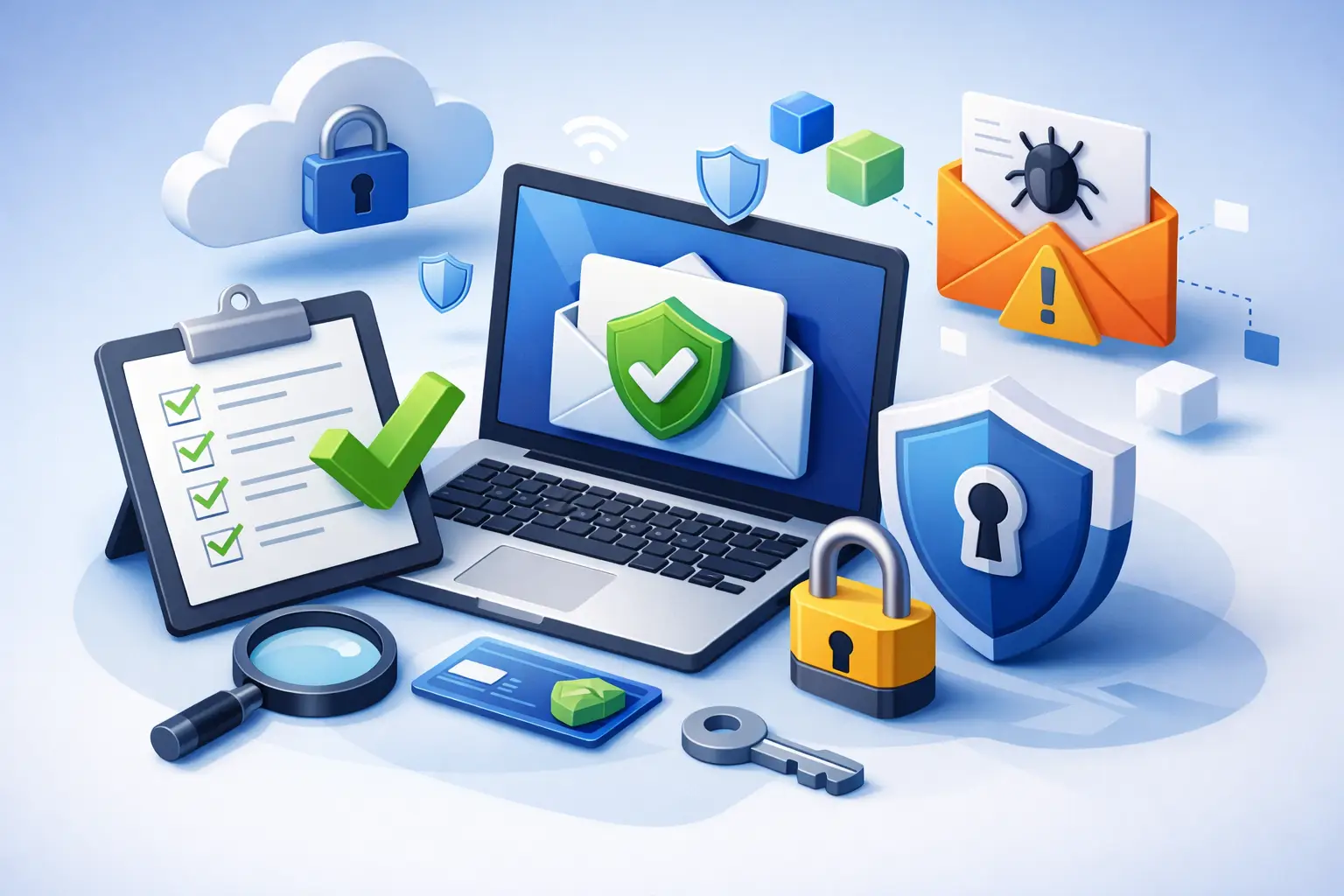
A single convincing email can send a fake invoice, redirect a customer payment, or give a criminal access to every message in your company mailbox. That is why a business email security checklist should be part of normal operations, not something pulled out after a phishing incident. For small businesses, email is often the front door to banking, vendors, payroll, customer records, and cloud applications.
The good news is that effective protection does not require a large in-house IT department. It requires a few security controls working together, clear employee expectations, and someone accountable for checking that those controls still work. Use the checklist below to identify gaps before an ordinary-looking message becomes expensive downtime.
Start With Strong Account Access Controls
Email passwords are no longer enough on their own. Passwords can be guessed, reused from another breached site, captured by phishing pages, or stolen from an infected device. Every business email account, especially administrator accounts, should use multi-factor authentication.
Multi-factor authentication requires a second proof of identity after the password, such as an authentication app prompt, a hardware security key, or a one-time code. An authentication app or security key is generally safer than text-message codes, which can be vulnerable to phone-number theft. The exact method depends on the email system and the needs of your staff, but turning on multi-factor authentication is not optional for accounts that handle business information.
Use unique passwords for every account and store them in a reputable password manager. This is more practical than asking employees to memorize long, different passwords. Set a written rule that passwords are never shared through email, text message, sticky notes, or a shared spreadsheet.
Also review who has administrator access. A front-desk employee may need an email account but should not have permission to create users, reset other passwords, change security settings, or access every mailbox. Give each person only the access needed for their job, then remove access promptly when roles change or employment ends.
Business Email Security Checklist: Secure the Email System
Your email provider includes security settings that are easy to overlook during initial setup. These settings can significantly reduce impersonation, malware, and unauthorized forwarding.
Check the following controls with your IT provider or the person managing your email service:
- Enable multi-factor authentication for all users, with no exceptions for owners or managers.
- Turn on spam, phishing, and malicious attachment filtering at the highest practical protection level.
- Block automatic forwarding of business email to personal or outside accounts unless there is a documented business reason.
- Require administrator approval before new third-party applications can connect to company email and cloud files.
- Set up SPF, DKIM, and DMARC for your business domain to help prevent criminals from sending messages that appear to come from your company.
- Review mailbox rules and forwarding rules for suspicious changes, especially rules that hide messages or forward invoices and payment requests.
SPF, DKIM, and DMARC can sound technical, but they address a common problem: spoofed email. They help receiving mail systems verify whether a message claiming to come from your domain is legitimate. Configuration must be done carefully. An incorrect setting can interfere with valid messages sent through your website, billing platform, marketing software, or point-of-sale system. Start by identifying every approved service that sends mail using your domain, then test and monitor the setup.
Train Employees to Pause Before They Click
Most email attacks rely on urgency, familiarity, or fear. A message may look like it came from a manager asking for gift cards, a vendor requesting new bank details, a shipping company reporting a missed delivery, or a cloud provider asking the recipient to sign in immediately.
Employees do not need to become cybersecurity specialists. They do need a simple habit: pause and verify when a message involves money, credentials, sensitive information, unexpected attachments, or urgent changes.
Teach staff to inspect the sender address, not only the display name. A message that says it is from a known vendor may come from an unrelated or slightly misspelled domain. Encourage them to hover over links before opening them, when their device allows it, and to avoid entering passwords after following an email link. Instead, they should open a new browser window and sign in through the company’s normal saved address or bookmark.
A good process makes reporting easy. Employees should know exactly who to contact when an email feels suspicious and should feel comfortable reporting it, even if they clicked something by mistake. Fast reporting gives your IT team time to reset credentials, block a sender, remove a harmful message from other mailboxes, and investigate whether the account was accessed.
Verify Payment and Bank Changes Outside Email
Business email compromise often targets accounts payable, payroll, and leadership. Criminals may monitor a compromised mailbox for weeks, waiting for the right invoice or vendor conversation. Then they send a message asking to update bank information or redirect a payment.
Create a firm verification rule: never approve a payment change based only on an email. Call the vendor using a phone number already on file, not a number included in the message. For larger payments or changes to direct-deposit information, require a second employee to verify the request. This small delay is far less disruptive than trying to recover funds after a fraudulent transfer.
Protect the Devices That Access Email
Email security does not stop at the inbox. A compromised laptop, outdated browser, or unpatched phone can expose saved passwords and active email sessions. Keep computers, phones, browsers, and email apps updated with current security patches. Enable automatic updates where practical, while scheduling important system changes around business hours if a critical application needs testing.
Every company computer should use reputable endpoint protection, a firewall, and a standard user account for daily work. Administrator accounts should be used only when a task requires elevated access. If an employee uses a personal phone or home computer for work email, define minimum requirements such as screen locks, current updates, and the ability to remove business data if the device is lost.
Back up important business data separately from email. Many email platforms retain deleted messages for a limited period, but that is not the same as a complete backup strategy. Files stored in email attachments, cloud drives, accounting systems, and line-of-business applications should be protected with backups that are tested regularly. A backup that cannot be restored when needed is only a false sense of security.
Review Accounts and Rules on a Schedule
Security is not a one-time setup. Staff changes, new software, vendor relationships, and new devices all create opportunities for access to drift beyond what your business intended.
At least quarterly, review active email users, administrator privileges, connected applications, shared mailboxes, email forwarding, and multi-factor authentication status. Check for former employees, unused accounts, and aliases that are no longer needed. Review sign-in activity for unfamiliar locations, repeated failed login attempts, or impossible travel alerts, such as an account appearing to sign in from Tennessee and another country within minutes.
Smaller businesses may not have someone available to manage these reviews consistently. In that case, assigning the work to a local managed IT provider can be a practical choice. TN Computer Medics helps businesses assess email settings, secure connected devices, and respond quickly when suspicious activity threatens daily operations.
Know What to Do After a Suspected Email Attack
Speed matters when a mailbox may be compromised. If an employee entered credentials on a suspicious site, clicked a malicious attachment, approved an unexpected multi-factor prompt, or notices unfamiliar sent messages, act immediately. Change the password, revoke active sessions, review mailbox rules and authorized applications, and confirm that multi-factor authentication details have not been changed.
Do not assume the issue is contained because the employee can still access email. Attackers often create hidden forwarding rules, add their own authentication method, or use the account to target coworkers and customers. Check affected devices for malware and review recent messages for fraudulent payment requests or data-sharing activity. If sensitive records may have been exposed, document what happened and get professional guidance on next steps.
The most useful email security plan is the one your team can follow on a busy Tuesday afternoon. Pick one item from this checklist to improve this week, assign an owner, and keep building from there.