
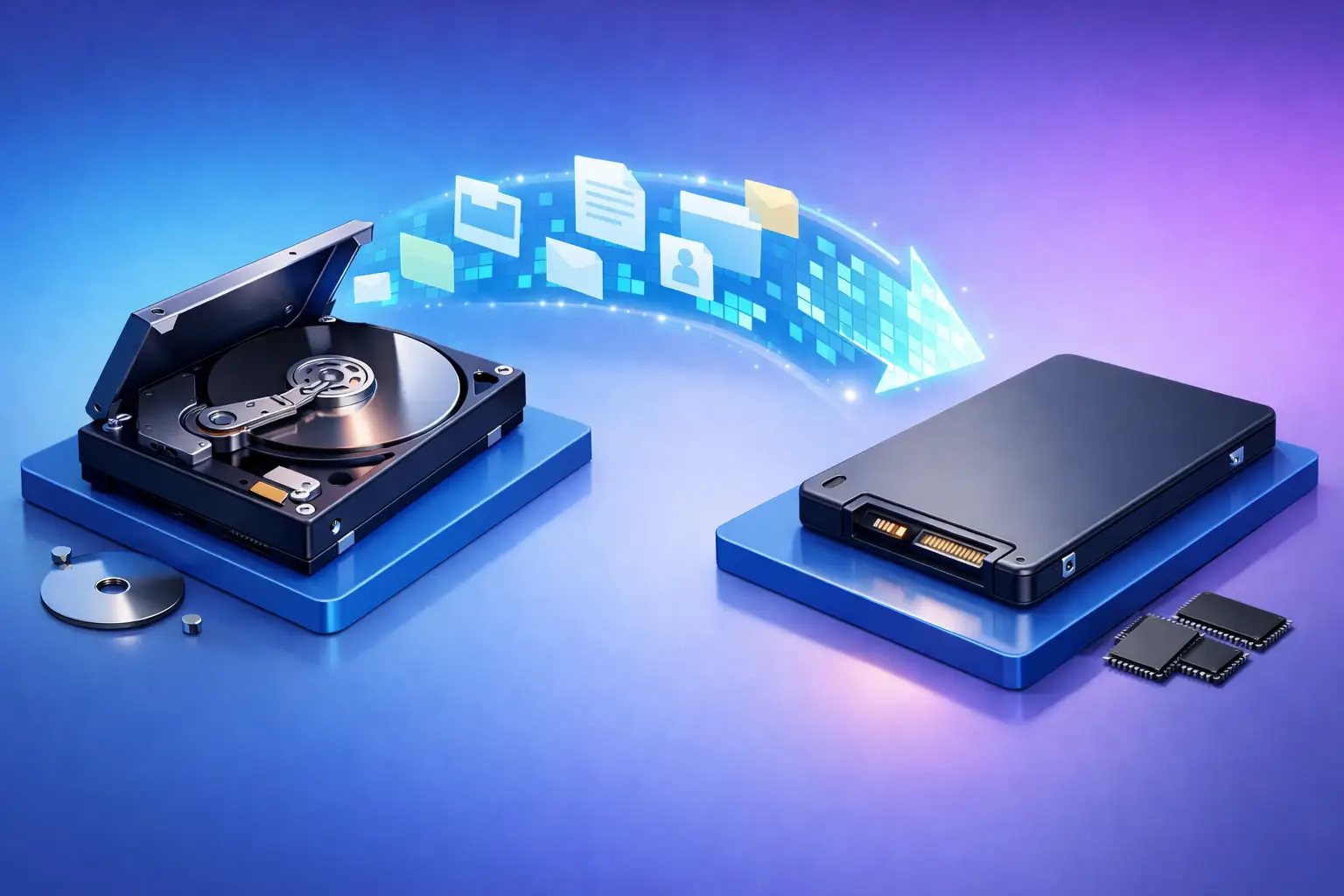
That moment when your computer takes five minutes to open, freezes during updates, or grinds every time you launch a browser usually points to one thing – the old hard drive is wearing you down. If you want to clone old drive to SSD, you are usually trying to fix speed problems without losing files, settings, or the programs you use every day. That is a smart move, but it only goes smoothly if the drive is healthy enough to copy and the new SSD is set up correctly.
For most home users and small businesses, cloning is the fastest path to a better-performing computer. You keep your Windows installation, user accounts, documents, and software instead of starting from scratch. The trade-off is that cloning also copies existing clutter, hidden file system issues, and sometimes manufacturer partitions you may not actually need. Whether cloning is the best choice depends on the condition of the old drive and how clean you want the finished system to be.
When it makes sense to clone old drive to SSD
Cloning works best when your current computer still boots, your files are intact, and the old drive is not actively failing. If the system is just slow because it still uses a mechanical hard drive, an SSD upgrade can make it feel like a different machine. Startup times drop, programs open faster, and everyday tasks become far less frustrating.
It also makes sense when reinstalling everything would take too long. That matters for remote workers, students, and small business owners who cannot afford to spend a day rebuilding a machine. If you rely on specialty software, old printer drivers, POS applications, or settings that are difficult to recreate, cloning can save a lot of downtime.
Where cloning becomes risky is when the old drive clicks, disappears intermittently, throws read errors, or causes blue screens tied to disk problems. In that case, forcing a full clone can fail halfway through or bring corruption onto the new SSD. A failing drive often calls for data recovery first, then either a selective file migration or a clean install.
What you need before you start
You need an SSD with enough capacity to hold the used space from the old drive, not just the total drive size on paper. A 1TB hard drive that only contains 250GB of actual data can usually be cloned to a 500GB SSD, but only if the cloning software can resize partitions during the process.
You also need a way to connect the SSD before installation. For a desktop, that may be a spare SATA cable or M.2 slot. For a laptop, it often means using a USB-to-SATA adapter or external enclosure first, then swapping the drives after the clone is complete.
Before anything else, back up the files you cannot afford to lose. Cloning is often safe, but drive upgrades are still hardware work. If power drops, the old drive has unreadable sectors, or the wrong disk gets overwritten, a backup is what turns a bad day into a manageable one.
Check the old drive before cloning
This is the step many people skip, and it is often the reason a clone fails.
Make sure the old drive is readable and stable. If Windows is taking forever to load files, if folders hang when opened, or if the system reports disk errors, stop and assess the drive first. Also make sure there is no active malware problem. Cloning an infected system just moves the problem to a faster drive.
Free up obvious junk if possible. Delete temporary files, empty the recycle bin, and move large files you do not need. This is not just about saving space. Less unnecessary data means a faster clone and fewer chances for problems during transfer.
If the machine has serious corruption, cloning may still be possible with advanced tools, but this is the point where professional help can save time and protect data. That is especially true for business systems where downtime costs more than the repair itself.
How to clone old drive to SSD step by step
The exact screens vary depending on the software and drive type, but the process is usually straightforward.
First, connect the new SSD to the computer while the old drive is still installed. Confirm that the system detects it. Some SSDs need to be initialized in disk management before cloning software can use them.
Next, open your cloning software and choose the old drive as the source and the SSD as the destination. This sounds obvious, but it is the most important selection in the entire process. Picking the wrong direction can wipe the original drive.
Then review the partition layout. If the SSD is smaller than the old drive, the software must resize partitions to fit. In most cases, you want the main Windows partition adjusted to use the available SSD space while keeping the required boot partitions intact.
Start the clone and let it finish without interrupting power. On some systems it takes under an hour. On older drives with lots of data, it can take much longer. If the software reports bad sectors or repeated read failures, do not keep restarting the process over and over. That usually points to a source drive problem.
Once the clone is complete, shut the computer down and install the SSD in the position the old drive used. If both drives remain connected at first boot, some systems get confused about which one to use. For the cleanest test, boot with only the SSD connected if your hardware setup allows it.
After the clone: boot checks that matter
The first boot is where people either feel relieved or immediately start troubleshooting.
If the system starts normally, confirm that Windows loads from the SSD and not from the old drive. Then check that your files, desktop, applications, and user accounts all look correct. Open a few commonly used programs and make sure they respond as expected.
If the system does not boot, the issue is often one of three things: boot order in the BIOS, missing or damaged boot partitions, or a mismatch between partition style and firmware mode. Older systems may use legacy BIOS with MBR, while newer ones usually use UEFI with GPT. If those settings do not line up, the clone may exist but still refuse to start.
This is also a good time to confirm the SSD is operating correctly. Windows should recognize it as solid-state storage, and features like TRIM should be active. Most modern systems handle this automatically, but if performance feels off, it is worth checking.
Common mistakes that cause trouble
The biggest mistake is assuming every slow computer should be cloned. If the old drive is damaged, cloning can fail or produce an unstable result. Another common problem is buying an SSD that is too small for the actual used data on the old drive.
People also run into issues when they clone every partition without understanding what is needed. Recovery partitions, old OEM utility partitions, and outdated layouts can all come along for the ride. Sometimes that is fine. Sometimes it creates unnecessary confusion or wastes valuable SSD space.
Laptop upgrades add one more variable: physical fit. A 2.5-inch SATA SSD is very different from an M.2 SATA or M.2 NVMe drive. The wrong form factor means the upgrade stops before it starts.
Clone or clean install?
If your current setup is stable and you want the fastest path back to work, clone old drive to SSD is usually the practical answer. It keeps your familiar environment and avoids reinstalling programs and settings.
If the computer has years of software buildup, startup junk, malware history, or Windows issues that never quite went away, a clean install may give better long-term results. It takes more time upfront, but you start with a cleaner system. The right choice depends on whether your priority is speed of migration or overall system freshness.
For many local customers, the answer comes down to downtime and confidence. If you are comfortable opening a laptop, selecting source and destination disks, and checking boot settings, this can be a solid do-it-yourself project. If not, having a technician handle the migration can prevent accidental data loss and get the machine turned around faster. That is especially true for office systems, family computers with irreplaceable photos, or any device already showing signs of hardware trouble.
At TN Computer Medics, this is the kind of upgrade that often gives customers the biggest day-to-day improvement for the least disruption. A properly cloned SSD can add years of useful life to a computer that still meets your needs.
A slow computer does not always need to be replaced. Sometimes it just needs a healthy SSD, a careful transfer, and a little less guesswork than the internet makes it seem.