
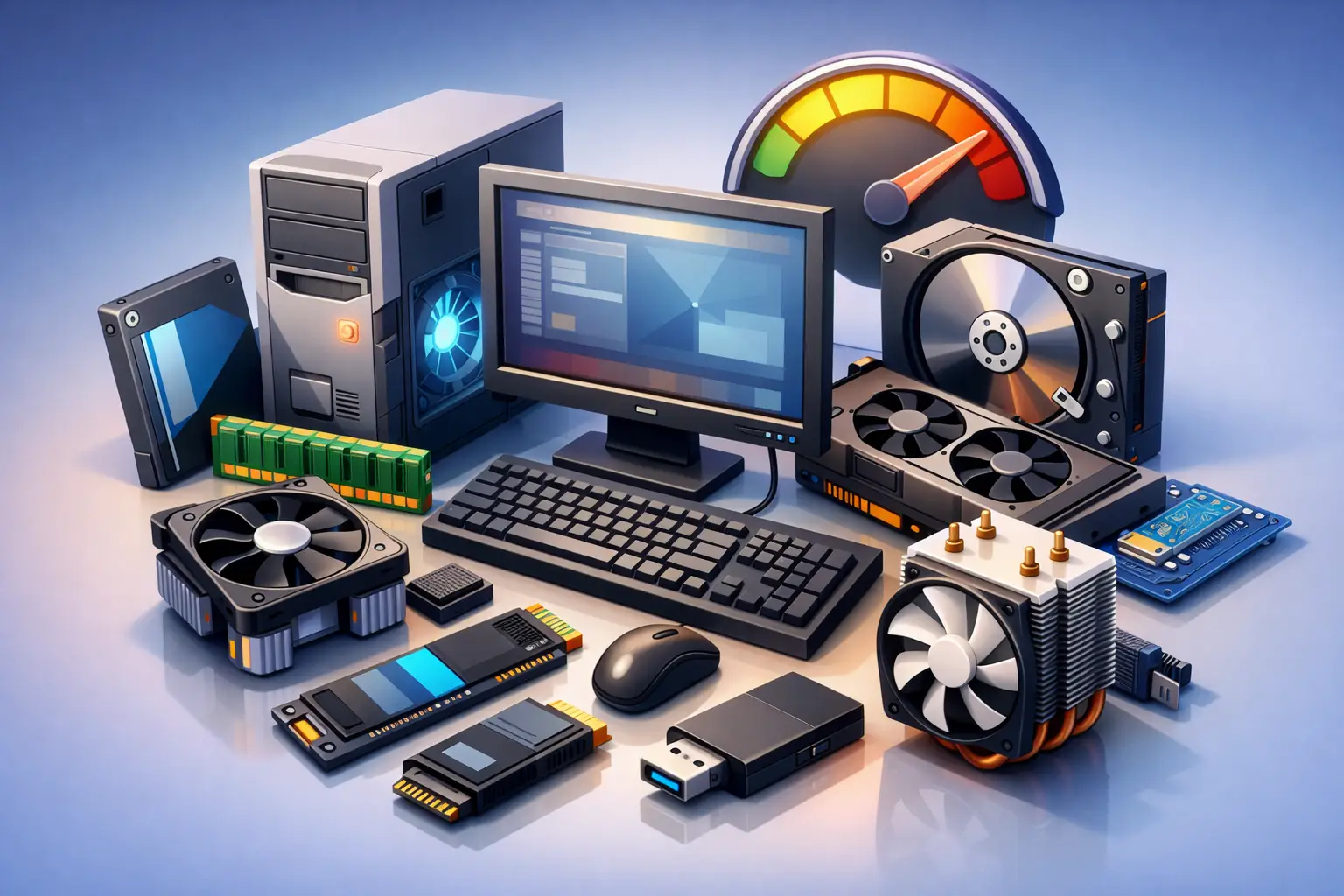
That old computer usually does not fail all at once. It starts with little delays – longer boot times, programs hanging, browsers slowing down, and updates that seem to take forever. When that happens, many people assume replacement is the only answer. In reality, some of the best upgrades for aging computers can restore speed, improve reliability, and buy you several more years of useful life at a much lower cost.
The right fix depends on what the machine is doing now, what you need it to do next, and whether the rest of the hardware is still in good condition. For a family laptop, a student desktop, or an office workstation, the smartest upgrade is not always the most expensive one. It is the one that removes the biggest bottleneck.
The best upgrades for aging computers start with storage
If a computer still uses a traditional hard disk drive, replacing it with a solid-state drive is usually the single biggest performance improvement you can make. This is especially true on systems that feel painfully slow during startup, login, file opening, or basic multitasking.
A hard drive relies on spinning disks and moving parts. An SSD does not. That means much faster read and write speeds, shorter boot times, and better responsiveness across the whole system. Even an older laptop can feel dramatically different once the operating system and applications are running from solid-state storage.
This upgrade makes sense for both home and small business users because it improves everyday tasks you notice immediately. Email opens faster. Web browsers respond better. Office programs load in seconds instead of dragging. If a machine is still mechanically sound, an SSD often gives the best return for the money.
There are trade-offs. Some very old computers may be limited by older interfaces, so the speed gain will not match what you would see on a newer device. Storage cloning also needs to be handled carefully to avoid data loss. Still, for most aging systems, this is the first upgrade worth pricing.
Add RAM when the system struggles under normal use
If your computer slows down when you have several browser tabs open, video meetings running, and a spreadsheet or school app in the background, memory may be the issue. RAM affects how much your computer can actively work on without constantly falling back to the storage drive.
A machine with too little RAM often feels fine for one task, then bogs down the moment you ask it to do two or three things at once. That is common with older systems that shipped with 4GB or 8GB of memory years ago, when software demands were lower.
Moving from 4GB to 8GB can make a major difference for light users. Moving from 8GB to 16GB is often worthwhile for remote work, home office use, schoolwork, bookkeeping, and general business productivity. For some specialized tasks, more can help, but many people do not need to go beyond 16GB on an older machine.
The catch is compatibility. Not every motherboard supports every RAM type, speed, or capacity. Laptops can be especially limited, and some newer ones have memory soldered in place. Before buying parts, it helps to verify what the system can actually accept.
A fresh battery can make an old laptop useful again
Performance gets most of the attention, but laptop usability matters too. If an older laptop only runs for 20 minutes off the charger or shuts down unexpectedly, a battery replacement may be one of the most practical upgrades available.
For students, remote workers, and anyone carrying a laptop between rooms or job sites, battery health affects whether the computer is dependable at all. A solid battery does not speed up the processor, but it restores portability and reduces the frustration of hunting for outlets or dealing with random shutdowns.
Battery replacement is also a safety issue in some cases. Swollen batteries can damage the case, trackpad, or internal components. If the laptop is bulging, overheating, or no longer sitting flat, it needs attention sooner rather than later.
This is one of those upgrades where quality matters. Cheap replacement batteries can fail early or create new problems. When possible, it is better to use a reliable, compatible part and have it installed correctly.
Cooling repairs are an overlooked upgrade for aging computers
Not every slow computer needs more power. Some just need to stop overheating.
Over time, fans collect dust, vents get blocked, and thermal paste between the processor and heatsink dries out. When temperatures climb, the system may throttle performance to protect itself. That can make a decent computer feel far weaker than it really is.
A proper internal cleaning, fan replacement, or thermal paste service can bring an older desktop or laptop back to stable operating temperatures. In practical terms, that may mean smoother performance, fewer shutdowns, and less wear on components.
This matters even more in Tennessee homes and offices where heat, dust, pets, and daily use can add up fast. A machine that runs hot for months is more likely to develop bigger hardware problems later. Cooling work is not as flashy as adding memory or swapping in an SSD, but it can be one of the smartest ways to protect the life you still have left in the system.
Upgrading Wi-Fi can solve problems that seem like computer problems
Sometimes the complaint is that the computer is slow, but the real problem is the connection. Older laptops and desktops may have outdated wireless cards that struggle with newer routers, weak signals, or crowded networks.
If video calls freeze, cloud files take too long to sync, or web pages load inconsistently, a Wi-Fi upgrade may help more than a processor upgrade ever could. That could mean installing a newer internal wireless card, using a quality USB Wi-Fi adapter, or moving a desktop to a wired Ethernet connection where possible.
For home offices and small businesses, this upgrade can be especially cost-effective. If the computer itself is capable but network performance keeps interrupting work, improving connectivity restores productivity without replacing the entire machine.
It is worth saying that networking issues can also come from the router, modem, or building layout. A proper diagnosis matters. Otherwise, people spend money inside the computer when the weak point is elsewhere.
Graphics upgrades only make sense in specific cases
People often ask whether a new graphics card will speed up an old computer. Sometimes yes, often no.
For basic web use, office work, school tasks, and email, a graphics card upgrade usually will not solve the main problem. Storage, memory, and system health matter more. But if the computer is used for light design work, multiple monitors, older games, or software that benefits from GPU acceleration, a graphics upgrade may be useful.
On desktops, this can be a good option if the power supply is adequate and the case has room. On laptops, graphics upgrades are usually not realistic because the GPU is integrated into the motherboard.
The biggest risk here is putting too much money into a platform that is already near the end of its practical life. A graphics card can cost enough that replacement starts to make more financial sense. This is where honest advice matters. The best repair decision is not always the biggest repair bill.
Operating system cleanup and drive replacement often go together
Not every improvement requires adding a major new component. Aging computers also benefit from practical support work such as removing malware, replacing a failing drive before it crashes, reinstalling the operating system, and cleaning up unnecessary startup programs.
If a computer has years of software clutter, browser extensions, outdated drivers, and security issues, even good hardware upgrades may not deliver their full benefit until the system is cleaned up properly. In many cases, an SSD upgrade paired with a clean operating system install gives better results than piling new parts onto an unstable setup.
This is especially important for small businesses and remote workers. Slow performance is frustrating, but unstable performance is expensive. Downtime, file corruption, login issues, and backup failures can cost far more than the upgrade itself.
When not to upgrade an old computer
There are times when repair is not the best value. If the motherboard is failing, the processor is severely outdated, parts are no longer reliable to source, or the machine cannot support current security and software requirements, replacement may be the smarter choice.
That is also true when a business depends on the computer for critical work. If the system is too old to run modern security tools, support current applications, or handle daily workload without risk, stretching it further can become a liability.
A trustworthy technician should be willing to say when an upgrade is worth it and when it is not. At TN Computer Medics, that practical approach matters because local customers are not looking for guesswork. They want clear options, fair pricing, and a fix that actually matches how they use their computer.
The best upgrade is the one that solves the real problem without wasting money. For many aging computers, that means starting with storage, memory, cooling, or battery health before thinking about full replacement. A good machine does not always need to be new. Sometimes it just needs the right work done at the right time.