
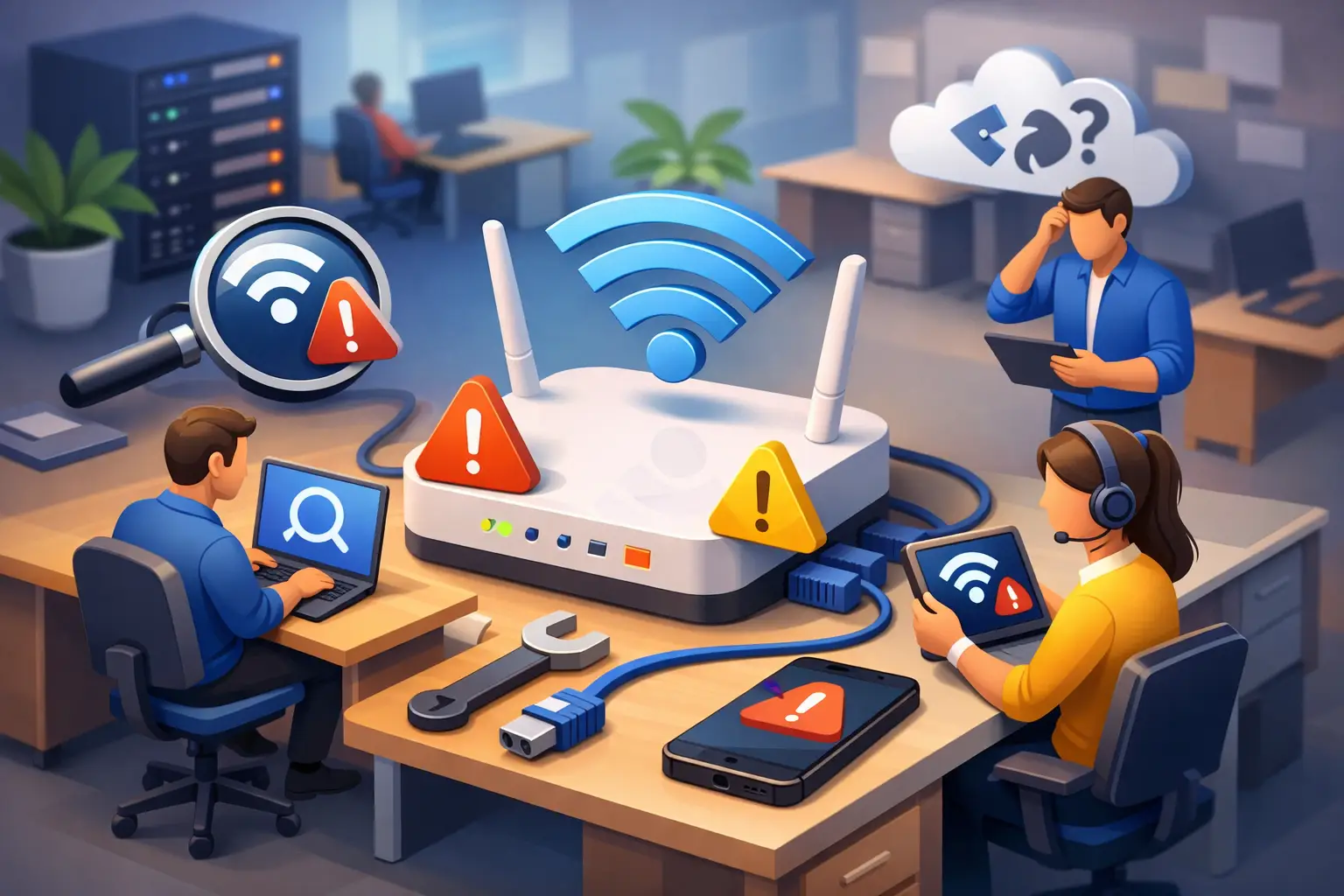
A WiFi problem can stop a small office faster than a broken printer. Cloud files will not open, card terminals lag, video calls freeze, and employees start using phone hotspots just to finish a task. Knowing how to troubleshoot office wifi helps you separate a quick local fix from a network issue that needs professional attention.
The right approach is not to restart everything at random. Start by identifying who is affected, what changed, and whether the problem is with the internet connection, the WiFi signal, a specific device, or the network equipment itself.
Start by Defining the Office WiFi Problem
Ask a few simple questions before touching the router. Is every employee offline, or only one person? Does the issue affect the whole building or one office? Is the network completely unavailable, or is it connected but painfully slow?
If every device has lost internet access, the issue may be with the internet service provider, modem, firewall, or primary router. If only one laptop cannot connect, focus on that device’s WiFi settings, saved network profile, drivers, or security software. If people can connect but performance drops in certain rooms, coverage and interference are more likely causes.
Also ask when the issue started. A problem that began immediately after adding new equipment, moving desks, changing internet plans, or updating a router has a useful clue attached to it. Those details save time and prevent unnecessary changes to a working network.
Check the Internet Connection Before Blaming WiFi
WiFi and internet service are related, but they are not the same thing. A device may show a strong WiFi signal while the office has no usable internet connection.
Look at the modem and router status lights. Exact light patterns vary by manufacturer, but a red, amber, blinking, or unlit internet indicator can point to a service outage or connection problem. If possible, connect one computer directly to the router with an Ethernet cable. If the wired device also cannot reach websites or business applications, the issue is likely upstream from WiFi.
Check for a local provider outage through the provider’s support line or account portal. In Tullahoma and nearby communities, service interruptions can be caused by storms, utility work, damaged lines, or equipment issues. Do not factory-reset network equipment simply because the internet provider is down. That can erase important settings without restoring service.
If wired internet works but wireless devices do not, move to the WiFi-specific checks below.
Restart Equipment in the Right Order
A controlled restart can clear temporary connection problems, but it works best when done in sequence. First, save any work that depends on the internet. Then power off the modem, router or firewall, and any separate wireless access points.
Wait at least 60 seconds. Turn the modem back on first and allow it to fully reconnect. Next, start the router or firewall. Finally, power on the wireless access points. This order lets each device receive the correct network connection from the equipment before it.
After the network is back online, test with more than one device in more than one location. If the issue returns shortly after a restart, do not treat the restart as a permanent fix. Repeated dropouts can indicate overheating hardware, a failing access point, an overloaded network, an internet provider issue, or a configuration problem.
Troubleshoot Office WiFi Signal and Dead Zones
A weak signal is often a placement problem, not an internet speed problem. Wireless signals lose strength through brick, concrete, metal framing, filing cabinets, appliances, and long hallways. An access point hidden in a closet or behind a large TV may provide a usable connection nearby but poor coverage where employees actually work.
Walk through the office with a laptop or phone and note where signal quality drops. Pay close attention to conference rooms, front counters, warehouses, break rooms, and offices at the far end of the building. A dead zone that affects one predictable area usually calls for better access point placement or an additional properly installed access point.
Avoid relying on inexpensive range extenders as the default answer. They can help in a small, simple space, but they often reduce available bandwidth and create unreliable handoffs as people move around the office. For a business that depends on cloud software, POS equipment, or video meetings, wired access points are usually a more dependable long-term solution.
Look for Interference and Network Congestion
Office WiFi shares radio space with many other devices. Nearby networks, Bluetooth accessories, wireless cameras, microwaves, cordless phones, and smart devices can all contribute to interference. This is especially common in offices with multiple suites or neighboring businesses.
Most modern business networks use both 2.4 GHz and 5 GHz bands. The 2.4 GHz band reaches farther but is more crowded and generally slower. The 5 GHz band often delivers better speed and less interference at shorter ranges. Newer equipment may also support 6 GHz, which can be useful in dense environments but has shorter range and requires compatible devices.
Channel selection matters as well. When nearby networks are crowded onto the same channel, performance can suffer even with a strong signal. A proper WiFi assessment can identify congested channels and determine whether automatic channel selection is working as intended. This is one reason a network can feel fine early in the morning but struggle when neighboring offices fill up.
Congestion can also come from inside your own office. Large backups, cloud sync jobs, software updates, streaming media, guest devices, and security cameras can consume bandwidth. Check whether the slowdown occurs at a certain time of day or when a particular process runs. Separating guest WiFi from business devices and setting sensible network priorities can protect the traffic that keeps your operation moving.
Check Devices, Passwords, and IP Address Problems
When only one computer has trouble, begin with the basics. Confirm that airplane mode is off, WiFi is enabled, and the employee is connecting to the correct office network. Forgetting the network and reconnecting with the current password can resolve issues caused by outdated saved credentials.
A device may also be connected to WiFi but unable to obtain a valid IP address from the router. This can happen if the router’s address pool is exhausted, its DHCP service is malfunctioning, or a device has an incorrect manual network setting. In a growing office, this becomes more common when phones, tablets, printers, cameras, thermostats, and other connected devices are added without updating network capacity.
Keep laptop WiFi drivers current, particularly after operating system updates. If the same device repeatedly disconnects while others stay online, test it on another network. That comparison helps determine whether the issue is with the laptop adapter or the office network.
Do Not Overlook Security Issues
An office WiFi problem can also be a security warning. Unknown devices, weak passwords, old router firmware, or an open guest network can allow unauthorized users onto the network. That can slow performance, expose business data, and create risks for shared files, POS systems, and connected printers.
Use a strong, unique WiFi password and modern encryption such as WPA2 or WPA3. Replace default administrator credentials on routers and access points, and keep firmware updated. Employees and guests should not share the same network when business devices handle customer information, financial records, or internal files.
For many small businesses, the best setup includes separate staff and guest networks, a properly configured firewall, and access controls for devices that need sensitive resources. The exact design depends on the office size, building layout, number of users, and the systems your team relies on each day.
When an Office WiFi Issue Needs Professional Support
Call for help when the network goes down repeatedly, affects payment systems or business phone service, shows signs of unauthorized access, or requires changes to routers, firewalls, switches, cabling, or access points. These problems can look simple from the surface but may involve several devices working together.
TN Computer Medics can evaluate the full path from your internet connection to each office device, including WiFi coverage, network hardware, security settings, cabling, and performance bottlenecks. A targeted diagnosis is usually less disruptive and more affordable than replacing equipment based on guesswork.
Keep a short record of when outages happen, which areas are affected, and what employees were doing at the time. That information gives your technician a much clearer starting point and helps turn a frustrating WiFi interruption into a lasting fix.